 Listen to selected text
Add Frateca to Chrome
Install it from the Chrome Web Store, then pin it from the puzzle-piece Extensions menu. Sign in to your Frateca account, or choose “Continue as guest” to try it first.
Select text in Chrome, right-click, and Frateca reads it aloud in a natural AI voice, highlighting each word on the page as it goes. Save whole articles to your library and finish them on your phone.
No account needed to try · No ads · Windows, Mac, Linux & Chromebook
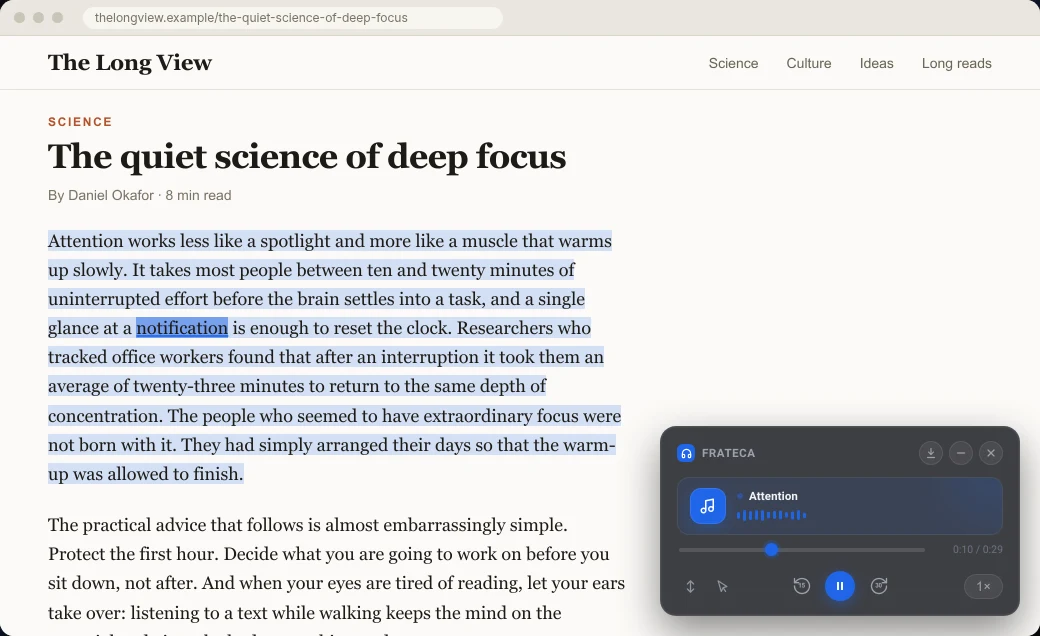
No copying and pasting, no switching tabs. Frateca works inside the page you are already reading.
Install it from the Chrome Web Store, then pin it from the puzzle-piece Extensions menu. Sign in to your Frateca account, or choose “Continue as guest” to try it first.
Highlight a paragraph, right-click and choose “Listen to selected text”. Playback starts as soon as the first part is ready, with each word lit up on the page as it is read.
Right-click anywhere and choose “Save full page to Frateca”. The page becomes audio in your library, ready in the extension, on the web and in the mobile app.
Click the Frateca icon in the toolbar to open your library. Filter to what you saved from the extension, play anything, reopen it on the original page with the highlight restored, or read it as text. The player at the bottom keeps going after you close the popup.
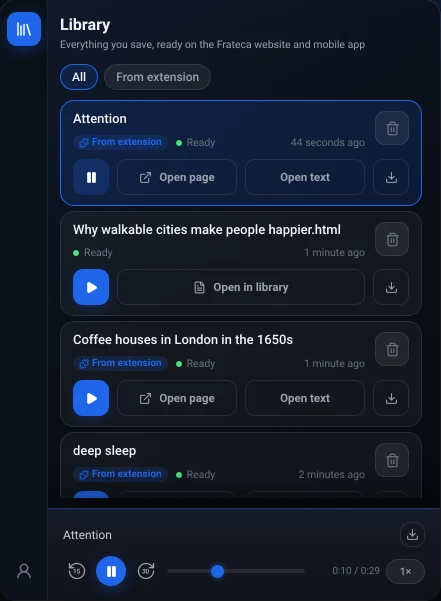
The current word lights up on the original page, so you can read along or glance back in without losing your place.
Turn on Click to read and click any word to move the audio there, which is handy for re-hearing a sentence.
The page follows the voice, so long articles keep the line being read in view.
Step through eight speeds from the player, and skip back 15 seconds or forward 30 seconds.
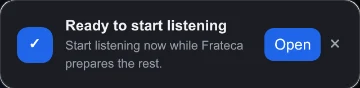
One right-click turns a whole article into audio in your Frateca library. A notice tells you when it is ready.
Reopen a saved item on its original page with the highlighting and the player restored where you left off.
Close the popup or switch tabs and the audio carries on. Your position is saved, even after a browser restart.
Everything you save also appears in the Frateca web app and the iPhone and Android apps.
Pick a US or UK English, Spanish, French, Italian or Portuguese voice in your profile.
Read a saved item as text with the current word highlighted, search inside it and copy what you need.
Try it without an account. When you want to keep your library, connect your email.
Premium members can save generated audio as an MP3 to a Frateca folder in Downloads.
One Frateca subscription covers the Chrome extension, the web app and the iOS and Android apps. Premium is $8.99 a month or $47 a year.
| In the extension | Free | Premium |
|---|---|---|
| Listen to selected text | ✓ | ✓ |
| Save full pages to your library | ✓ | ✓ |
| Word highlighting, Click to read, Auto scroll | ✓ | ✓ |
| Speeds from 0.75× to 3.5× | ✓ | ✓ |
| Library synced with web, iPhone and Android | ✓ | ✓ |
| No ads | ✓ | ✓ |
| Daily listening | Daily free allowance | Unlimited |
| Enhanced, more natural voices | — | ✓ |
| Download audio as MP3 | — | ✓ |
Guest mode works without an account; connect your email to keep your library. See full pricing.
What each one gives you before you pay anything, as published on November 6, 2026.
| Tool | Free plan | Top speed on free | Where it reads | Library on your phone | For the best voices |
|---|---|---|---|---|---|
| Frateca for Chrome | Free install, guest mode, daily free allowance | 3.5× | On the original page, word by word | Yes: web, iPhone and Android | Nothing extra: natural voices on the free plan |
| Chrome Reading mode | Built into Chrome | Adjustable | In a separate reading view | No | Nothing extra: Google voices download automatically |
| Read Aloud | Free and open source | Adjustable | The page or your selection | No | A purchase or your own cloud API key |
| Speechify | Free tier with 10 voices it calls “robotic” | 1.5× | Inline player on the page | Yes, in Speechify’s apps | Premium subscription |
| NaturalReader | Free voices unlimited; premium voices limited daily | Adjustable | The page, a side panel or a reader view | Yes, in NaturalReader’s app | A paid plan for unlimited premium voices |
Where others are stronger: Read Aloud and NaturalReader read PDFs and Google Docs in the browser, Read Aloud has keyboard shortcuts and 40+ languages, and Speechify adds AI summaries, desktop apps and a much larger voice catalogue.
Want the details? See the best text-to-speech Chrome extensions and what each free tier includes.
When you install it, Chrome warns that the extension can “read and change all your data on all websites”. That is the standard wording for any extension that works on whatever page you pick. Frateca needs it to read your selection, draw the highlighting on that page and restore the player when you come back. Here is what actually happens:
The extension is for web pages in desktop Chrome. Everything else has a Frateca route too.
How-tos, honest comparisons with other readers, and answers to the questions people ask before installing.
Yes. The extension is free to install and works on the free plan, which includes a daily listening allowance. Premium (shown as Frateca Pro inside the extension) adds unlimited listening, enhanced voices and MP3 downloads for $8.99 a month or $47 a year, and the same subscription covers the web app and the iOS and Android apps.
Playback pauses and the extension offers Premium. Your library stays where it is, the Profile screen shows how many minutes you have used and when the allowance resets, and you can carry on listening after the reset or upgrade for unlimited listening.
No. There are no ads in the extension, on the free plan or on Premium.
Install the extension, select the text you want to hear, right-click and choose “Listen to selected text”. To turn the whole page into audio, right-click anywhere on it and choose “Save full page to Frateca”. You can also open your library from the Frateca icon in the toolbar.
No. Choose “Continue as guest” to try it. To keep your library and continue on other devices, connect your email or sign in to your existing Frateca account.
Yes. The selected passage is shaded and the current word is highlighted on the original page. Turn on Auto scroll to keep it in view, or Click to read to jump the audio to any word you click.
Natural AI voices in English (US and UK accents), Spanish, French, Italian and Portuguese. Choose your voice in the extension’s profile; the extension interface follows your browser language.
Yes. Selections and pages you save with the extension go into the same Frateca library you see on the web and in the iPhone and Android apps, so you can start at your desk and finish on a walk.
Frateca is published on the Chrome Web Store by NOVIKOV STUDIO LLC, the company behind the Frateca apps. Its privacy practices are declared on the listing, it only processes a page when you choose a Frateca action, and your data is never sold or used for advertising. You can delete single items or your whole account at any time.
Chrome shows that warning for any extension that works on whatever page you choose. Frateca needs it to read the text you select, draw the word highlighting on that page and restore the player when you reopen a saved item. It only processes a page when you choose a Frateca action.
Creating audio needs an internet connection, because the voices are generated on Frateca’s servers. Audio you have already saved can be played offline in the Frateca mobile app.
Not at the moment. You start from the right-click menu, and the on-page player and the toolbar popup handle play, pause, skips and speed.
The extension is built for web pages. For PDF files, upload them in the Frateca web app; for documents, export or copy the text into the web app. Both end up in the same library.
It works in Google Chrome on Windows, macOS, Linux and ChromeOS, including Chromebooks (on school-managed devices an administrator may need to allow it). Other Chromium browsers that install Chrome Web Store extensions may work, but we test on Chrome.
Add Frateca to Chrome for free. Your library follows you to the web app, iPhone and Android.
 Add to Chrome — it’s free