

Chrome Extensions for ADHD: Tools for Reading and Focus
Text-to-speech, highlighting, site blockers and timers: Chrome tools that may help with reading and focus when you have ADHD, and how to test them.
Key takeaways
- Pick tools by the moment that goes wrong: starting, staying on the line, getting pulled away, losing track of time, or drowning in tabs. Each needs a different kind of tool.
- Text-to-speech with highlighting gives a page an external pace. Chrome's Reading mode, the free Read Aloud extension and Frateca for Chrome all offer it, in different ways.
- For distraction, a site blocker such as LeechBlock NG and an ad blocker such as uBlock Origin Lite remove the pull before it starts. A timer can live in a website instead of an extension.
- Research on text-to-speech and reading-while-listening is encouraging but small, and none of these tools treats ADHD. Test one change at a time for a week and keep what measurably helps.
You open the article you need for tomorrow’s meeting. Two paragraphs in, you notice a link, open it in a new tab “for later,” check a notification, come back, and can’t remember what the second paragraph said. You start again. Forty minutes pass and the article is still at paragraph two, while eleven new tabs have appeared above it.
If that sounds familiar, the problem usually isn’t the article. It’s that a static page asks you to supply all the pace, all the focus and all the willpower yourself, in a browser built to offer you something more interesting every few seconds. A few well-chosen Chrome tools can shift some of that load off you. A pile of badly chosen ones becomes one more thing to manage.
This guide sorts the tools by the moment that goes wrong, says what each one costs as of November 6, 2026, and is honest about where the evidence is thin. It’s a practical guide, not medical advice. The National Institute of Mental Health describes ADHD as a persistent pattern of inattention and/or hyperactivity-impulsivity that interferes with functioning. Experiences differ a lot, and no extension treats it.
Start with the moment that goes wrong
Before installing anything, notice where a reading session actually breaks down:
- Starting. The article sits there and you can’t make yourself begin.
- Staying with it. You begin, but your eyes keep moving after your attention has left.
- Getting pulled away. A feed, a notification or an ad wins.
- Time. You look up and an hour has gone, or you avoid starting because the task feels endless.
- Tabs. Everything you meant to read is open at once, and the pile itself becomes the stress.
| If the hard moment is… | Try first | Cost to start |
|---|---|---|
| Starting and staying with long text | Text-to-speech with highlighting: Frateca for Chrome, Read Aloud, Chrome Reading mode | Free |
| Losing your place on the line | Highlighting with Auto scroll (Frateca), or a line guide such as BeeLine Reader | Free tiers available |
| Getting pulled away | LeechBlock NG for sites, uBlock Origin Lite for ads, Reading mode for clutter | Free |
| Time | A timer in a website such as Pomofocus, or your phone | Free |
| Tab overload | A routine plus a place to put reading (see below) | Free |
Most people have more than one of these. Pick the one that costs you most and fix that first.
Starting and staying with it: text-to-speech with highlighting
A voice changes the task. Instead of you pushing your eyes along a still page, the text moves at a steady pace and your attention has something to follow. A highlight that marks the current word gives your eyes a place to land when they come back from wherever they went.
The research is encouraging but modest, so here it is straight. A 2023 meta-analysis by Clinton-Lisell pooled 30 studies comparing reading while listening with reading alone. The overall benefit for comprehension was small, and it showed up mainly when the pace was set for the reader rather than self-paced. That fits the “external pace” idea, but those studies weren’t about ADHD. A small qualitative study of adults with ADHD, published in the Journal of Applied Instructional Design, described participants using AI narration to keep their focus through pacing and listening plus reading together. Small qualitative studies describe experiences; they don’t prove effects. And Understood, the learning-differences nonprofit, makes a point worth keeping in mind: assistive technology alone probably won’t improve reading skills. It helps you get through the text.
Chrome’s Reading mode (built in, free)
Open More (⋮) → More tools → Reading mode, or right-click the page and choose Open in reading mode. The article appears in a clean panel without ads or sidebars. Press Play and it reads aloud, with settings for voice, speed and word or sentence highlighting. It saves nothing and doesn’t work on every site (Google lists forums, forms and login screens among the exceptions). For a single article, it’s the zero-install first try. Our Chrome read-aloud guide has the details, and if the Play button is missing or silent, see Chrome read aloud not working.
Read Aloud (free extension)
Read Aloud: A Text to Speech Voice Reader reads the page or your selection from the right-click menu or keyboard shortcuts, and it’s free and open source. Out of the box it uses your computer’s voices; its listing says nicer cloud voices may need an in-app purchase or your own API key. Good if you like keyboard shortcuts and don’t want an account.
Frateca for Chrome (free to install)
Frateca for Chrome is the one we build, so weigh this section accordingly. It was designed around the starting problem: there’s nothing to copy, open or set up once it’s installed.
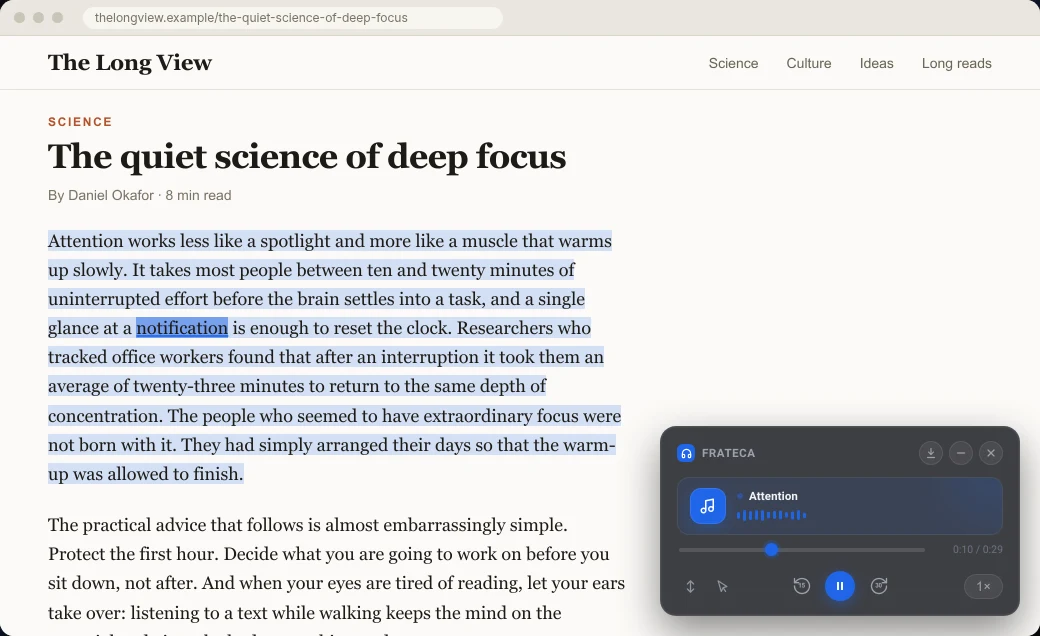
- One right-click to begin. Select a paragraph, right-click, choose Listen to selected text. Audio starts as soon as the first part is ready, so there’s no wait to lose you.
- The highlight stays on the page you’re reading. The passage is shaded and each word lights up as it’s spoken, on the original page rather than in a separate view.
- Auto scroll keeps the current line on screen. Click to read lets you click any word to move the voice there, which is the fastest way back in after drifting.
- Speed from 0.75× to 3.5×. Some people find a slightly brisk pace leaves less room for the mind to wander. Others need it slower. Treat speed as something to test.
- Save it instead of leaving it open. Right-click → Save full page to Frateca turns the article into audio in your library, which you can play later from the Frateca app on your phone, on a walk instead of at a desk.
It’s free to install, with no ads and no credit card, and you can try it as a guest. The free plan includes a daily listening allowance that resets every day; Premium removes the cap and adds MP3 downloads. It reads web pages, not PDFs or Google Docs; for PDFs, see how to make Chrome read a PDF aloud.
Losing your place on the line
If your eyes jump back to the left margin and land on the wrong line, a place-keeper helps more than willpower.
- A moving highlight with auto-scroll. In Frateca, the current word is marked and Auto scroll keeps it in view, so after looking away you find the spot in a second instead of hunting for it.
- BeeLine Reader colors each line with a gradient that flows into the next, so the eye can find where the following line starts. Its Chrome Web Store listing describes a free mode and a paid Pro plan. Some reviewers mention it doesn’t work in every context, such as certain document viewers, so try it on the sites you actually read.
There’s more on why following a highlight can help, and what the research does and doesn’t show, in text-to-speech with word highlighting.
Getting pulled away: remove the pull before it starts
Willpower works best when there’s less to resist. Three free tools take distractions off the page instead of asking you to ignore them.
LeechBlock NG is a free site blocker. Its Chrome Web Store listing calls it a simple free productivity tool for blocking time-wasting sites. You set which sites to block and when, so the news feed or the video site simply won’t load during your reading block. The point is to make the decision once, in a calm moment, instead of fifty times during the afternoon.
uBlock Origin Lite is the Manifest V3 version of uBlock Origin, from the same developer, Raymond Hill. Its listing describes a default ruleset built on lists such as EasyList and EasyPrivacy. Fewer animated ads and autoplay boxes means fewer things moving at the edge of your vision while you read. (The original uBlock Origin was built for Chrome’s older extension system, which Chrome is phasing out; Lite is the version built for the current one.)
Chrome’s Reading mode again, for clutter rather than voice: its toolbar lets you change font, size, line spacing, letter spacing and colors, inside a panel with nothing else in it.
Time: a timer doesn’t need to be an extension
Time blindness, losing track of time or avoiding a task because it feels endless, is where short, fixed blocks help some people. The Pomodoro-style pattern is simple: a short focused block, a short break, repeat.
You don’t need an extension for it. Pomofocus is a free timer that runs on a website at pomofocus.io, with customizable focus and break lengths; extra features such as yearly reports are paid. A website asks for no access to your pages, and your phone’s timer works just as well. Fewer tools with broad permissions is a good habit in itself.
A tip that pairs well with listening: set the block to the length of the audio. A 15-minute article read aloud has a built-in finish line.
Tab overload
With ADHD, keeping everything open can feel safer, because closing a tab feels like losing the thought. The tabs then become a background hum of unfinished business. We wrote a whole guide to this: too many tabs open walks through a 15-minute routine, Chrome’s Reading list and tab groups, and saving reading as audio so the tab can close without the article disappearing.
Fewer extensions, not more
It’s tempting to install six tools at once. Resist it. Each one adds settings, notifications and its own small decisions, which is the opposite of what you need. And most of these tools ask to read the pages you visit. That’s normal for blockers and readers, but every one is a publisher you’re trusting. Our explainer on what “read and change all your data on all websites” means shows how to check an extension before installing it and how to limit its site access afterwards.
A good rule: if you haven’t used an extension in two weeks, remove it.
A one-week experiment
You’ll learn more from one week of structured trying than from a month of reading reviews. Here’s a simple plan:
- Pick one real reading task you do several times a week: a newsletter, course readings, the reports at work.
- Day 1–2: your normal way. Note how long it took to start, whether you finished, and how much you remember (one sentence summary is enough).
- Day 3–4: one change. For example, text-to-speech with word highlighting at 1×. Nothing else.
- Day 5–6: adjust one variable. Speed up a step, or turn on Auto scroll, or add a site blocker for that block only.
- Day 7: compare. Did you start sooner? Finish more often? Remember more? Feel less drained? Keep what helped and drop the rest.
💡 Write the one-sentence summary straight after each session. It takes ten seconds and tells you more than your impression of whether the tool “felt good.”
A sensible free starting kit
- One listening tool: Chrome’s Reading mode for single articles, or Frateca for Chrome if you want highlighting on the original page and a library you can finish on your phone.
- One blocker, only if a particular site keeps winning: LeechBlock NG.
- A timer you already have, or a timer website.
Then judge it by the reading that got done, not by how organized the setup looks. If you’re also exploring listening more broadly, using text-to-speech for reading with ADHD covers modes, speeds and movement in more depth, and how to focus while reading has techniques that need no tools at all.
Stop reading. Start listening.
Frateca turns PDFs, articles, textbooks and web pages into natural audio you can play anywhere: on your commute, at the gym, or while you cook. Free plan included, no card required.
 Add to Chrome
iOS · Android · Web · Chrome extension · Free plan, no credit card required