

Chrome Extensions for Dyslexia: What Actually Helps
Text-to-speech with highlighting, reading views, fonts, line guides and school toolbars: which Chrome tools help dyslexic readers, and what is free.
Key takeaways
- Start from the reader's actual difficulty: hearing the text, seeing it more comfortably, keeping their place on the line, or writing. Each points to a different kind of tool.
- Text-to-speech with word highlighting is the most widely used support. Chrome's Reading mode, the free Read Aloud extension and Frateca for Chrome all offer it, in different ways.
- Dyslexia-specific fonts are a preference, not a proven fix: a small study found OpenDyslexic didn't improve reading rate or accuracy. Spacing, size and a calmer page often matter more.
- Change one thing at a time and check comprehension and effort, not just whether the reader likes it. A tool is working when the reading gets done with less strain.
Picture a Tuesday night. The homework is a 2,000-word article on the class website, and Maya, a fourteen-year-old with dyslexia, has read the first paragraph three times. She knows the answers to the questions at the bottom are probably in there somewhere. Getting to them is the problem, because every line costs effort and by the third paragraph there’s nothing left for the actual ideas.
Chrome extensions won’t change how Maya decodes words. What the right ones can do is take some of the load off: read the text to her while she follows along, make the page calmer to look at, help her eyes find the next line. The trouble is that the Chrome Web Store is crowded with tools that claim to help with dyslexia, and they do very different jobs. This guide sorts them by what the reader is struggling with, says what each one costs as of November 6, 2026, and is honest about where the evidence is thin.
Start with the difficulty, not the extension
Before installing anything, it helps to name the problem. Ask the reader, or watch for a few minutes:
- Decoding takes so much effort that meaning gets lost. Hearing the text read aloud is the usual support.
- The page itself is tiring. Cramped lines, small type, glare, ads and sidebars all add load. A cleaner reading view and adjustable spacing can help.
- Losing your place. Skipping lines, re-reading the same line, or getting lost when the eyes jump back to the left margin. A moving highlight or a line guide can help.
- Writing, not reading. Spelling, word finding and proofreading call for different tools, like dictation, word prediction and having your own writing read back.
Most readers have more than one of these, but one usually dominates. Start there.
| If the main difficulty is… | Try first | Cost to start |
|---|---|---|
| Decoding effort | Text-to-speech with word highlighting: Chrome Reading mode, Read Aloud, Frateca for Chrome | Free |
| A tiring page | Chrome Reading mode’s font, size, line height and letter spacing; Helperbird | Free (Helperbird has a paid Pro tier) |
| Losing your place on the line | A moving highlight with Auto scroll (Frateca), a line guide such as BeeLine Reader, or a reading ruler | Free tiers available |
| Writing and proofreading | Read&Write for Google Chrome (dictation, word prediction on Premium); text-to-speech to hear your own draft | Free trial; often provided by schools |
What the evidence says, in brief
The International Dyslexia Association describes assistive technology as a way to give students access to grade-level content while their reading skills develop, and it stresses matching tools to the individual student and checking whether they work. The U.S. National Institute of Child Health and Human Development lists tools like audiobooks alongside, not instead of, explicit reading instruction.
On text-to-speech specifically, research results are encouraging for some readers and mixed overall. We cover how to set it up in text-to-speech for dyslexia. What the research says about the highlight itself is in text-to-speech with word highlighting.
Fonts are where the marketing runs ahead of the research. A study published in Annals of Dyslexia compared OpenDyslexic with Arial and Times New Roman for students with dyslexia and found no improvement in reading rate or accuracy, for individual students or the group. The sample was small, so it isn’t the last word, but it’s a good reason to treat special fonts as a matter of comfort rather than a fix. The British Dyslexia Association’s style guide puts more weight on plain things: sans-serif type at a comfortable size, avoiding italics and underlining, left-aligned text, and dark text on a light background that isn’t pure white.
Tools that read the page aloud
This is the category most people mean when they search for a dyslexia extension, and the one with the most going for it. The reader follows the words while a voice carries the pace. That’s sometimes called bimodal reading. The voice does most of the work; the highlighting helps the reader see where it is and find their place again after looking away.
Chrome’s Reading mode (built in, free)
Every recent version of Chrome on a computer has it. Open More (⋮) → More tools → Reading mode, and the article appears in a clean side panel. Press Play and it’s read aloud, with options for voice, speed and highlighting by word or sentence. Nothing to install, nothing to sign up for.
The trade-offs: it reads in a separate panel rather than on the page itself, it doesn’t work on every site (Google lists forums, forms and login screens among the exceptions), and it doesn’t keep a list or remember where you stopped. For a one-off article it’s the obvious first try. Our guide to Chrome’s read aloud has the full steps and fixes for when the Play button is missing.
Read Aloud (free, open source)
Read Aloud: A Text to Speech Voice Reader reads the whole page or just your selection, from the toolbar, the right-click menu or keyboard shortcuts. It’s free and open source. Out of the box it uses the voices built into your computer, which can sound flat; its listing says nicer cloud voices may need an in-app purchase or your own API key. It’s a solid, no-account choice, especially on a family computer where nobody wants another login.
Frateca for Chrome (free to install)
Frateca for Chrome is the one we build, so weigh this paragraph accordingly. It’s designed around reading on the page you’re already on:
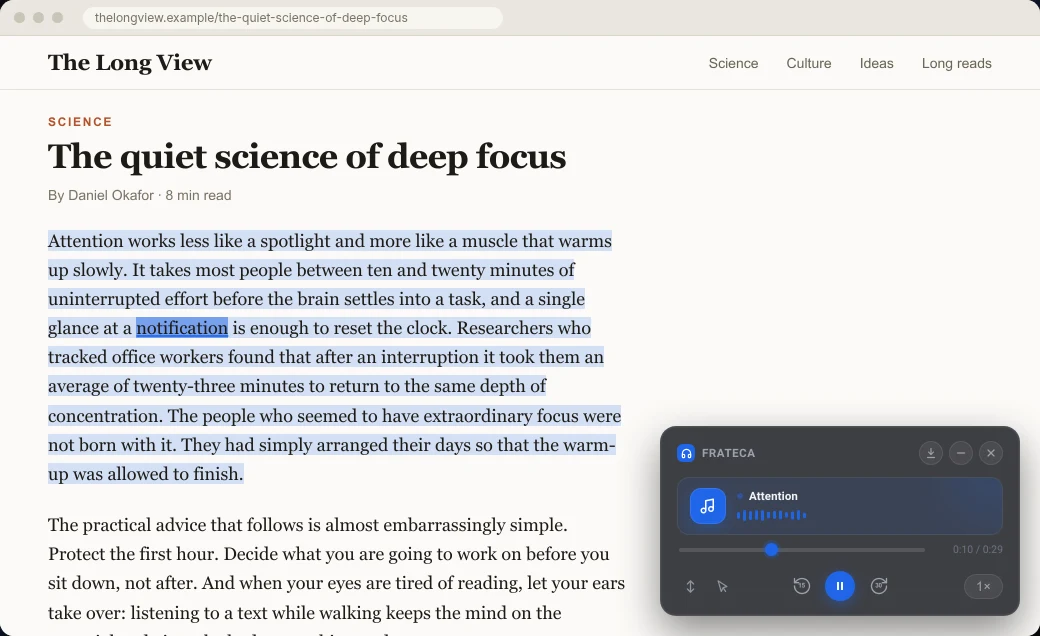
- Select a passage, right-click and choose Listen to selected text. A natural voice starts within seconds, and each word is highlighted on the original page as it’s read, so the reader’s eyes stay on the text they were already looking at.
- Turn on Auto scroll and the page follows the voice, which helps with losing your place. Turn on Click to read and clicking any word moves the audio there, handy for re-hearing a sentence that didn’t land.
- Speed runs from 0.75× to 3.5×. Many readers do better starting a little slower than feels necessary and speeding up once comprehension is comfortable.
- Voices are available in English (US and UK accents), Spanish, French, Italian and Portuguese.
- Anything you listen to or save with Save full page to Frateca goes into a library you can open in the Frateca app on a phone, which suits students who’d rather finish a long reading on the bus.
It’s free to install, with no ads and no credit card, and you can try it as a guest without making an account. The free plan includes a daily listening allowance; Premium removes the cap and adds MP3 downloads. It reads web pages, not PDFs or Google Docs, so for a PDF handout you’d upload the file in the Frateca web app instead. How to make Chrome read a PDF aloud covers the other options.
Tools that make the page easier to look at
Chrome’s Reading mode, again
Reading mode isn’t only a voice. On a computer, its toolbar has controls for font, font size, color theme, line height and letter spacing, and those settings apply only inside Reading mode, so they won’t break other sites. That covers several of the British Dyslexia Association’s suggestions without installing anything. If the background feels glaring, try a non-white color theme.
For pages that don’t open in Reading mode, Chrome’s general settings let you raise the default font size (Settings → Appearance → Font size, with more choices under Customize fonts).
Helperbird
Helperbird is an all-in-one accessibility extension. Its help center describes a free tier with dyslexia-friendly fonts and spacing, color overlays and a reading guide, plus a paid Pro tier that adds things like more natural text-to-speech voices and OCR. It suits readers who want many adjustments in one place. The flip side of “all-in-one” is a busier menu, so it’s worth setting it up together with a younger reader rather than handing it over.
OpenDyslexic for Chrome
This free, open-source extension swaps the fonts on web pages for OpenDyslexic, a typeface with heavier letter bottoms. Some people like how it feels, and that’s a fair reason to use it. Given the research above, though, judge it by whether reading gets easier, not by whether it looks different. Expect the odd site where layouts break when every font is replaced.
Tools that help you keep your place
Losing the line is one of the most common complaints, and it’s easy to overlook because it looks like a reading problem rather than a tracking one.
- A moving highlight. In any text-to-speech tool that highlights words, the highlight is a place-keeper. With Frateca, Auto scroll keeps the highlighted line in view, so the reader doesn’t have to hunt for it after glancing away.
- BeeLine Reader colors each line with a gradient that runs into the next, so the eye can find the start of the following line. Its Chrome Web Store listing describes a free mode and a paid Pro plan. Some reviewers mention it no longer works in every context, such as certain document viewers, so try it on the sites you actually use.
- Reading rulers and line focus, such as those in Helperbird, dim everything except a band around the current line.
The school option: Read&Write for Google Chrome
Read&Write is the long-running literacy toolbar used in many schools, from Texthelp (its product pages now carry the Everway name). It’s broader than anything above: text-to-speech, dictation, word prediction, a picture dictionary, highlighters, screen masking and more.
According to Texthelp’s support pages, installing it gives all features free for 30 days. After the trial, text-to-speech and translation for Google Docs and the web stay free, and the rest needs a Premium subscription. Everway also offers Premium free to K-12 teachers. Many schools buy licenses for students, so check before paying.
Pick it if the school provides it, or if writing support matters as much as reading. Look elsewhere if the main need is simply hearing web pages in a natural voice: that’s a smaller job, and a simpler tool does it with fewer menus. Frateca, in particular, is a listening tool. It has no dictation, word prediction or study toolbar, and it doesn’t try to. For a wider look at study tools, see the best Chrome extensions for students.
On a school Chromebook? Ask first
School-managed Chromebooks often block extension installs, and some only allow a list approved by the district. If the Add to Chrome button is grayed out or nothing happens, that’s why, and it’s a conversation for the teacher or the school’s IT team, not a problem to work around. Two things are usually available without installing anything: Chrome’s Reading mode and ChromeOS Select-to-speak. Our Chromebook read-aloud guide explains both, and includes the steps an administrator needs to allow an extension.
How to test a setup without guessing
Installing six extensions at once is the fastest way to learn nothing. Most of them ask for access to the pages you visit, they can clash with each other, and you won’t know which change helped. A better week looks like this:
- Pick one real reading task the person does often, like the weekly article for history class.
- Change one thing. For example, turn on text-to-speech with highlighting at 1×, nothing else.
- Check two things after each session: could they tell you what it was about, and how tired do they feel? A slider from “easy” to “exhausting” is plenty.
- Adjust one variable at a time: a bit slower, a different voice, Auto scroll on or off, a different background color.
- Keep what helps, drop what doesn’t. Preference counts, but so does whether the reading got done.
💡 If you’re helping a child, let them choose the voice. A voice they find annoying will be switched off by Thursday, however good it is on paper.
A sensible free starting kit
For most readers, you can cover the main needs without paying anything:
- Chrome’s Reading mode for a calmer page with adjustable font, size and spacing.
- One text-to-speech tool with word highlighting: Reading mode’s own Play button for single articles, or an extension such as Frateca for Chrome if you want highlighting on the original page and a library that continues on a phone.
- A line guide only if losing the line is a real problem.
Then give it two weeks and look at the homework, not the settings. If Maya gets to the questions at the bottom with energy left to answer them, the setup is doing its job. If you’re also supporting a reader with attention difficulties, text-to-speech for ADHD and Chrome extensions for ADHD cover the overlap, and our dyslexia page explains how Frateca fits into a wider routine.
Stop reading. Start listening.
Frateca turns PDFs, articles, textbooks and web pages into natural audio you can play anywhere: on your commute, at the gym, or while you cook. Free plan included, no card required.
 Add to Chrome
iOS · Android · Web · Chrome extension · Free plan, no credit card required