

How to Make a Chromebook Read Aloud: Select-to-Speak & More
Turn on Select-to-speak, use Search+S, Chrome's Reading mode and ChromeVox, and add natural voices with word highlighting for studying on a Chromebook.
Key takeaways
- Select-to-speak is the Chromebook feature you want: Settings → Accessibility → Text-to-Speech → Select-to-speak.
- Highlight text and press Search + S, or hold Search and click a line. Press Ctrl to stop. Each word is highlighted as it's spoken.
- For a whole article, open Chrome's Reading mode (More → More tools → Reading mode) and press Play. ChromeVox is a full screen reader for blind users, not a casual reading tool.
- For long assigned readings, the free Frateca extension adds natural voices, word-by-word highlighting on the page, speeds up to 3.5× and a library you can finish on your phone. School-managed Chromebooks may need IT to allow it.
If your school handed you a Chromebook, it already knows how to read aloud. Google built in three tools with confusing, overlapping names. Only one of them is the quick “read this to me” button most students are looking for. Here’s how to turn each one on, which to use for homework, and how to get natural voices and a saved reading list when the built-in tools aren’t enough.
Which tool does what
| Tool | What it’s for | How you start it |
|---|---|---|
| Select-to-speak | Reading any text you point at, anywhere on screen | Highlight text → Search + S |
| Reading mode + Read aloud | Reading a whole web article in Chrome | More (⋮) → More tools → Reading mode → Play |
| ChromeVox | A complete screen reader for blind and low-vision users | Ctrl + Alt + Z |
| Frateca extension | Natural voices, word highlighting on the page, and a library you can finish on your phone | Select text → right-click → Listen to selected text |
For short bits, use Select-to-speak. For long readings, use Reading mode or an extension. Leave ChromeVox alone unless you need a screen reader (more on why below). If you’re setting up a Chromebook for a whole term, our list of the best Chrome extensions for students covers citations, focus and dictionaries too.
Turn on Select-to-speak
- Select the time at the bottom right of the screen (or press Alt + Shift + S).
- Open Settings (the gear) → Accessibility.
- Under Text-to-Speech, turn on Select-to-speak.
A Select-to-speak button now appears in the shelf near the clock. You don’t have to restart.
Three ways to make it read
Pick whichever feels natural:
- Highlight and press Search + S. Select a sentence or paragraph with the trackpad, then press Search + S.
- Hold Search and click. Press and hold the Search key, then click a line of text, or drag across an area of the screen to read everything inside it.
- Use the shelf button. Select the Select-to-speak icon near the clock, then click a line or drag over the part you want. This is the easiest method in tablet mode.
To stop, press Ctrl or Search, or select Stop. On newer Chromebook keyboards the Search key may be labeled as the Launcher or Everything key. It works the same way. If Search + S does nothing at all, Chrome read aloud not working walks through the usual causes.
💡 Select-to-speak reads anything on the screen, not just web pages. That includes a PDF, a Google Classroom post or a worksheet, as long as the text is visible.
Make it easier to follow (and nicer to listen to)
Open Settings → Accessibility → Text-to-Speech → Select-to-speak and look at the options:
- Word highlighting. Each word is highlighted as it’s spoken, and you can change the highlight color. Keep this on. Seeing and hearing the words together is called bimodal reading, and some readers find it easier to stay with the text. Our look at text-to-speech with word highlighting covers what the research does and doesn’t show.
- Shade the background dims everything except the text being read, which helps if your eyes wander.
- Navigation controls give you on-screen pause/play, speed and skip-line buttons while it reads.
- Voice. Choose a different voice and speed here. Google also offers enhanced natural voices, which sound much more human. They work by sending the text to Google’s servers to generate speech, and a school administrator can switch them off for managed devices.
One catch from Google’s help page: changing the voice or language here changes it for the Chromebook’s other speech features too, including the screen reader.
Reading mode: hear a whole article
Select-to-speak is great for a paragraph and tedious for a ten-page reading. For a full web article, use Chrome’s built-in reader:
- Open the article in Chrome.
- Select More (⋮) → More tools → Reading mode. A side panel opens with a clean copy of the text.
- Press Play to start Read aloud. Use the controls to pause, skip sentences, change speed and pick a voice.
Reading mode reads its own cleaned-up copy, so captions or tables the page hides from it won’t be read. It also starts from scratch next time, with no saved place. The full desktop walk-through, including the Windows and Mac versions, is in how to make Chrome read aloud.
ChromeVox: powerful, but not for homework
ChromeVox (on and off with Ctrl + Alt + Z) is ChromeOS’s full screen reader. It’s built for blind and low-vision users: it announces every button, link and menu as you move, and it changes how navigation works. If you need a screen reader, it’s excellent, and Google’s help pages cover its commands in depth.
If you just want to hear an article, ChromeVox will feel like the computer is narrating everything except what you asked for. Use Select-to-speak instead, and if you turn ChromeVox on by accident, press Ctrl + Alt + Z again.
Natural voices and a reading list: the Frateca extension
The built-in tools are free and good enough for a quick listen. Where they fall short for studying is everything around the reading: none of them saves your place, keeps a list of assigned readings, or lets you finish a chapter on your phone on the bus. Chrome on a Chromebook is full desktop Chrome, so extensions work, and the Frateca extension was built for exactly that gap.
- Open the Chrome Web Store listing and click Add to Chrome.
- Click the Frateca icon in the toolbar (pin it from the puzzle-piece Extensions menu), accept the privacy notice, and sign in or choose Continue as guest.
- Select a passage, right-click (two-finger tap on the trackpad) and choose Listen to selected text. It starts playing as soon as the first part is ready.
- For a whole article, right-click anywhere on the page and choose Save full page to Frateca.
What that gets a student that the built-in tools don’t:
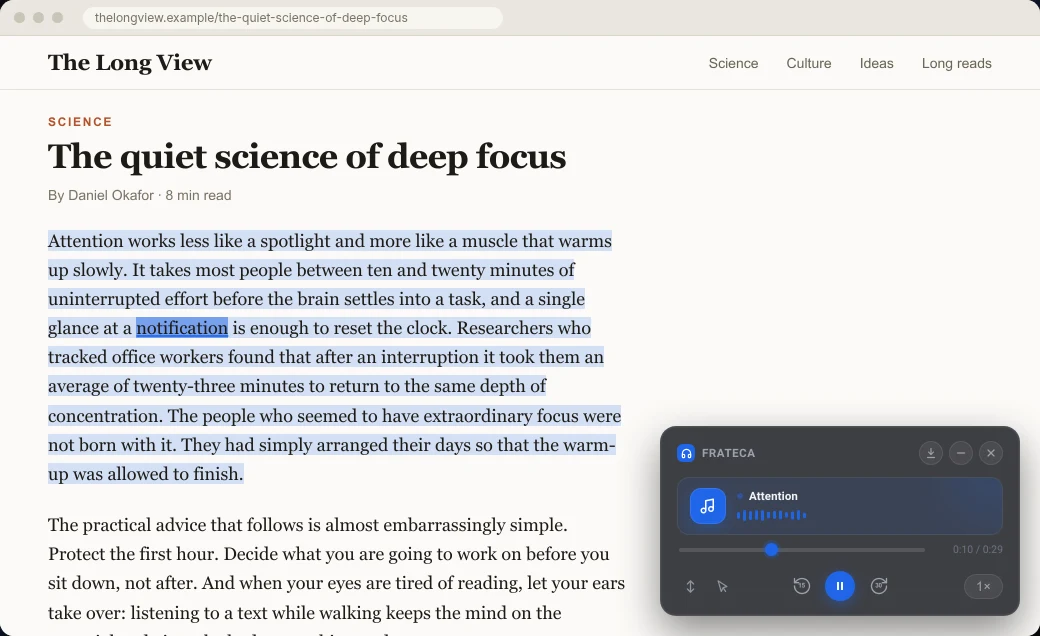
- Highlighting where you’re already reading. The passage is shaded and the current word lights up on the original page, not in a separate panel, so you can follow along in the text your teacher assigned.
- Speed that grows with you. Start at 1×, then work up through 1.25×, 1.5×, 2× and as far as 3.5× for review passes. (There’s also 0.75× for dense material.) Our guide to listening at 2× speed explains how to build up.
- Click to read. Missed a sentence? Click any word and the audio jumps there. Back 15 seconds and forward 30 seconds buttons are on the player too, and Auto scroll keeps the current line in view.
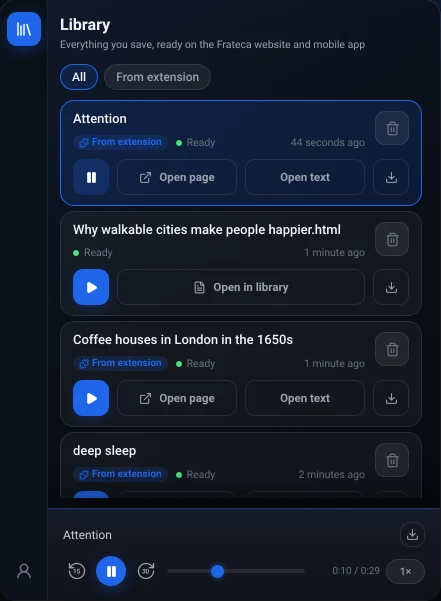
- A library that remembers. Everything you play or save appears in the toolbar popup. Open page reopens the original article with the highlighting restored, and your position is saved even if you close the browser.
- Finish on your phone. The library is shared with the Frateca web app and the iPhone and Android apps, so a reading you saved in class can be finished on the walk home.
- Language classes. Natural voices are available in English (US and UK accents), Spanish, French, Italian and Portuguese. Hearing a passage read by a native-sounding voice while you follow the words is a good pronunciation drill. See text-to-speech for language learning, or, if English is the language you’re learning, reading English websites out loud.
It’s free to install and you can try it as a guest. Connect an email to keep your library. The free plan has a daily listening allowance, so upgrade only if you want unlimited listening, enhanced voices or audio downloads. For assigned PDFs, upload the file to the Frateca web app rather than opening it in Chrome’s PDF viewer, which the Frateca extension doesn’t read. Every feature is listed on the Frateca for Chrome page, and there’s a step-by-step extension guide.
On a school Chromebook? Read this first
If your Chromebook was issued by your school, it’s almost certainly managed. The school’s IT team decides which extensions you can install, and sometimes which accessibility options are available. If the Chrome Web Store says the extension is blocked, or Add to Chrome is grayed out, that’s the school’s policy, not a bug. Ask your teacher or IT department to approve it. Students with a reading accommodation can also ask whoever coordinates their support plan.
For IT administrators: in the Google Admin console, go to Devices → Chrome → Apps & extensions → Users & browsers, pick the organizational unit, choose Add → add a Chrome app or extension by ID, and enter ejogcljfmcdafljelcopdgmgppoladci. Then set the policy to Allow install (or Force install for a class that needs it). The extension sends only the text or page a student chooses to Frateca’s servers, with the page address and title, to generate audio. It doesn’t collect browsing in the background, and the data isn’t sold or used for advertising. Schools with strict student-data rules should review our privacy policy first.
A note for teachers and parents
Text-to-speech isn’t a shortcut around reading. It’s another way into the same text. For a student with dyslexia, ADHD or simple reading fatigue, hearing a chapter while following the highlighted words may make a long assignment easier to finish. Some strong readers use it to review faster, too. If attention is the struggle, our guide to Chrome extensions for ADHD covers focus tools alongside read-aloud. We cover the classroom side in text-to-speech for teachers, practical setup in text-to-speech for dyslexia, and the common worry in is using text-to-speech cheating?
The one rule worth agreeing on early: tests and graded assessments follow the school’s accommodation policy, so check before using any read-aloud tool during one.
Two-minute setup checklist
- Settings → Accessibility → Text-to-Speech → Select-to-speak → on.
- In the Select-to-speak settings, keep word highlighting on and try a natural voice.
- Test it: highlight a paragraph and press Search + S. Press Ctrl to stop.
- For full articles, try More → More tools → Reading mode → Play.
- For long readings you want to finish later, add Frateca to Chrome, or ask your school to approve it.
Then put on headphones and let the Chromebook do the reading. For more study workflows, see text-to-speech for students and how to study by listening.
Stop reading. Start listening.
Frateca turns PDFs, articles, textbooks and web pages into natural audio you can play anywhere: on your commute, at the gym, or while you cook. Free plan included, no card required.
 Add to Chrome
iOS · Android · Web · Chrome extension · Free plan, no credit card required