

Best Chrome Extensions for Students Who Read a Lot
Eight Chrome extensions and one built-in feature for students who read, research and write online: what each does, what it costs and who makes it.
Key takeaways
- Pick extensions by job: listening, reading comfort, citations, vocabulary, writing and focus. One good tool per job beats five overlapping ones.
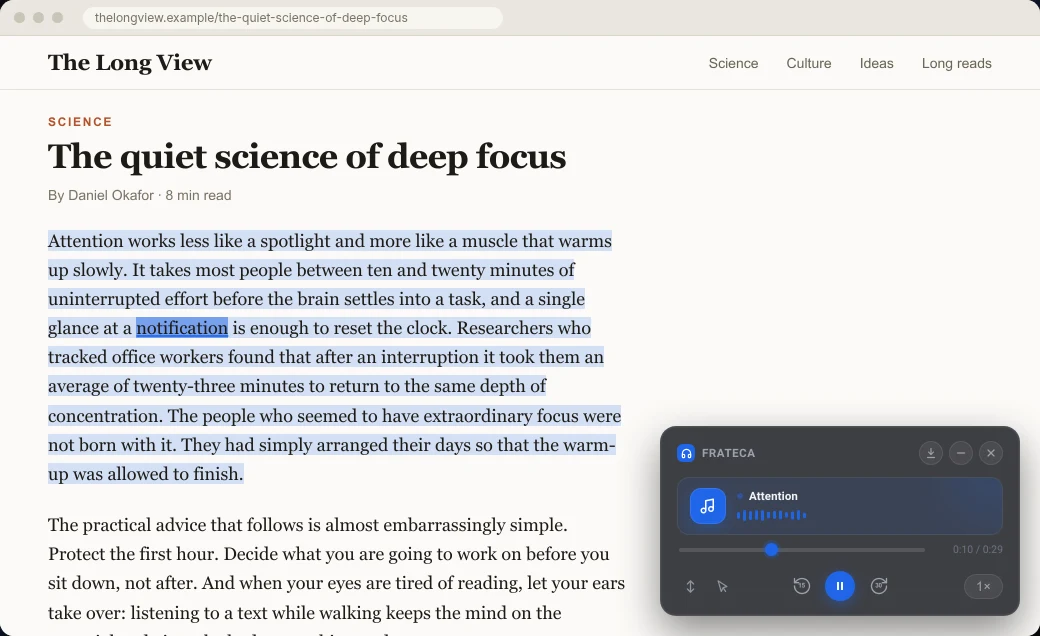
- For listening, Frateca for Chrome reads selected text in a natural voice with each word highlighted on the page, and Read Aloud is a free, open-source option with many voice sources.
- Zotero Connector, Google Dictionary, Dark Reader and LeechBlock NG are free and do one thing well. Grammarly has a free tier; LanguageTool's browser extension is now Premium-only.
- Every extension that can read all websites is something to trust. Keep the list short and remove what you stop using.
- School-managed Chromebooks often block installs, so ask IT before you plan your semester around an extension.
It’s week three. You have two chapters for psychology, a 30-page case for business law, four journal articles for a literature review and a discussion post due at midnight. Most of it lives in a browser tab. The right handful of Chrome extensions won’t do the reading for you, but they can make each hour of it count for more: hear a chapter while you walk, save a source in one click instead of rebuilding the citation in April, stop opening YouTube “for a second”.
This list is for students whose problem is volume of reading, not lack of apps. We picked one or two tools per job and checked every listing on November 6, 2026. We make one of them, Frateca for Chrome, and say so where it appears.
The short list
| Tool | Job | Free? | Made by |
|---|---|---|---|
| Frateca for Chrome | Listen to readings, highlighted on the page | Free to install; free plan with a daily allowance | Frateca |
| Read Aloud | Listen with your computer’s voices | Free, open source | LSD Software |
| Chrome Reading mode | Clean reading view, built into Chrome | Free, no install | |
| Dark Reader | Dark mode for any website | Free, open source | Dark Reader Ltd |
| Zotero Connector | Save sources and citations in one click | Free | Corporation for Digital Scholarship |
| Google Dictionary | Double-click a word for its definition | Free | |
| Grammarly | Grammar and spelling as you write | Free tier; paid plans | Grammarly |
| LeechBlock NG | Block distracting sites on a schedule | Free, open source | Independent developer |
| Read&Write | School literacy toolbar | 30-day trial; some tools stay free | Texthelp (Everway) |
How we picked
We kept tools that a student can install today with a clear publisher behind them, a free option, and a single job they do well. We left out anything we couldn’t verify on an official page, and anything that duplicates a better tool on the list. Eight are extensions; Chrome’s Reading mode is built in, and it earns its place because it’s the first thing to try for a cluttered page.
Listening: get through readings away from the desk
Listening is the biggest time win on this list, because it turns walks, commutes and chores into reading time. It also helps at the desk. Hearing a dense paragraph while you follow the words can keep you on the line when your attention slips.
Frateca for Chrome (we make this one)
Frateca for Chrome adds two items to Chrome’s right-click menu. Select a passage and choose Listen to selected text, and a natural AI voice starts reading within seconds while each word is highlighted on the original page. Choose Save full page to Frateca and the whole page becomes audio in your library, which you can play later in the Frateca app on your phone.
For studying, three details matter:
- Speed from 0.75× to 3.5×. Slow down for a dense methods section, speed up for a review chapter you mostly know.
- Click to read. Click any word and the audio jumps there, which makes re-hearing a definition quick.
- One library. A reading you save on your laptop is waiting in the Frateca app on your phone for the bus home.
It’s free to install, with no credit card and no ads, and you can try it as a guest. The free plan includes a daily listening allowance; Premium removes the cap and adds MP3 downloads. Voices cover English (US and UK accents), Spanish, French, Italian and Portuguese. It reads web pages, not PDFs or Google Docs, so upload PDF readings in the Frateca web app instead. How to make Chrome read a PDF aloud compares the other routes.
Read Aloud
Read Aloud: A Text to Speech Voice Reader is the long-standing free option. It reads the whole page or your selection, starts from the right-click menu or keyboard shortcuts, and its listing names PDFs, Google Docs and Kindle among the formats it handles, in more than 40 languages. It uses the voices built into your computer, which can sound flat; its nicer cloud voices may need an in-app purchase or your own API key. It’s free, open source and a good fit if your readings are mostly PDFs and Docs.
For a deeper comparison of readers, see the best text-to-speech Chrome extensions, and for study techniques built around listening, how to study by listening.
Reading comfort: make long pages easier on the eyes
Chrome’s Reading mode (built in)
Before installing anything for a cluttered article, try Chrome’s own Reading mode: right-click the page and choose Open in reading mode. Google’s help page describes a clean view with adjustable font, text size, line spacing and colors, plus a Play button that reads the article aloud. It won’t work on every page, and it saves nothing, but it costs nothing either. Our guide to Chrome’s read aloud has the details.
Dark Reader
Dark Reader turns any website dark on the fly, with brightness, contrast and sepia controls and a list of sites to leave alone. Its Chrome Web Store listing says it shows no ads and doesn’t send your data anywhere, and the project is open source. It’s useful for late-night reading sessions, but check that charts and figures still read correctly in dark mode. Install the listing published by Dark Reader Ltd, because several look-alikes use similar names.
Research: never rebuild a citation again
Zotero Connector
If you write anything with references, install Zotero Connector in your first week, not your last. Published by the Corporation for Digital Scholarship, it notices when you’re on an article, book or web page and saves it to your Zotero library with one click. It can also save a snapshot of a web page in case it changes or disappears. It’s free. For the full experience, including citations inserted into your word processor, install the free Zotero desktop app alongside it.
Saving as you go turns the bibliography from a weekend into a button press.
Vocabulary: look words up without leaving the page
Google Dictionary (by Google)
Double-click any word and Google Dictionary shows a short definition in a small pop-up; click the toolbar icon for the full entry. It’s made by Google and free. Its listing notes that the pop-up won’t work in tabs that were already open when you installed it, so reload those tabs. It’s simple and quick, and it saves a lot of tab-switching on readings with heavy vocabulary.
Writing: catch errors before your professor does
Grammarly
Grammarly’s free version checks spelling, grammar and punctuation as you type in most text boxes, from discussion posts to emails. Paid plans add more, such as rewriting and tone suggestions; see its plans page for the current split. If your course has rules about AI writing tools, check them before using any rewriting features.
A note on LanguageTool: its help center now says the browser extension is available only to Premium subscribers. Free users can still use its grammar checker on the LanguageTool website, with usage limits.
A free trick for any essay: listen to your draft. Paste it into a reader or select it on the page and hear it at 1×. Missing words, repeated phrases and sentences that run out of breath stand out far more by ear than on screen. There’s a full method in proofread by listening.
Focus: keep the readings from losing to everything else
LeechBlock NG
LeechBlock NG is a free, open-source site blocker. You can set up to 30 groups of sites, each with its own schedule (“block social media 9 to 5 on weekdays”) or time limit (“ten minutes an hour”), plus a lockdown mode and an optional password on its settings so a future you can’t quietly undo them. It takes ten minutes to set up and pays that back in a day. If focus is the main battle, Chrome extensions for ADHD goes deeper on blockers, timers and highlighting.
The school option: Read&Write for Google Chrome
Read&Write, from Texthelp (its product pages now carry the Everway name), is the literacy toolbar many schools license. It goes well beyond reading aloud, with dictation, word prediction, picture dictionaries, highlighters and screen masking. According to Texthelp’s support pages, installing it gives you every feature free for 30 days. After that, text-to-speech and translation for Google Docs and the web stay free, and the rest needs a Premium subscription. Teachers can get Premium free. If your school already provides it, use it; if you only need web pages read aloud, a simpler tool does that with fewer menus.
How many extensions is too many?
Fewer than you think. Most tools on this list need permission to run on every website, which Chrome describes as “read and change all your data on all websites”. That’s normal for readers, dark modes, dictionaries and grammar checkers, but each one is a company you’re trusting with the pages you read, including your school portal and email.
A sensible rule: one tool per job, a quick look at the publisher and Privacy practices section before installing, and a clear-out of chrome://extensions every term. Too many extensions can also slow Chrome down or fight each other over the same page. Our explainer on what “read and change all your data on all websites” means walks through how to check an extension and how to limit its access.
On a school Chromebook? Ask first
Managed Chromebooks often block extension installs, or allow only a list the school approved. If Add to Chrome is grayed out or does nothing, that’s why, and it’s a question for your teacher or the school’s IT team rather than something to work around. Chrome’s Reading mode and ChromeOS Select-to-speak usually work without installing anything. Our Chromebook read-aloud guide explains both, including the steps an administrator needs to allow an extension.
Three starter setups
Reading-heavy humanities or social sciences. Frateca or Read Aloud for long readings, Zotero Connector from day one, Google Dictionary, and Reading mode for messy pages.
STEM with lots of problem sets. Zotero Connector, LeechBlock NG for study blocks, and Dark Reader for late nights. Use listening for the textbook prose around the equations, not the equations themselves.
Essay-heavy or second-language study. Grammarly’s free tier, Google Dictionary, and a reader that highlights each word as it’s spoken. Hearing a sentence while you see it helps with unfamiliar terms and with catching your own mistakes. Frateca’s voices include English, Spanish, French, Italian and Portuguese, and our guide to reading English websites out loud has a routine for second-language readers.
💡 Start with two tools, not nine. Use them for a week, then add the next one only if you hit the problem it solves.
The bottom line
The best study extensions remove a specific, repeated cost: the walk you could have spent reading, the citation you’d have to rebuild, the tab that keeps pulling you away. Install the few that match your week, check what each can access, and let the rest go. If listening is the gap, add Frateca to Chrome for free and try it as a guest on this week’s longest reading. There’s more on study routines in text-to-speech for students.
Stop reading. Start listening.
Frateca turns PDFs, articles, textbooks and web pages into natural audio you can play anywhere: on your commute, at the gym, or while you cook. Free plan included, no card required.
 Add to Chrome
iOS · Android · Web · Chrome extension · Free plan, no credit card required