

Free Text-to-Speech Chrome Extensions: What $0 Gets You
Six free ways to make Chrome read aloud, compared on voices, speed caps, daily limits, highlighting and downloads. What each free tier really includes.
Key takeaways
- “Free” means different things. Some tools cap the speed, some meter the good voices, and some ask for an account, credits or an API key before they sound natural.
- Chrome’s Reading mode is the simplest free option for one page: nothing to install, natural Google voices, but no library and nothing saved.
- Read Aloud is free and open source with browser voices. Its better cloud voices need an in-app purchase or your own API key.
- Speechify’s free tier stops at 1.5× with 10 voices Speechify itself calls robotic. NaturalReader meters its better voices by minutes per day.
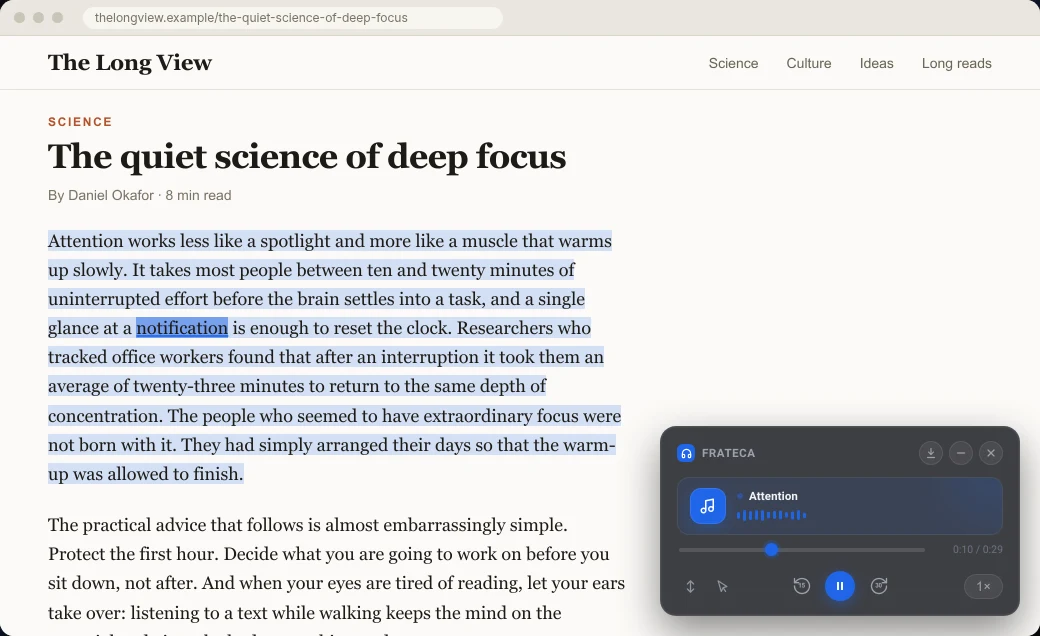
- Frateca for Chrome is free to install, works as a guest with no card and no ads, and keeps every speed up to 3.5×, on-page highlighting and phone sync on the free plan, within a daily free allowance.
Free Chrome text-to-speech tiers at a glance
Facts as of November 6, 2026, from each company’s own pages.
| Tool | Free voices | Top free speed | Free usage cap |
|---|---|---|---|
| Frateca for Chrome | Natural AI voices | 3.5× | Daily free allowance, resets each day |
| Chrome Reading mode | Google natural voices, downloaded automatically | Adjustable | None documented |
| Read Aloud | Your browser’s and computer’s voices | Adjustable | None for standard voices |
| Speechify (free tier) | 10 voices Speechify calls “robotic” | 1.5× | Not published as a fixed number |
| NaturalReader (free) | Free voices unlimited; better voices metered | Adjustable | Premium about 20 min/day, plus about 5 |
| Edge Read Aloud (not Chrome) | Natural voices | Adjustable | None documented |
“Adjustable” means the tool has a speed control and we found no documented cap on the free tier.
Almost every text-to-speech tool for Chrome says “free” somewhere on the listing. You only find out what kind of free after you install it and press play on a 3,000-word article.
Maybe the voice sounds like a parking-garage announcement. Maybe playback stops at 1.5× just as you were getting comfortable at 2×. Maybe the good voice wants a credit card, or an API key from a cloud console you have never opened.
None of this is a scandal. Natural voices cost real money to run, and every company draws a line somewhere. The trouble is that the line is rarely on the front of the listing. So on November 6, 2026 we read the fine print for the six free options a Chrome user is most likely to try, and put it in one table.
A disclosure before we start: we make one of them, Frateca for Chrome. We’ve tried to describe its free plan as plainly as everyone else’s, including what it doesn’t give you.
This guide is only about what you get without paying. If price isn’t the deciding factor, our comparison of the best text-to-speech Chrome extensions weighs features, AI tools and privacy across free and paid plans. Already use the Read Aloud extension and want better voices? Start with Read Aloud extension alternatives instead.
The short answer
- To hear one page once, with nothing to install: Chrome’s built-in Reading mode.
- For a free extension you can tinker with: Read Aloud, using your browser’s voices.
- For natural voices at full speed on a free plan, highlighted on the page and saved to your phone: Frateca for Chrome, within its daily free allowance.
- If you mostly listen to Google Docs, PDFs and Kindle books: NaturalReader’s free voices.
- Speechify’s free tier works best as a trial of Speechify Premium. As a free tool in its own right, the 1.5× cap gets in the way.
What each free tier actually includes
Voices, speed and limits
| Tool | Cost to start | Voices you get for free | Top speed on free | Usage cap on free |
|---|---|---|---|---|
| Frateca for Chrome | Free install, guest mode, no card | Natural AI voices (English US/UK, Spanish, French, Italian, Portuguese) | 3.5× | Daily free allowance that resets each day |
| Chrome Reading mode | Built into Chrome | Google natural voices, downloaded automatically | Adjustable | None documented |
| Read Aloud | Free and open source | Your browser’s and computer’s voices | Adjustable | None for standard voices |
| Speechify (free tier) | Free install | 10 voices Speechify calls “robotic” | 1.5× | Not published as a fixed number |
| NaturalReader (free) | Free install | Free voices unlimited; premium voices about 20 min/day; plus voices about 5 min/day | Adjustable | Per voice tier |
| Edge Read Aloud | Built into Microsoft Edge | Natural voices | Adjustable | None documented |
Highlighting, saving and downloads
| Tool | Highlighting | Saved library | Audio download on free |
|---|---|---|---|
| Frateca for Chrome | Word by word, on the original page | Yes, shared with the web app and iOS/Android apps | No (Premium) |
| Chrome Reading mode | Word, sentence or adaptive, in the Reading mode view | No | No |
| Read Aloud | Optional, set in Options | No | Not listed |
| Speechify (free tier) | Yes | Yes, synced with Speechify’s apps | No (offline downloads are Premium) |
| NaturalReader (free) | Word highlighting | Continue in NaturalReader’s app | No (MP3 conversion is excluded on the free personal plan) |
| Edge Read Aloud | Yes, on the page | No | No |
Checked November 6, 2026, from each vendor’s official listing, pricing or help page (see the sources at the top of this article). “Adjustable” means the tool has a speed control and we found no documented cap on the free tier.
Five ways “free” gets limited
Free tiers rarely say “this is the demo version”. They limit one or more of five things, and once you know the five, you can size up any listing in about a minute.
1. The voice
This matters most, because it decides whether you’ll keep listening past the second paragraph.
The voice on a free plan comes from one of three places. Some tools borrow your browser’s or operating system’s voices. Read Aloud’s standard voices work this way, so the result depends on your computer. A recent Mac and an old Windows laptop can sound like two different products. Some tools give you a limited free set: Speechify’s pricing page lists 10 voices on the free tier and calls them robotic itself. And some meter their better voices. On NaturalReader’s free plan the free voices are unlimited, but its premium voices stop after about 20 minutes a day and its plus voices after about 5.
Two of the free options sound natural from the first sentence. Chrome’s Reading mode downloads Google’s natural voices for your language automatically. Frateca for Chrome uses natural AI voices on its free plan, and Premium adds an enhanced set on top.
Quick test: choose a paragraph with a date, a name and an abbreviation in it, like “On 3 Feb. Dr. Okafor’s team ran 40 trials.” Robotic voices give themselves away fast on a sentence like that. There’s more on what to listen for in our voice guide.
2. The speed cap
Speechify’s free tier stops at 1.5×. If you’ve never listened faster than 1×, that sounds like plenty. But speed is a habit. Once your ear adjusts, you may well want more. Our guide to listening at 2× explains how to build up to it.
On the free plan, Frateca for Chrome gives you every speed it has: 0.75×, 1×, 1.25×, 1.5×, 2×, 2.5×, 3× and 3.5×. A tap on the speed button moves to the next step. Chrome’s Reading mode, Read Aloud, NaturalReader and Edge all have speed controls, and we didn’t find a free-tier cap documented for any of them.
3. The meter
Some free plans count what you use. NaturalReader counts minutes per voice tier. Frateca counts listening time against a daily free allowance that resets every day. The extension’s Profile screen shows how many minutes you’ve used, how many are left today and when the count resets, so you can see the limit coming. Premium removes it.
Speechify’s public pricing page lists what the free tier includes but doesn’t publish a fixed listening quota, so we can’t give you one. Chrome’s Reading mode, Edge and Read Aloud’s standard voices don’t document a meter at all. They don’t save anything either, as you’ll see in point 5.
4. The setup tax: accounts, credits and API keys
Some free tools cost you effort instead of money. Read Aloud is the clearest example, and it’s a fair trade for some people. Its standard voices work without signing in. According to its listing and privacy policy, the premium cloud voices need a Google sign-in plus either an in-app purchase or your own API key from a provider such as Google, Amazon, Microsoft, IBM or OpenAI. If “create a cloud project, enable billing, paste a key” sounds like your idea of a weekend, you’ll be fine. If you just want the article read, it’s a lot of setup.
Frateca for Chrome skips that step. Click Continue as guest and you’re listening, with no account, no card and no keys. When you want to keep what you’ve saved, you connect an email. The extension shows no ads, on the free plan or any other.
5. What happens after you press stop
This is the limit nobody mentions on a listing. Chrome’s Reading mode, Edge Read Aloud and Read Aloud all read and forget. Close the tab and the article is gone. Want to finish it on your walk home? You’ll have to find it again on your phone and start from the top.
Speechify and NaturalReader both keep a library you can open in their mobile apps. Frateca does this on the free plan too. Every selection you hear and every page you save with Save full page to Frateca goes into one library, shared with the Frateca web app and the iPhone and Android apps, and the extension remembers where you stopped. For a closer look at that workflow, see reading on a laptop and listening on your phone.
Downloading the audio as a file is a different matter. It’s a paid feature almost everywhere. Frateca’s MP3 download is Premium, Speechify keeps offline downloads for Premium, and NaturalReader’s free personal plan excludes MP3 conversion.
Which free option fits your day
You read one long article a week, at your desk. Use Chrome’s Reading mode: right-click, choose Open in reading mode, press Play. There’s nothing to install. Our Chrome read-aloud guide has the shortcuts.
You’re a student reading course pages on a laptop or Chromebook. You want natural voices, a speed you choose and highlighting you can follow. Frateca for Chrome covers that on the free plan. ChromeOS also has Select-to-speak built in, covered in our Chromebook guide. For the rest of a study setup, from citations to focus tools, see the best Chrome extensions for students.
Your reading is Google Docs, PDFs and Kindle books. Frateca’s extension works on web pages, not those formats, so NaturalReader’s free voices or Read Aloud will serve you better there. To use Frateca for a PDF file, upload it in the Frateca web app instead. Our guide to making Chrome read a PDF aloud covers the other free routes.
You start articles at work and want to finish them on the bus. That’s what a saved library is for. Save the page from Chrome, then open the Frateca app on your phone later.
You like control and don’t mind settings pages. Read Aloud is open source, works with a long list of voice providers, and has keyboard shortcuts. It rewards people who enjoy tweaking.
Your work laptop runs Edge. Edge’s built-in Read Aloud is free and good. If you’re torn between the two browsers, see how to get Edge’s read-aloud experience in Chrome.
Frateca’s free plan, without the marketing
You get all of this without paying:
- Free to install, with guest mode, so you can listen before you create an account.
- No credit card and no ads.
- Natural AI voices in English (US and UK accents), Spanish, French, Italian and Portuguese.
- Every speed from 0.75× to 3.5×, plus 15-second back and 30-second forward skips.
- Word-by-word highlighting on the original page, with Click to read (click any word to jump there) and Auto scroll.
- Save full page to Frateca, which turns a whole article into audio in your library.
- One library across the extension, the web app and the iPhone and Android apps. Playback keeps going when you close the popup, and Frateca remembers your place.
Here’s what the free plan doesn’t give you:
- Unlimited listening. The free plan has a daily allowance, shown in the Profile screen, that resets every day.
- MP3 downloads and the enhanced voices. Both come with Premium (called Pro inside the extension). Prices are on our pricing section.
- PDFs, Google Docs or Kindle books in the extension. It’s built for web pages. PDFs go through the web app.
- Chrome’s own pages. Chrome doesn’t let any extension run on
chrome://pages or in the Chrome Web Store.
A two-minute test before you settle on one
Don’t choose a reader from a table, including ours. Spend two minutes with the article you actually meant to read today:
- Select three paragraphs that include a number, a name and a long sentence.
- Play them at 1×, then 1.25×, then 1.5×. If a tool won’t let you go faster and you’d like to, you’ve learned something.
- Watch the highlighting. For some readers, following along helps them stay focused. Others find it distracting. Our piece on text-to-speech with word highlighting explains why it helps some readers more than others.
- Close the tab and see what’s left. If you’d want to finish this article later, on another device, you need a library.
- Read the permission prompt before you click Add extension. Our explainer on what “read and change all your data on all websites” means tells you which questions to ask.
💡 Want to judge the voices before you install anything? Paste a paragraph into the live demo on our home page and listen right in the browser.
The bottom line
Each of these free tools is useful, as long as you know where its limits are. Chrome’s built-in reader is the best free option for a single page. Read Aloud is the best free option for tinkerers. If you want natural voices at full speed, highlighting on the page and a library that follows you to your phone without paying, add Frateca to Chrome. Try it as a guest first. If the daily allowance turns out to be too small, that’s when to look at Premium.
Stop reading. Start listening.
Frateca turns PDFs, articles, textbooks and web pages into natural audio you can play anywhere: on your commute, at the gym, or while you cook. Free plan included, no card required.
 Add to Chrome
iOS · Android · Web · Chrome extension · Free plan, no credit card required