

Start Reading on Your Laptop, Finish on Your Phone
Found a long article at your desk? Six ways to get it onto your phone, from Chrome's Send to your devices to saving it as audio, compared.
Key takeaways
- Chrome's Send to your devices moves one page to your phone in two clicks, as long as both devices are signed in to the same Google Account. It moves the tab, not your time to read it.
- Chrome's Reading List and read-later apps like Instapaper and Readwise Reader keep a queue that syncs, but most of them still assume you'll read on a small screen.
- If the walk home is when you have time, save the page as audio instead. With the free Frateca Chrome extension, a page you save at your desk shows up in the Frateca app on your phone, ready to play with the screen off.
- Test the whole handoff once with a short article before you rely on it, including what happens when your phone loses signal.
It’s 5:50 pm. You’ve just found the article you’ve been meaning to read all week, a long, careful piece about something you actually care about, and you have exactly ten minutes before you need to leave. The walk home takes twenty-five. The article would fit the walk perfectly, if only it were on your phone instead of in tab number fourteen on your laptop.
This is one of those small problems that quietly eats a lot of reading. The page is right there, your phone is in your pocket, and somehow the two never meet. Here are six ways to get an article from your laptop to your phone, what each one is good at, and the one question that decides which you should use: will you read it on the phone, or listen to it?
The short answer
- To read it on your phone’s screen: use Chrome’s Send to your devices. It’s built in and takes two clicks.
- To keep a running list you’ll work through later: use Chrome’s Reading List or a read-later app like Instapaper.
- To get through it while you walk, drive or cook: save it as audio and play it from your pocket. A free Chrome extension like Frateca for Chrome does this in one right-click, and the page is waiting in the Frateca app on your phone.
The first two move the page. The third moves the reading, which is usually what you were after.
Why the handoff keeps failing
Moving a tab to your phone is easy. The hard part is that the time you have on your phone is rarely time you can spend staring at it.
The walk home, the bus with no seat, the twenty minutes of making dinner: these are hands-busy, eyes-busy moments. A tab that opens on your phone at 6:15 still needs your eyes, and most of the time you won’t give them to it. So the article sits in another browser, on another device, and you feel slightly worse about it.
That’s not an argument against the simple tools below. If you’ll be sitting on a train with a free hand, sending the tab is perfect. It’s an argument for picking the method by where your attention will be, not by which button is nearest.
1. Chrome’s “Send to your devices”
This is the fastest built-in route, and plenty of people have never noticed it.
- On your computer, open the article in Chrome.
- Click the Share icon at the right of the address bar, or right-click the page, and choose Send to your devices.
- Pick your phone from the list.
Your phone gets a notification, and the page opens in Chrome there. According to Google’s help page, both devices need to be signed in to Chrome with the same Google Account. If your phone isn’t in the list, that’s almost always the reason.
Good for: one article you’ll read on the phone soon. Not great for: building a list, or anything you’d rather hear than read. Once it’s on your phone, Chrome on Android can read many pages aloud with Listen to this page, and an iPhone can use Speak Screen; our guide to making Chrome read aloud covers both. Neither keeps your place across devices or turns the page into something you can queue.
2. “Tabs from other devices”
If you forgot to send it, you can still fetch it. With History and tabs sync turned on, Chrome on your computer shows More → History → History → Tabs from other devices, and Chrome on your phone can find your computer’s tabs too (on Android, Google’s help points you to the tab switcher).
It works, but it’s a rescue tool rather than a system. You have to remember the article exists, then find it in a list of every tab you have open everywhere. If you’re the kind of person with forty tabs open, that list is not your friend.
3. Chrome’s Reading List
Right-click a tab on your computer and choose Add tab to reading list. The list lives under More → Bookmarks and lists → Reading list and syncs to Chrome on your phone when you’re signed in.
The catch is offline reading. Google’s own help page says saved pages aren’t necessarily available offline, and suggests downloading a page in advance if you’ll need it without a connection. That matters on a subway. The other catch is human: a reading list with no deadline and no playback becomes a second, quieter pile of tabs. If that’s already happening, our guide to read-it-later apps with text-to-speech is worth a look.
4. Email or message the link to yourself
The oldest trick still works on every device and every browser. Paste the link into an email or a chat with yourself and it’s on your phone in seconds.
It’s also how inboxes fill up with “read this” messages from your past self. Fine for a one-off, and fine if you’re not signed in to Chrome on your phone. Not a habit worth building.
5. A read-later app
Dedicated read-later apps are built for exactly this handoff, and two are worth knowing about now that Pocket is gone (Mozilla shut it down in 2025).
Instapaper saves articles from your browser and downloads them to its iPhone and Android apps, so you can read without a connection. It can read articles aloud too. According to Instapaper’s blog and docs, its higher-quality AI voices and text-to-speech playlists (queueing several articles to play in a row) are Premium features. Premium is listed at $6 a month or $60 a year in its docs (checked November 6, 2026).
Readwise Reader is a reading workstation with highlighting, notes and built-in text-to-speech using AI voices. Its docs note that speech is generated on request, so text-to-speech doesn’t work offline. It has a 30-day free trial and no permanent free plan; Reader on its own is listed at $7.99 a month billed yearly (checked November 6, 2026).
Both are good at keeping and reading a queue. Their listening features are real but secondary, and the best voices sit behind the subscription.
6. Save it as audio, then press play on your phone
This is the option that matches the walk home. Instead of moving a tab, you turn the article into audio at your desk and play it from your phone with the screen off.
With the Frateca Chrome extension it looks like this:
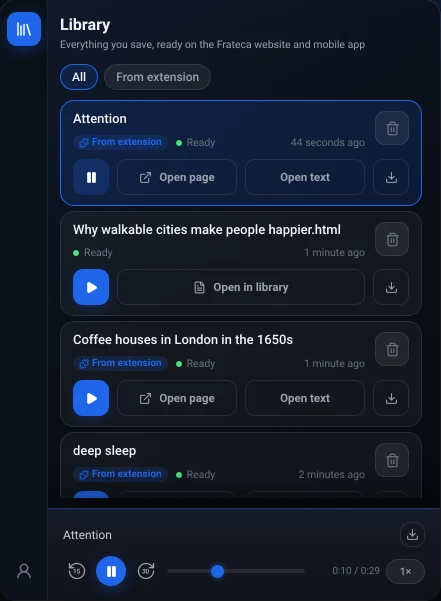
- On the article, right-click anywhere and choose Save full page to Frateca. A notice tells you when it’s ready to start listening.
- Or, if you only want one section, select it, right-click and choose Listen to selected text. It starts playing right there on the page, with each word highlighted, and it’s saved too.
- On your phone, open the Frateca app. The page is in your library, in the same list you see in the extension and on the web.
- Press play, lock the phone and put it in your pocket. Playback continues in the background.
A few honest details. The extension is free to install, there’s no credit card and no ads, and you can try it as a guest; to see your saves on the phone you connect an email or sign in, because the library lives in your account. The free plan includes a daily listening allowance that resets every day, with a meter in the extension showing what’s left. Premium removes the cap and adds MP3 downloads and enhanced voices. Generated audio can play offline in the app, but making new audio needs a connection, so save before you leave the building rather than in the elevator.
The extension remembers where you stopped on your computer. If you listened to the first few minutes at your desk, check where playback starts on the phone and skip forward if you need to.
Speechify offers a similar desktop-to-phone flow: its Chrome Web Store listing describes a library that syncs between desktop and mobile. Its free tier is limited to 1.5× speed and 10 voices that Speechify itself calls “robotic”, and Premium is $29 a month or $139 a year on its pricing page (checked November 6, 2026). If you’ll use its AI extras, that may be worth it. If you only want articles read to you, it’s a lot to pay. We compare the two in Speechify Chrome extension alternatives.
Side by side
| Method | Gets it to your phone | Reads it aloud | Works offline | Cost |
|---|---|---|---|---|
| Send to your devices (Chrome) | Yes, one page | Only via your phone’s own reader | Page must load | Free |
| Tabs from other devices (Chrome) | If you go looking | Only via your phone’s own reader | Page must load | Free |
| Reading List (Chrome) | Yes, as a list | Only via your phone’s own reader | Not reliably, per Google | Free |
| Email yourself | Yes | No | Depends on your mail app | Free |
| Instapaper | Yes, as a list | Yes; AI voices and playlists on Premium | Yes, downloads articles | Free; Premium $6/mo or $60/yr |
| Readwise Reader | Yes, as a list | Yes, AI voices | Text-to-speech needs a connection | 30-day trial, then from $7.99/mo billed yearly |
| Speechify extension + app | Yes, synced library | Yes | Downloads on Premium | Free tier at 1.5×; Premium $29/mo or $139/yr |
| Frateca extension + app | Yes, synced library | Yes, natural voices on the free plan | Generated audio plays offline | Free with a daily allowance; Premium for unlimited |
Third-party prices and features as published on November 6, 2026.
Set it up once (about five minutes)
The handoff only feels easy if you set it up before the day you need it.
- Install the extension from the Chrome Web Store and pin it from the puzzle-piece Extensions menu so it’s one click away.
- Sign in, or connect an email if you started as a guest. This is the step people skip, and it’s the one that makes your saves appear on the phone.
- Install the Frateca app on your phone and sign in with the same account.
- Test with one short article. Save it at your desk, open the app, press play, lock the screen. If it plays from your pocket, you’re done.
- Try it once without signal. Put the phone in airplane mode and play the article you just saved, so you know what to expect underground.
💡 Save at the moment you decide to read something later, not at the end of the day. The habit that works is “right-click, save, close the tab”, which also happens to be the fastest way to get your tab count down.
If you want a walk-through of every button in the extension, the complete Frateca for Chrome guide covers setup, the library and settings.
Which one should you use?
- You’ll be sitting down with your phone and a free hand: Send to your devices. Nothing to install.
- You collect articles faster than you read them: a list that syncs, either Chrome’s Reading List or Instapaper if you want proper offline reading.
- Your free time is walking, driving, commuting or chores: save it as audio. That’s where the minutes actually are, and it’s the only option on this list that doesn’t need your eyes.
Many people end up using two of these: Send to your devices for the occasional page they’ll read on the couch, and audio for the long pieces they’d otherwise never finish. If you’d like to make that second habit stick, our guide to listening to articles online shows how to build the routine.
Stop reading. Start listening.
Frateca turns PDFs, articles, textbooks and web pages into natural audio you can play anywhere: on your commute, at the gym, or while you cook. Free plan included, no card required.
 Add to Chrome
iOS · Android · Web · Chrome extension · Free plan, no credit card required