

Speechify Chrome Extension Alternatives (Free and Cheaper)
Five alternatives to the Speechify Chrome extension, free and paid, with what each does better, where Speechify still wins, and how to switch.
Key takeaways
- On November 6, 2026, Speechify's pricing page listed $29 per month or $139 billed yearly. Its free tier covered listening up to 1.5× with 10 voices it calls 'robotic'.
- Speechify is still the broadest option: Mac and Windows apps, an Edge add-on, 1,000+ voices, 60+ languages, speeds up to 4.5–5× and a set of AI tools.
- For free listening, Chrome's built-in Reading mode read aloud and the open-source Read Aloud extension cover most single pages.
- Frateca for Chrome is the lower-priced pick for natural voices with word-by-word highlighting on the page and one library across the extension, web, iOS and Android.
- NaturalReader is the alternative to choose if most of your listening is Google Docs, PDFs or Kindle books in the browser.
Speechify Chrome extension alternatives at a glance
Facts as of November 6, 2026, from each company’s own pages.
| Extension | Free use | Paid plan | Best for |
|---|---|---|---|
| Speechify | Up to 1.5×, 10 'robotic' voices | $29/month or $139/year | AI tools, desktop apps, huge voice catalog |
| Frateca for Chrome | Daily listening allowance, guest mode | Pro: unlimited listening, downloads, enhanced voices | Speechify's core loop for less |
| Chrome Reading mode | Built in, free | — | The occasional single page |
| Read Aloud | Free, open source | Optional cloud voices | Free, if you don't mind setup |
| NaturalReader | Free voices unlimited; better tiers limited daily | Tiered plans | Docs, PDFs and Kindle books |
Speechify prices in USD as published on its pricing page. Promotions and app-store pricing vary, so confirm at checkout.
Speechify’s Chrome extension is the best-known way to listen to web pages, and for good reason. It’s polished, fast, and comes with a large set of AI tools. It also costs $29 a month or $139 a year on Speechify’s pricing page (checked November 6, 2026). Its free tier covers listening up to 1.5× with 10 voices that Speechify itself describes as “robotic”.
If you mainly want articles read aloud in a natural voice, you may be paying for features you never open. Below are five alternatives, free and paid, with an honest account of where each beats Speechify and where it doesn’t.
First: where Speechify is stronger
Switching only makes sense if you don’t depend on what Speechify does best. As published on November 6, 2026, that includes:
- More places to listen. Speechify has native Mac and Windows apps, an Edge add-on alongside the Chrome extension, and mobile apps, all sharing one synced library.
- The largest catalog. Premium offers 1,000+ voices in 60+ languages, including celebrity partner voices.
- Higher top speed. The pricing page says up to 5× and the extension listing says 4.5×.
- AI tools beyond reading. These include voice typing, an assistant you can question about the page, summaries, AI podcasts, screenshot-to-audio, and cloud-drive integrations.
If those are why you pay, stay. If your honest use is “select a paragraph, press play”, read on.
What a good alternative should give you
- Natural voices without an API key or extra setup.
- Highlighting, so you can follow along when you want to. Some readers find it easier to stay with the text when they read and listen together.
- Speed control up to at least 2–3×.
- A way to finish later, whether that means saving a page, resuming where you stopped, or continuing on your phone.
- A clear price and a clear privacy policy.
1. Frateca for Chrome: natural voices for less
Best for: people who want Speechify’s core experience at a lower price. That means a natural voice, highlighting on the page, and a library that syncs to the phone.
Frateca for Chrome adds two actions to the right-click menu:
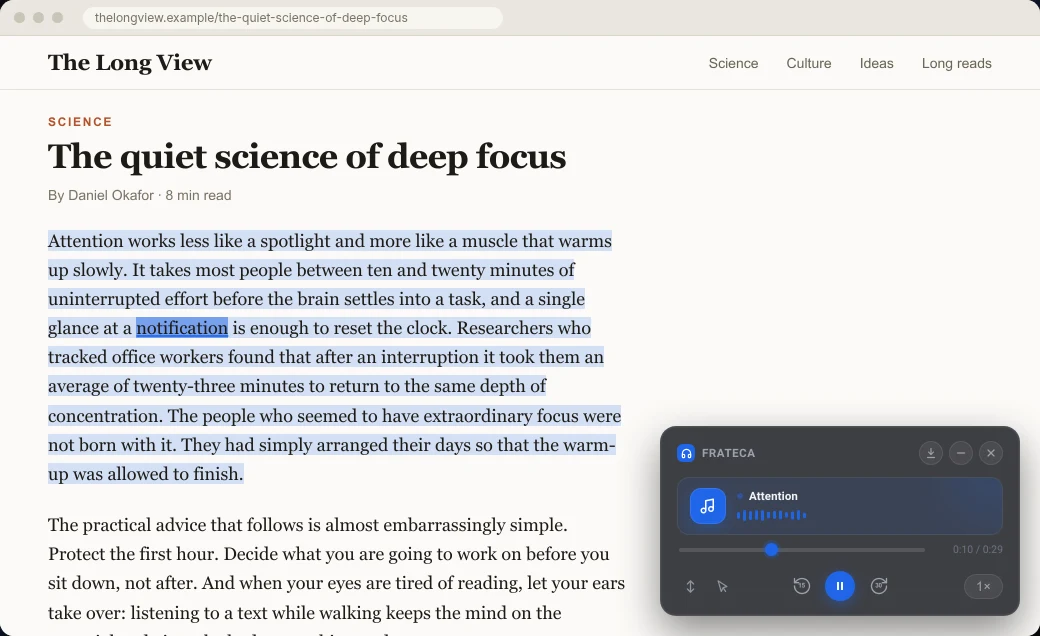
- Select text, then choose Listen to selected text. Audio starts as soon as the first part is ready. A small player appears on the page, and every word is highlighted where it sits in the article.
- Right-click anywhere and choose Save full page to Frateca to turn the whole article into audio in your library.
The player has play/pause, back 15 seconds, forward 30 seconds, a seek bar, and speeds from 0.75× to 3.5×. Click to read jumps the audio to any word you click. Auto scroll keeps the current word on screen. Playback keeps going when you close the popup, and your position is remembered, even after you restart the browser.
The toolbar popup is your library, filtered by All or From extension. From there you can reopen the source page with its highlighting restored, view the text with the current word highlighted (with search and copy), or open the item on the Frateca website. Like Speechify, it’s one library everywhere: the same account works in the Frateca web app and the iOS and Android apps, so an article you save at your desk is waiting on your phone.
What you give up compared with Speechify: desktop apps, an Edge add-on, the AI tools, top speeds above 3.5×, and breadth of voices. Frateca’s voices are in English (US and UK accents), Spanish, French, Italian and Portuguese. The extension works on web pages. For PDF files, upload them in the web app.
Price: free to install. You can try it with Continue as guest without an account, and the free plan includes a daily listening allowance that resets every day. Pro adds unlimited listening, audio downloads and enhanced voices. Our dated Frateca vs Speechify comparison puts the two published prices side by side with sources. Or start with the live demo to hear the voices first.
2. Chrome’s built-in read aloud: free, nothing to install
Best for: listening to a single page now and then.
Desktop Chrome has a read aloud built into Reading mode. Right-click a page, choose Open in reading mode (or press Alt + Shift + R, Cmd + Option + R on a Mac), then press Play. Google’s help page documents voice selection, playback speed, previous/next sentence controls and word, sentence or adaptive highlighting. Chrome downloads Google’s natural voices for your language automatically.
Trade-offs: it reads in a separate simplified view, not on the original page. It doesn’t work on every site, and it keeps no library or resume point across devices. Our guide on how to make Chrome read aloud has the full steps. For everything you can get without paying, including the limits of each free tier, see free text-to-speech Chrome extensions.
3. Read Aloud: the free, open-source extension
Best for: people who want a free extension and don’t mind some setup.
Read Aloud: A Text to Speech Voice Reader reads the current page or your selection from the toolbar, the right-click menu or keyboard shortcuts. It can use your browser’s built-in voices or cloud voices from Google, Amazon, Microsoft, IBM and OpenAI. Its listing notes that cloud voices may require an in-app purchase or your own API key. It lists support for PDFs, Google Docs, Google Play Books, Kindle and EPUB, and more than 40 languages. You set voice, speed, pitch and highlighting on its Options page.
Trade-offs: the most natural voices take extra setup, and there’s no synced library or phone app.
4. NaturalReader: best for documents in the browser
Best for: listening to Google Docs, PDFs, Kindle books and email in Chrome.
NaturalReader’s extension lists compatibility with websites, Gmail, Outlook, Google Docs, PDFs and Kindle books. It also lists word highlighting, an immersive reader, Chrome side panel integration, and a “smart reader” that skips headers, footers, citations and URLs. It offers MP3 download, 150+ voices across 20+ languages, and continued listening in the NaturalReader mobile app. On the free version you get unlimited free voices, about 20 minutes a day of its premium voices and about 5 minutes a day of its plus voices (per its listing on November 6, 2026).
Trade-offs: the better voices are rationed on the free version, and the paid plans are tiered. See the Frateca vs NaturalReader comparison for dated pricing.
5. Microsoft Edge Read Aloud: if you’ll switch browsers
Best for: free, good-quality listening if you’re willing to use Edge for long reads.
Edge’s built-in Read Aloud (Ctrl + Shift + U, or Cmd + Shift + U on a Mac) reads web pages and PDFs, and the voices labeled Natural sound good. It’s tied to the open tab and keeps no library. Our Edge Read Aloud guide covers the details.
Side-by-side
| Speechify | Frateca for Chrome | Chrome Reading mode | Read Aloud | NaturalReader | |
|---|---|---|---|---|---|
| Cost to start | Free tier (1.5×, 10 “robotic” voices) | Free install, guest mode, free plan | Built in | Free, open source | Free voices unlimited; better tiers limited daily |
| Paid plan | $29/mo or $139/yr | Pro (compare prices) | — | Optional cloud voices | Tiered plans |
| Highlighting | Yes | Word by word, on the original page | Word, sentence or adaptive | Optional | Word highlighting |
| Top speed | 4.5–5× | 3.5× | Adjustable | Adjustable | Adjustable |
| Synced library and phone app | Yes | Yes (web, iOS, Android) | No | No | Yes |
| Other platforms | Mac, Windows, Edge, mobile | Web, iOS, Android | Chrome only | Browser extension only | Web, mobile |
| AI tools | Many | No | No | No | Smart skipping |
| Extension size (store listing) | 23.1 MiB | 178 KiB | Built in | 332 KiB | 2.91 MiB |
Competitor details as published on official pages on November 6, 2026. Check before you buy.
How to switch from Speechify to Frateca in five minutes
- Install Frateca for Chrome and pin it to the toolbar.
- Open it and choose Continue as guest, or sign in with your Frateca account.
- In the popup’s profile, pick a voice. Then open an article you’d normally send to Speechify.
- Select a paragraph, right-click and choose Listen to selected text. Set your usual speed in the player, then try Click to read and Auto scroll.
- On a long article, right-click and choose Save full page to Frateca, then open the Frateca app on your phone. It’s already there.
Keep Speechify installed for a week. You can turn either extension off on Chrome’s Extensions page. If you don’t miss anything, cancel then. The Frateca for Chrome guide covers every setting.
Which alternative should you choose?
- You want Speechify’s core loop for less → Frateca for Chrome.
- You only listen to the occasional page → Chrome’s built-in read aloud.
- You want free and don’t mind setup → Read Aloud.
- Docs, PDFs and Kindle books are most of your listening → NaturalReader.
- You use the AI tools, desktop apps or the huge voice catalog → keep Speechify.
- You’re a student weighing Speechify against free tools → our best Chrome extensions for students puts reading tools next to citation and focus tools.
For the wider picture beyond extensions, including mobile apps and pricing across the category, see our Speechify alternatives guide and the best text-to-speech Chrome extensions roundup.
Stop reading. Start listening.
Frateca turns PDFs, articles, textbooks and web pages into natural audio you can play anywhere: on your commute, at the gym, or while you cook. Free plan included, no card required.
 Add to Chrome
iOS · Android · Web · Chrome extension · Free plan, no credit card required