

NaturalReader Chrome Extension Alternatives (2026)
NaturalReader's extension shines on PDFs and Google Docs. Five alternatives for natural voices, faster speeds and finishing articles on your phone.
Key takeaways
- NaturalReader's extension is still the strongest choice for Google Docs, PDFs, Gmail, Outlook and Kindle in the browser, and its smart reader skips headers, footers and citations.
- On NaturalReader's free version, the free voices are unlimited, but the premium voices run about 20 minutes a day and the plus voices about 5 (listing checked November 6, 2026).
- Frateca for Chrome is free to install and works as a guest. Its free plan gives you natural AI voices, every speed up to 3.5×, word highlighting on the original page and a library you can finish on your phone, within a daily listening allowance.
- Read Aloud is the free open-source pick, Speechify is the big paid ecosystem, and Chrome's Reading mode and Edge Read Aloud cost nothing and need no setup.
NaturalReader Chrome extension alternatives at a glance
Facts as of November 6, 2026, from each company’s own pages.
| Extension | Free version | Top speed | Finish on your phone |
|---|---|---|---|
| NaturalReader | Free voices unlimited; premium ~20, plus ~5 min/day | Adjustable | Yes, in NaturalReader's app |
| Frateca for Chrome | Natural AI voices within a daily allowance | 3.5× | Yes, Frateca web, iOS and Android |
| Read Aloud | Free; some cloud voices need purchase or API key | Adjustable | No |
| Speechify | Up to 1.5×, 10 'robotic' voices | 4.5–5× on Premium | Yes, in Speechify's apps |
| Chrome Reading mode | Built in, Google natural voices | Adjustable | No |
| Edge Read Aloud (not Chrome) | Built into Edge, free, including PDFs | Adjustable | No |
Speechify's pricing page lists up to 5× on Premium, and its Chrome Web Store listing says 4.5×. Check each listing before you decide.
A common story goes like this. You installed NaturalReader to get through a long Google Doc, it worked, and it stayed in your toolbar. Then you started using it on news articles and newsletters too. Somewhere along the way you noticed that the voice you liked best was a premium voice, and that the free version gives you only a limited taste of it each day.
That doesn’t mean NaturalReader is a bad extension. For some jobs it’s still the best one available. It does mean it’s worth knowing what else exists, because the right Chrome reader depends heavily on what you read in Chrome.
We checked every option below against its official store listing, help pages and pricing on November 6, 2026. We build one of them, Frateca for Chrome, and we’ve tried to be clear about where the others are the better pick. If you’re comparing NaturalReader’s whole product (desktop, mobile and web apps) rather than just the extension, our broader NaturalReader alternatives guide covers that.
Where NaturalReader’s extension is still the best choice
Before switching, be honest about what you use it for. NaturalReader’s Chrome Web Store listing (version 8.0.3, updated September 21, 2026) describes an extension aimed at documents as much as web pages:
- It lists support for Google Docs, PDFs, Gmail, Outlook and Kindle books, alongside ordinary websites.
- Its “AI Powered Smart Reader” skips headers, footers, citations, captions and URLs, which matters a lot on academic papers and messy pages.
- It offers word highlighting, an immersive reader view and Chrome side panel integration.
- It lists 150+ voices in 20+ languages, MP3 download on paid plans, and continued listening in the NaturalReader mobile app.
If most of your listening is Google Docs, PDFs or Kindle books inside the browser, very few alternatives match that. You may be better off keeping NaturalReader and adding a second tool only for articles.
Why people look for an alternative
These are the usual reasons to look elsewhere.
The best voices are rationed on the free version. According to NaturalReader’s listing, free users get the free voices without limit, the premium voices for about 20 minutes a day and the plus voices for about 5 minutes a day. Its help center counts this in characters (20,000 for premium voices and 4,000 for plus voices each day), so the minutes are an estimate at average speed. If the premium voice is the reason you like NaturalReader, the free version runs out quickly.
Most of your reading is now articles, not documents. News, long reads, blog posts, documentation. For these, what matters is a good voice, a high top speed, and a way to finish later.
Price. NaturalReader’s paid personal plans come in several tiers. Our dated Frateca vs NaturalReader comparison lists them side by side with sources, so we won’t repeat the numbers here.
The quick comparison
| Tool | What the free version gives you | Top speed | Where it reads | Finish on your phone |
|---|---|---|---|---|
| NaturalReader | Free voices unlimited. Premium voices about 20 min/day, plus voices about 5 min/day. No MP3 on free. | Adjustable | The page, plus an immersive view and side panel | Yes, in NaturalReader’s app |
| Frateca for Chrome | Free install, guest mode, no card. Natural AI voices, every speed, highlighting and phone sync, within a daily allowance. MP3 and enhanced voices are Premium. | 3.5× | On the original page; full pages saved to a library | Yes, Frateca web, iOS and Android |
| Read Aloud | Free and open source. Some cloud voices need a purchase or your own API key. | Adjustable | The page or your selection | No |
| Speechify | Up to 1.5× and 10 voices Speechify calls “robotic”. | 4.5–5× on Premium | Inline player on the page | Yes, in Speechify’s apps |
| Chrome Reading mode | Built in and free. Google’s natural voices download automatically. | Adjustable | Chrome’s own reading view | No |
| Edge Read Aloud (not Chrome) | Built into Microsoft Edge and free, including PDFs. | Adjustable | The page or a PDF in Edge | No |
Competitor limits and speeds as published on November 6, 2026. Speechify’s pricing page lists up to 5× on Premium, and its Chrome Web Store listing says 4.5×.
1. Frateca for Chrome: natural voices on the free plan, then your phone
Frateca for Chrome is the alternative for people whose NaturalReader use drifted from documents to articles. It’s free to install from the Chrome Web Store, and you can choose Continue as guest to try it without an account or a credit card.
It adds two items to Chrome’s right-click menu:
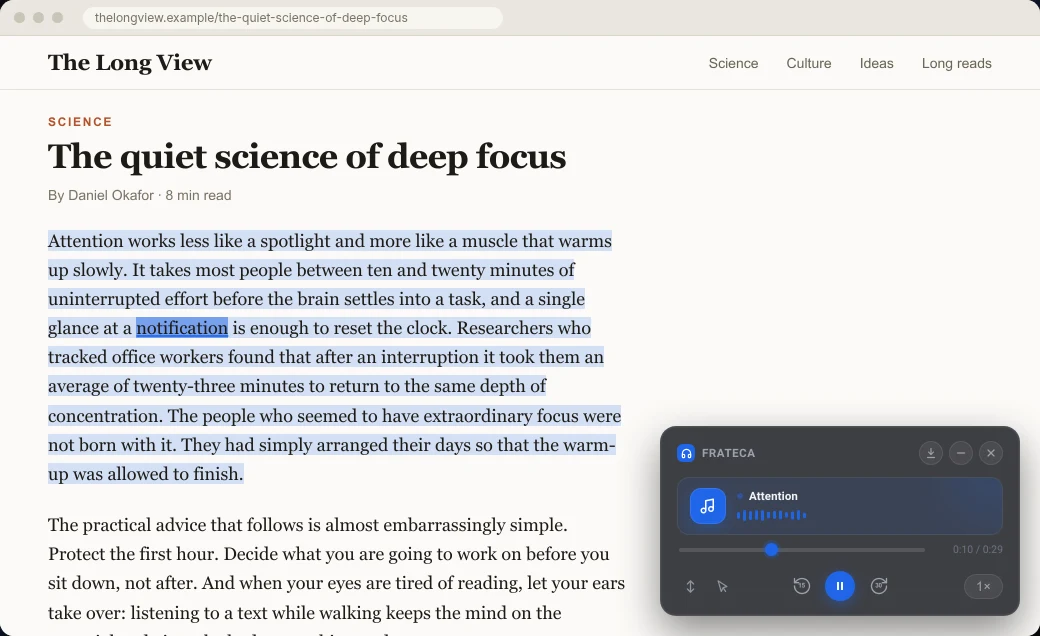
- Listen to selected text. Highlight a passage, right-click, and a small player appears on the page. Audio starts as soon as the first part is ready, and each word lights up on the original page as it’s read.
- Save full page to Frateca. Right-click anywhere and the whole article becomes an audio item in your library.
What’s on the free plan matters most in a comparison like this one. You get Frateca’s natural AI voices, all eight speeds from 0.75× to 3.5×, word-by-word highlighting, Click to read (click any word to jump the audio there), Auto scroll, saving full pages, and syncing with the web app and the iOS and Android apps. Listening is capped by a daily free allowance, and a “minutes left today” meter in the extension’s profile shows where you stand. Premium (called Frateca Pro inside the extension) removes the cap and adds enhanced voices and MP3 downloads.
The phone part is the real difference from most extensions. Save a long read at your desk, and it’s in the Frateca app on your phone when you leave. Open page in the extension reopens the source article with your highlighting and player restored.
Where NaturalReader is better: Frateca’s extension reads web pages, not files. PDFs go through the Frateca web app instead, and it doesn’t read Google Docs or Kindle in the browser. It also covers fewer languages: its voices are English (US and UK accents), Spanish, French, Italian and Portuguese, against NaturalReader’s 20+. The step-by-step Frateca extension guide shows every setting.
2. Read Aloud: the free, open-source option
Read Aloud: A Text to Speech Voice Reader, by LSD Software, has been the go-to free reader for years. Its listing says it reads the whole page or only your selection, starts from the right-click menu or keyboard shortcuts, and supports PDFs, Google Docs, Google Play Books, Kindle and EPUB in more than 40 languages.
The catch is voices. Out of the box it uses the voices built into your browser. Its listing also offers cloud voices from providers such as Google WaveNet, Amazon Polly, Microsoft Azure, IBM Watson and OpenAI, but those may need an in-app purchase or your own API key. If you’re comfortable setting that up, it’s flexible. If “paste an API key” made you wince, look elsewhere.
Pick it if you want free and open source, and you read a mix of web pages and documents. Skip it if you want natural voices with no setup, or a library that follows you to your phone.
3. Speechify: the biggest ecosystem
Speechify’s extension does the most. Its listing and pricing page describe 1,000+ Premium voices in 60+ languages, active highlighting, a floating widget, a library synced with its mobile apps, and extras such as summaries, an AI assistant and voice typing. Speechify also has native Mac and Windows apps and an Edge add-on.
Its free tier is thin for article listening: speeds up to 1.5× and 10 voices that Speechify itself calls “robotic”. Premium was listed at $29 per month or $139 billed yearly on November 6, 2026.
Pick it if you’ll actually use the AI tools and the huge voice catalog. Skip it if you mostly want articles read aloud and the price feels like paying for features you won’t touch. We cover that decision in Speechify Chrome extension alternatives.
4. Chrome’s Reading mode: nothing to install
Chrome now has its own read-aloud on computers. Right-click a page and choose Open in reading mode, or press Alt + Shift + R (Cmd + Option + R on a Mac), then press Play. Google’s help page documents voice selection, playback speed and word, sentence or adaptive highlighting. It downloads Google’s natural voices for your language automatically and falls back to your system voice if that fails.
It reads a simplified copy of the page in its own view, not the original layout, and Google lists sites where it may not work, such as forums, forms and login screens. Nothing is saved, so there’s no picking up on your phone. For one article you want to hear once, it’s hard to beat free. Our guide to making Chrome read aloud has the full steps.
5. Microsoft Edge Read Aloud: if PDFs are why you used NaturalReader
If documents were the reason you installed NaturalReader, and specifically PDFs, consider Microsoft Edge for those files. Open the PDF in Edge and Read aloud is right in the PDF toolbar. On web pages, Ctrl + Shift + U (Cmd + Shift + U on a Mac) starts it. Pick a voice labeled Natural for the best sound.
It only works on PDFs that have real text, so scanned pages stay silent. It’s also tied to the open tab, with no library. Our Edge Read Aloud guide covers its limits, and how to get Edge’s Read Aloud in Chrome explains what carries over if you’d rather stay in Chrome.
Which one if you mostly read…
News, long reads and blog posts. Frateca for Chrome. Natural voices on the free plan, speeds up to 3.5×, and the article waits for you on your phone. Chrome’s Reading mode is the zero-install backup for a single page.
Google Docs. Keep NaturalReader, or try Read Aloud, which also lists Google Docs. Frateca’s extension doesn’t read Docs. Export or paste the text into the Frateca web app if you want it in your library.
PDFs. Edge’s free Read aloud for digital PDFs on your desk. For PDFs you want to listen to away from the computer, including scans, upload them in the Frateca web app or keep NaturalReader. How to make Chrome read a PDF aloud compares the in-browser routes, and how to listen to PDFs covers apps.
Kindle books in the browser. NaturalReader or Read Aloud, both of which list Kindle support.
Newsletters. Open the newsletter’s web version (“View in browser”), select the part you want, and use any on-page reader. NaturalReader lists Gmail and Outlook directly if you prefer to stay in your inbox.
Study material in Spanish, French, Italian or Portuguese. Frateca has voices in all four, with highlighting on the page to follow along. For other languages, NaturalReader’s 20+ or Read Aloud’s 40+ go further. Setting up a laptop for a whole term? See the best Chrome extensions for students.
You want AI summaries and chat about the page. Speechify. None of the others here list that.
You won’t install anything. Chrome’s Reading mode, or Edge if you can switch browsers.
Switching from NaturalReader to Frateca in five minutes
- Install Frateca for Chrome and pin it from the puzzle-piece Extensions menu.
- Open the popup, read the short privacy notice, then choose Continue as guest or sign in.
- Open an article you were going to read today. Select the first few paragraphs, right-click and choose Listen to selected text.
- Try a couple of speeds. If you listened to NaturalReader at 1.5×, start there and nudge it up later.
- Right-click the page and choose Save full page to Frateca, then check that it appears in the Frateca app on your phone.
💡 You don’t have to uninstall NaturalReader on day one. Run both for a week, notice which right-click item you actually reach for, and remove the other. Fewer extensions with access to every site is better for your privacy anyway.
The bottom line
NaturalReader’s extension earned its place by handling documents well, and if Google Docs and PDFs are most of your day, it may still be right for you. But if your listening has moved to articles, another reader may suit you better. Look for a natural voice you can use on the free plan, a high top speed, and a way to finish what you started.
If that sounds like you, add Frateca to Chrome. It’s free to install, works as a guest, and keeps every article you save in one library on the web and your phone. Want to hear the voices first? Paste a paragraph into the live demo.
Stop reading. Start listening.
Frateca turns PDFs, articles, textbooks and web pages into natural audio you can play anywhere: on your commute, at the gym, or while you cook. Free plan included, no card required.
 Add to Chrome
iOS · Android · Web · Chrome extension · Free plan, no credit card required