

How to Get Edge's Read Aloud in Google Chrome
There's no official Edge Read Aloud for Chrome. Here's what Chrome has built in, how to get on-page reading with natural voices, and when to just use Edge.
Key takeaways
- Microsoft doesn't publish Edge's Read Aloud as a Chrome extension. Some third-party extensions use Microsoft's voices, so check who publishes them before you install.
- Chrome's closest built-in match is Reading mode: press Alt+Shift+R (Cmd+Option+R on a Mac), then Play. It reads a cleaned-up copy in its own view, with voice, speed and highlighting settings.
- For Edge-style reading on the original page, Frateca for Chrome reads selected text with word-by-word highlighting, speeds from 0.75× to 3.5×, and saves pages to a library you can finish on your phone. It's free to install.
- For PDFs, Edge is still the simplest free option. Open the file in Edge and press Read aloud in the PDF toolbar.
Maybe it started at work. Your company laptop runs Microsoft Edge, and somewhere along the way you found Ctrl + Shift + U. A calm, natural voice reads the long policy update while you sort your inbox, and the current sentence lights up so you can glance back in. Then you get home, open Chrome, press the same keys, and nothing gets read.
Here’s the short answer, then the details.
- There is no official Edge Read Aloud for Chrome. Read Aloud is part of Microsoft Edge, and Microsoft doesn’t publish it as a Chrome extension.
- Chrome has its own reader built in. Open Reading mode and press Play. It’s free and covers most of what Edge does for a single article.
- For Edge-style reading on the original page, with a library and your phone in the loop, add an extension such as Frateca for Chrome.
- For PDFs, opening the file in Edge is still the easiest free option.
What you’re actually missing from Edge
It helps to name what you liked, because Chrome covers some of it well and some of it not at all. According to Microsoft, Edge’s Read Aloud gives you:
- A one-key start.
Ctrl + Shift + U(Cmd + Shift + Uon a Mac), or right-click → Read aloud. - Natural voices. Pick one labeled Natural under Voice options and the difference from older system voices is obvious.
- Reading on the page itself. Edge highlights as it reads and scrolls along with you, right in the article.
- Reading a selection. Select a paragraph, right-click → Read aloud selection.
- PDFs. Open a PDF in Edge and Read aloud sits in the PDF toolbar.
- A distraction-free view. Edge’s Reading mode (formerly Immersive Reader,
F9) strips the page down and keeps Read aloud in its toolbar.
Our full Edge Read Aloud guide covers voices and limits. The short version: Edge is excellent for one tab on one desk, and it keeps nothing once you close the tab.
Option 1: Chrome’s built-in Reading mode
Chrome’s answer to Read Aloud lives inside Reading mode, on computers:
- Open the article.
- Press
Alt + Shift + R(Cmd + Option + Ron a Mac), or right-click the page and choose Open in reading mode. - Press Play in the Reading mode toolbar.
- Under Settings, choose a voice, change the playback speed, and set highlighting to word, sentence, adaptive or off.
Google’s help page says Reading mode downloads Google’s natural voices for your language automatically, and uses your computer’s system voice if that download fails. The same toolbar changes font, text size, line spacing, letter spacing and colors, which covers much of what Edge’s Reading mode does for comfort.
How close is it to Edge? For a straight-through listen to one article, close enough. The difference you’ll notice is where it reads. Chrome reads a simplified copy of the article in its own view (full screen or the side panel), not the page you were looking at. Google also lists pages where Reading mode may not work, such as forums, forms, quizzes, galleries and login screens. Step-by-step instructions are in how to make Chrome read aloud. If the Play button is missing or the voice sounds robotic, Chrome read aloud not working has the fixes.
Option 2: An extension that reads on the page
If what you miss is Edge reading the page itself, with highlighting where your eyes already are, an extension is the closer match. This is what we built Frateca for Chrome to do, and it adds the one thing Edge never had: a library that follows you to your phone.
Install it free from the Chrome Web Store, pin it from the puzzle-piece Extensions menu, and choose Continue as guest if you don’t want an account yet. Then:
- Select the text you want to hear. A paragraph, a section, or the whole article.
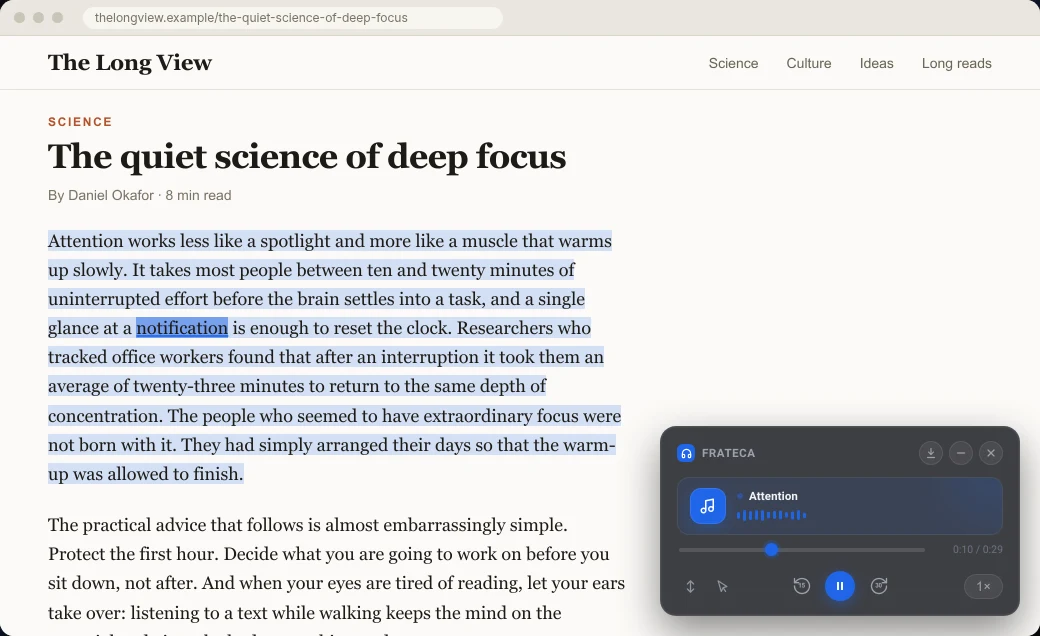
- Right-click → Listen to selected text. A small player appears in the corner of the page and audio starts as soon as the first part is ready.
- Follow along. The selection is shaded and the current word is highlighted on the original page, much like Edge.
- Adjust. Step through eight speeds from 0.75× to 3.5×, skip back 15 seconds or forward 30, and turn on Auto scroll so the page follows the voice. With Click to read on, clicking any word jumps the audio there.
For a long read you won’t finish now, right-click anywhere and choose Save full page to Frateca. The whole article becomes audio in your library, which you can open in the extension’s popup, on the web, or in the Frateca app on iPhone or Android. Open page brings you back to the original article with the highlighting and player restored.
A few honest differences from Edge:
- No keyboard shortcut. Frateca starts from the right-click menu rather than a key combination.
- Different voices. You get Frateca’s natural AI voices in English (US and UK accents), Spanish, French, Italian and Portuguese, not Microsoft’s Natural voices. Edge offers far more languages.
- Web pages only. The extension doesn’t read PDFs (see Option 4).
- A daily free allowance. The free plan includes every speed, highlighting, saving pages and phone sync, and a “minutes left today” meter shows your remaining listening. Premium (Frateca Pro in the extension) removes the cap and adds MP3 downloads. Prices are on the pricing section.
The complete Frateca extension guide walks through every setting.
Option 3: Third-party extensions that use Microsoft’s voices
Search the Chrome Web Store for “Edge text to speech” and you’ll find extensions that read pages using Microsoft’s voices. They can sound very close to Edge. Two cautions before you install one:
- None of them is published by Microsoft. Check the developer name, the “Updated” date and the Privacy practices section on the listing.
- The voices can change or stop without notice, because the developer doesn’t control them. Read the most recent reviews for reports of voices failing before you rely on one.
If one works well for you, fine. Just treat it like any extension that can read every website, and remove it if you stop using it.
Option 4: Keep Edge for PDFs
This is where Edge is hard to replace. Open a PDF in Edge and Read aloud is right there in the PDF toolbar, reading page after page in a Natural voice. Microsoft added PDF support to Read aloud years ago, and it’s free.
Two things to know. Edge only reads PDFs that contain real text, so scanned or photographed pages stay silent. And like everything in Edge, it stops when you close the tab. If a PDF is something you want to listen to on a walk, upload it to the Frateca web app and it joins the same library as the pages you save from Chrome. How to make Chrome read a PDF aloud compares the routes that work in Chrome, and how to listen to PDFs covers scans and OCR.
Edge feature by feature, in Chrome
| What you liked in Edge | Chrome built in (Reading mode) | Frateca for Chrome |
|---|---|---|
Start with Ctrl + Shift + U | Alt + Shift + R opens Reading mode, then press Play | Select, then right-click → Listen to selected text |
| Natural voices | Google’s natural voices, downloaded automatically | Frateca’s AI voices in 5 languages |
| Reads on the page you’re on | Reads a simplified copy in its own view | Reads on the original page |
| Highlighting while it reads | Word, sentence or adaptive, in the Reading mode view | Word by word, on the original page |
| Read only a selection | Reads the article in Reading mode | Yes, that’s the main action |
| Speed control | Adjustable playback speed | Eight steps from 0.75× to 3.5× |
Distraction-free view (F9) | Reading mode itself, with font and spacing settings | Not the focus; Open text shows a clean text view of saved items |
| PDFs | Not the simplest route; use Edge | Upload PDFs in the Frateca web app |
| Keeps your place after you close the tab | No | Yes, with Open page and resume |
| Continue on your phone | No | Yes, Frateca web, iOS and Android apps |
| Cost | Free | Free to install; daily free allowance |
A setup that works
You don’t have to pick one. Here’s a split that works well for Edge switchers:
- Quick listen to one article: Chrome’s Reading mode. Nothing to install.
- Reading you actually mean to finish: Frateca for Chrome. Listen to a section now, save the rest, and finish it on your phone later.
- A PDF at your desk: open it in Edge and press Read aloud.
The Frateca vs Edge Read Aloud comparison lays out what each one does, with sources, if you want the details before choosing.
If highlighting is what made Edge click for you, you’re not imagining it. Reading and listening at the same time has been studied for years, and bimodal reading explains why it can help some readers stay with the text. Once you’re comfortable, listening at 2× is the next step.
💡 Missing Edge’s one-key start? Pin Frateca to the toolbar and keep the popup one click away. Your library, the player and your voice settings all live there, so you won’t need to go looking.
Ready to bring Edge-style reading into Chrome? Add Frateca to Chrome. It’s free to install, you can try it as a guest, and you can hear the voices in the live demo first.
Stop reading. Start listening.
Frateca turns PDFs, articles, textbooks and web pages into natural audio you can play anywhere: on your commute, at the gym, or while you cook. Free plan included, no card required.
 Add to Chrome
iOS · Android · Web · Chrome extension · Free plan, no credit card required