

How to Make Google Chrome Read Aloud: 4 Free Ways
Make Chrome read a page aloud with Reading mode, Listen to this page on Android, your computer's own reader, or a free extension with natural voices.
Key takeaways
- On a computer, Chrome's own reader lives in Reading mode: More (⋮) → More tools → Reading mode, then press Play in the side panel.
- On an Android phone, open the page and tap More (⋮) → Listen to this page. Not every site supports it yet.
- To hear only a passage you've selected, use your system reader (Option+Esc on a Mac, Search+S on a Chromebook) or a read-aloud extension.
- The built-in options are free, but none of them keeps a library or your place. The free Frateca extension reads selected text or saves a whole page, highlights each word on the page, and lets you finish on your phone.
Google Chrome can read a web page out loud, but the feature is easy to miss. It works differently on a computer than on a phone, and it was built for one article at a time rather than a reading list. Below are four free ways to make Chrome read aloud, the exact menus to click, and what to do when the voice sounds robotic or a page won’t play.
The quick answer
| You’re using | Fastest way to hear the page |
|---|---|
| Chrome on Windows, Mac or Linux | More (⋮) → More tools → Reading mode, then press Play in the side panel |
| Chrome on a Chromebook | Reading mode as above, or highlight text and press Search + S |
| Chrome on Android | More (⋮) → Listen to this page |
| Chrome on iPhone | Use iOS Speak Screen (two-finger swipe down from the top) |
| Any desktop, with natural voices and a saved library | The free Frateca extension: select text → right-click → Listen to selected text |
The details for each are below.
1. Reading mode on a computer (built in, free)
Reading mode removes the ads, menus and sidebars from an article and shows the text in a side panel. On current versions of Chrome it also has a read-aloud player.
- Open the article you want to hear.
- Click More (⋮) at the top right → More tools → Reading mode. On recent versions you can also right-click the page and choose Open in reading mode.
- The side panel opens with a cleaned-up copy of the article. Press Play at the top of the panel.
- Use the panel controls to pause, skip sentences and change Playback speed.
- Open the panel’s Settings to choose a voice under Voice selection (you can preview each one) and to turn Voice highlight on or off.
According to Google’s help page, Reading mode downloads Google’s natural voices for your current language on its own. If that download fails, it uses your computer’s system voice instead. That fallback is the usual reason the voice sounds flat (see troubleshooting below).
Good for: one article read straight through, for free, with no install. Not built for: reading only the paragraph you selected, keeping your place across days, or picking the article back up on your phone.
💡 Reading mode reads its own cleaned copy of the article, not the original page. If it drops a table, caption or sidebar you needed, that content won’t be read either.
2. “Listen to this page” on Android (built in, free)
Chrome on Android has its own player, and it feels more like a podcast app than a screen reader.
- Open the page in Chrome on your Android phone.
- Tap More (⋮) at the top right → Listen to this page.
- Tap the mini player to open the full controls: speed, voice (under Options), text highlighting and auto-scroll.
- Tap Close to stop.
Google’s help page says the option isn’t available on every website yet. If Listen to this page is missing from the menu, that page can’t be played. Some versions also offer an AI playback mode that turns the page into a podcast-style conversation instead of reading every word. That’s useful for a quick summary but not when you need the exact text.
For more ways to make the phone itself read aloud, outside Chrome too, see how to make Android read text aloud. On an iPhone, Google doesn’t document this feature for Chrome, so use the system reader in our iPhone guide.
3. Your computer’s built-in reader (free, works on any text)
Reading mode reads whole articles. To hear only a passage you’ve highlighted, your operating system already has a reader:
- Mac: System Settings → Accessibility → Spoken Content (called Read & Speak on newer macOS versions) → turn on Speak selection. Highlight text in Chrome and press Option + Esc. Press it again to stop.
- Chromebook: turn on Select-to-speak under Settings → Accessibility → Text-to-Speech, highlight text and press Search + S. Each word is highlighted as it’s read. Our Chromebook read-aloud guide covers every option.
- Windows: Narrator turns on and off with Windows logo key + Ctrl + Enter, and Narrator + Shift + Down arrow reads the current selection. The Narrator key is Caps Lock or Insert by default.
One warning about Narrator (and ChromeVox on Chromebooks): they are full screen readers, designed for blind and low-vision users. They announce buttons, links and menus as you move, which is right for navigating a computer without sight and wrong for simply hearing an article. If you’re on Windows and want a lighter built-in option, Microsoft Edge has a separate reader. See Edge Read Aloud and its limits, or, if you’d rather stay in Chrome, how to get Edge’s Read Aloud in Chrome.
4. The Frateca Chrome extension (free to install, natural voices)
The built-in options read the page in front of you and then forget it. The Frateca extension was built for people who read a lot in the browser and want to keep going away from the desk.
- Open the Chrome Web Store listing and click Add to Chrome. Pin it from the Extensions (puzzle-piece) menu so the icon stays visible.
- Click the Frateca icon, accept the short privacy notice, and either sign in or choose Continue as guest.
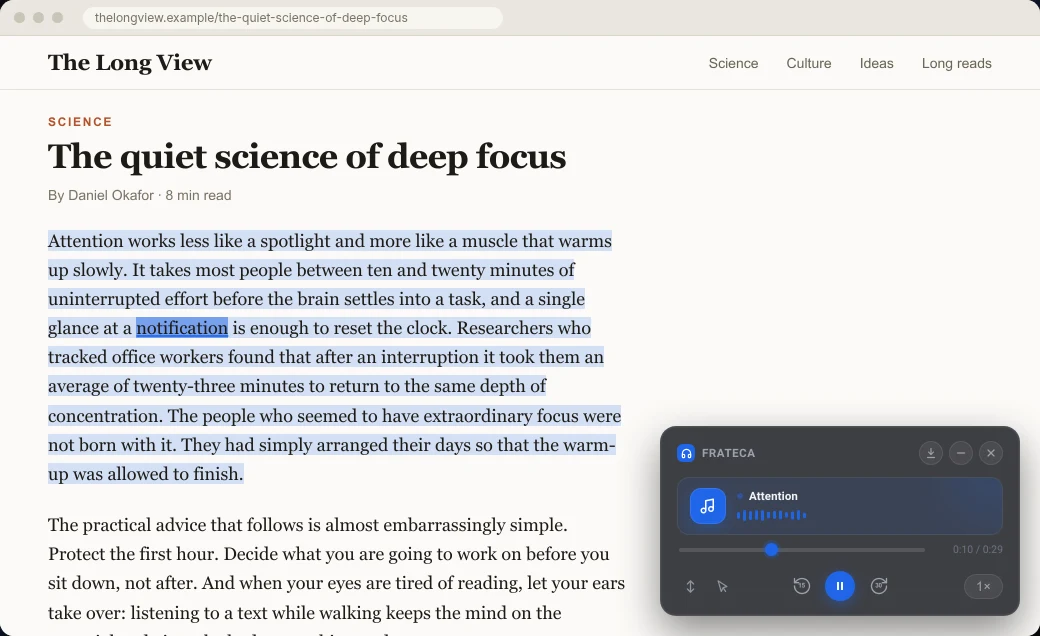
- To hear a passage: select the text, right-click and choose Listen to selected text. Playback starts as soon as the first part of the audio is ready, while the rest keeps generating.
- To save the whole article: right-click anywhere on the page and choose Save full page to Frateca. The page becomes an audio item in your library.
The difference shows up while it’s playing:
- Word-by-word highlighting on the original page. You don’t switch to a separate panel. The selected passage is shaded and the current word lights up where you’re already reading. Following the words while you listen is known as bimodal reading, and some readers find it easier to stay focused that way. If focus is the main reason you listen, see our guide to Chrome extensions for ADHD.
- Proper player controls: play/pause, back 15 seconds, forward 30 seconds, a seek bar, and speeds from 0.75× to 3.5×.
- Auto scroll keeps the current sentence in view, and Click to read jumps the audio to any word you click.
- A library that remembers. The toolbar popup lists everything you’ve played or saved. Open page reopens the original article with the highlighting and player restored, and your position is saved, even after a browser restart. Playback keeps going when you close the popup.
- Your phone has it too. The extension uses the same library as the Frateca web app and the iOS and Android apps, so an article you saved at your desk is waiting on the commute home.
Voices are natural AI voices in English (US and UK accents), Spanish, French, Italian and Portuguese. You choose one in the extension’s profile screen. The free plan has a daily listening allowance that resets every day. A paid plan adds unlimited listening, enhanced voices and audio downloads.
Privacy, in plain terms: the extension only processes the text or page you choose with a Frateca action. To make the audio, that content goes to Frateca’s servers along with the page’s address and title. It doesn’t collect your browsing in the background, and the data isn’t sold or used for ads. Chrome’s install prompt shows a broad permission warning because the extension has to work on whichever site you choose. The full walk-through is in our Frateca extension guide, and the extension page lists every feature.
Side-by-side comparison
| Reading mode | Listen to this page | System reader (Mac / ChromeOS / Windows) | Frateca extension | |
|---|---|---|---|---|
| Where | Chrome on a computer | Chrome on Android | Any app on that computer | Desktop Chrome (Windows, Mac, Linux, ChromeOS) |
| What it reads | The whole article, in a side panel | The whole page | What you highlight (or the whole screen) | A selected passage, or a saved full page |
| Voices | Google natural voices, or the system voice as a fallback | Several voices | System voices (ChromeOS adds optional natural voices) | Natural AI voices in 5 languages |
| Highlighting | In the panel (Voice highlight) | Optional | Select-to-speak highlights words; others vary | Word by word on the original page |
| Keeps your place / library | No | No | No | Yes: a library synced with web, iOS and Android |
| Cost | Free | Free | Free | Free to install; paid plan for unlimited |
Troubleshooting
The three most common problems are below. For every other symptom, from a silent tab to a missing right-click item, see Chrome read aloud not working.
Reading mode isn’t showing, or there’s no Play button
- Update Chrome: More (⋮) → Help → About Google Chrome, then relaunch. Read-aloud in Reading mode reached Chrome gradually, and older builds (and some older Google help pages) list it as Chromebook-only.
- Try a real article. Reading mode is designed for article-style pages, so a Wikipedia article makes a good test page (see how to listen to Wikipedia). Sign-in screens, web apps, search results and pages that are mostly images may give you an empty or partial panel.
The voice sounds robotic
- In Reading mode, open Settings → Voice selection and preview the voices. If they all sound flat, the natural-voice download probably failed and Chrome fell back to the system voice. Check your connection and reopen Reading mode.
- System readers use whatever voices your operating system has installed. Download a higher-quality voice in your OS speech settings, or use a reader with neural voices. There’s more on what separates a pleasant voice from a tiring one in our tested guide to text-to-speech voices.
It won’t read this page
- Chrome’s own pages can’t be read by extensions. That includes
chrome://settings pages and the Chrome Web Store, and it applies to every extension, not just Frateca. - PDFs: a PDF opened in Chrome’s built-in viewer isn’t a normal web page, and the Frateca extension doesn’t work inside it. Some extensions that list PDF support can read it, Edge reads PDFs aloud from its toolbar, or you can upload the file to the Frateca web app. How to make Chrome read a PDF aloud compares the routes.
- Google Docs draws its text in a way most read-aloud tools can’t select reliably. The Word and Google Docs guide has the workarounds.
- Listen to this page is missing on Android: Google says not every site supports it yet. Use Select to Speak or share the page to a reader app instead.
Which should you use?
- One article, right now, nothing to install → Reading mode on a computer, Listen to this page on Android.
- A paragraph you’ve highlighted → your system reader, Option+Esc on a Mac or Search+S on a Chromebook.
- You read in the browser all day and want natural voices, word highlighting on the page, and a place to finish on your phone → add Frateca to Chrome. It’s free to install and you can try it as a guest.
Comparing extensions specifically? Our roundup of text-to-speech Chrome extensions compares the main options side by side, and how to listen to web articles covers newsletters and read-later queues.
Stop reading. Start listening.
Frateca turns PDFs, articles, textbooks and web pages into natural audio you can play anywhere: on your commute, at the gym, or while you cook. Free plan included, no card required.
 Add to Chrome
iOS · Android · Web · Chrome extension · Free plan, no credit card required