

How to Listen to Word Documents and Google Docs
Listen to Word documents and Google Docs with built-in tools, a screen reader, export, or a TTS app—plus a practical proofreading and privacy checklist.
Key takeaways
- Word documents, Google Docs and other text files can be read aloud in natural voices by a text-to-speech app — great for listening, studying and proofreading.
- Import the file or paste the text into a dedicated app for natural voices; use the built-in 'Read Aloud' in Word or Docs for a free, robotic option.
- Hearing your own writing read back is one of the fastest ways to catch typos, missing words and clunky sentences.
- A cross-platform app lets you draft on your laptop and listen to the document on your phone.
Documents pile up the same way articles do. A report you need to review. A draft you wrote and can no longer see straight. Study notes you’d much rather revise on a walk than at your desk. Whether it’s a Word document, a Google Doc, or a plain text file, you can have any of them read aloud in a natural voice. Below are three ways to do it, plus one use that catches almost everyone off guard: proofreading by ear.
Method 1: A dedicated app (natural voices, synced)
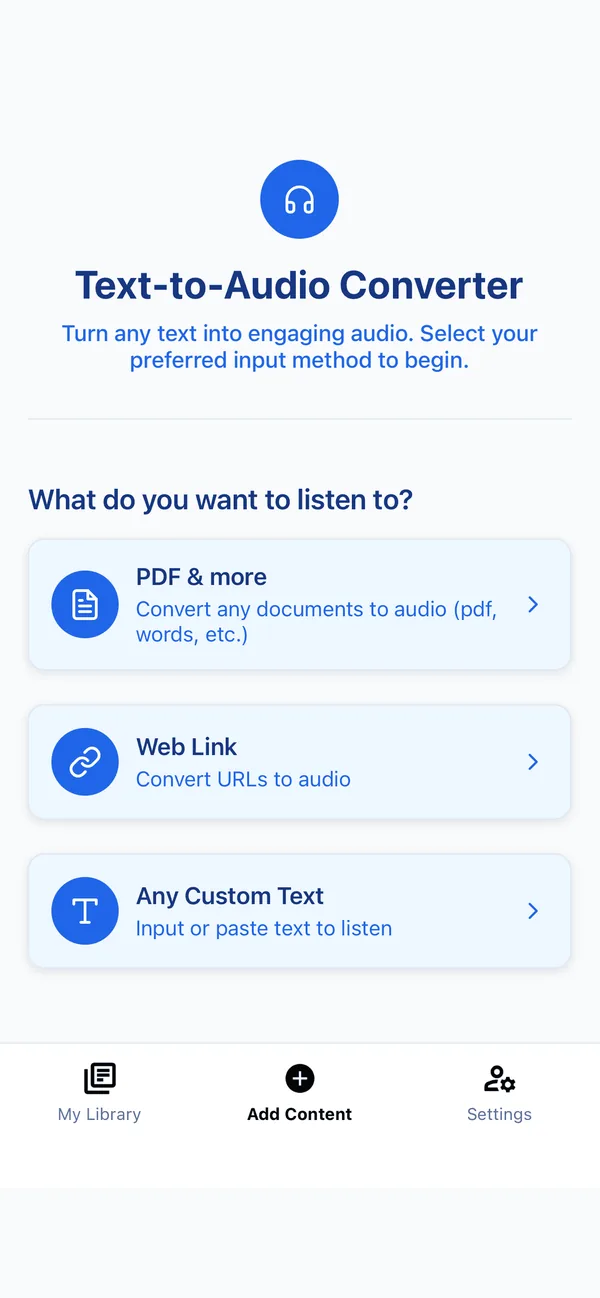
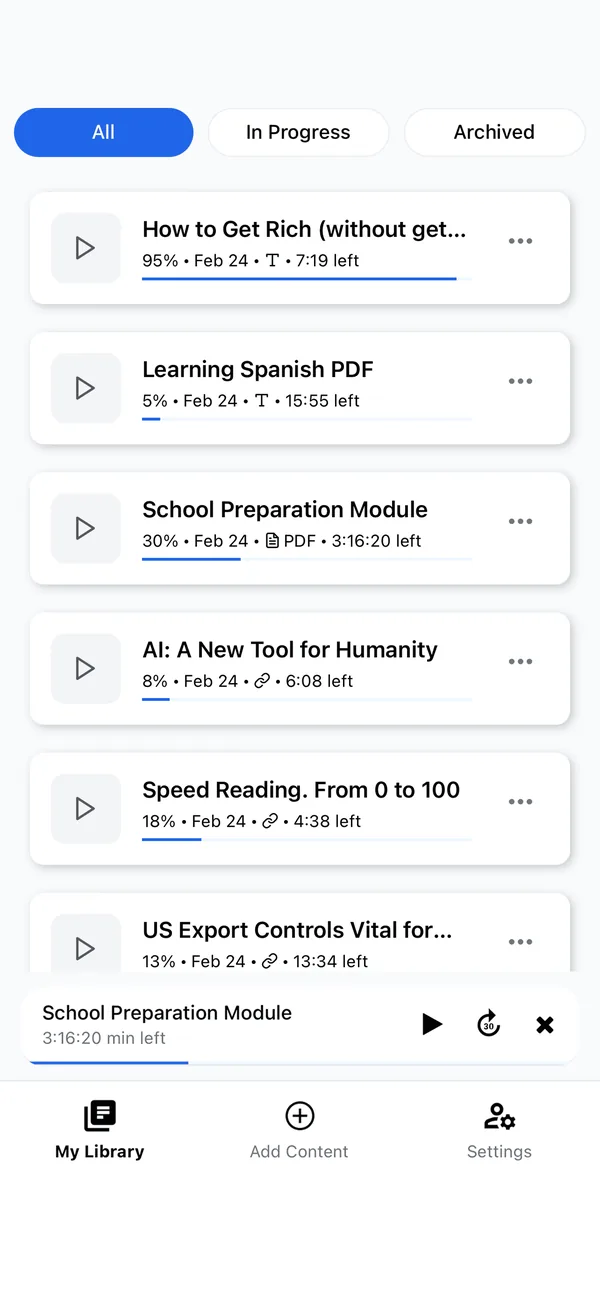
For the best experience, import the document into a text-to-speech app like Frateca:
- Import the Word doc (or paste the text directly).
- Choose a natural voice and speed.
- Press play — listen in the background, on any device.
Because your library syncs across iOS, Android and the web, you can convert a document on your laptop and listen on your phone. Natural neural voices make long documents comfortable in a way the system voice doesn’t — see choosing a text-to-speech voice.
💡 Not sure how it’ll sound? Paste a paragraph of your document into the live demo and listen instantly, no signup.
Method 2: Word Read Aloud or a Google Docs screen reader
The two editors handle this differently:
- Microsoft Word: Review → Read Aloud reads all or part of the document. Microsoft documents speed, voice, play/pause, and paragraph controls for supported desktop and mobile versions. In Word for the web, use View → Immersive Reader, then Play.
- Google Docs: Google does not present a simple audiobook-style play button for every Doc. It supports spoken feedback through compatible screen readers. Open Tools → Accessibility settings, turn on screen reader support, and use ChromeVox, NVDA, JAWS, or VoiceOver according to Google’s current instructions.
Word’s available voices depend on the platform or Microsoft service. A screen reader has a different job from a long-form reading app: it helps a user navigate controls and document structure as well as speak text. Do not recommend that a blind colleague replace their screen reader with a casual TTS reader; the tools can complement each other.
Method 3: Convert to PDF, then listen
If your workflow already produces PDFs, you can export the document to PDF and listen to that — the steps are identical to listening to any PDF. Handy when you’re sharing a finalised version anyway.
Compare the four workflows
| Workflow | Best for | Keeps document navigation? | Works away from the editor? | Main limitation |
|---|---|---|---|---|
| Word Read Aloud | Quick proofread in Word | Yes, within Word | Depends on Word/platform | Availability and voices vary |
| Google Docs + screen reader | Accessible editing and navigation | Yes | With the screen reader setup | More setup; not an audiobook library |
| Export to PDF | A stable final layout | Headings depend on export quality | Yes, in a PDF/TTS app | Headers, columns and scans can read poorly |
| Import/copy into a reading app | Long-form playback and a synced queue | Usually focuses on reading order | Yes | A copy can become stale after edits |
Choose based on the job. Proofreading a live draft is different from listening to a final report during a train ride, and accessible document navigation is different again.
Word: exact steps and useful controls
For supported versions of Word:
- Open the document and set its proofing language correctly. Voice pronunciation follows the language setting.
- Select Review → Read Aloud.
- Use Play/Pause and Previous/Next to move by paragraph.
- Open voice settings to choose the available voice and change speed.
- Stop playback before making a large edit, then restart at the paragraph you changed.
Microsoft currently lists Read Aloud for Office 2019, Office 2021, Microsoft 365, and supported iOS/Android versions; interfaces can move, so use its linked support page if the button is missing. Word for the web uses Immersive Reader.
For proofreading, select a slower speed than leisure listening. For a content review, use a normal pace and pause at headings to state the main point in your own words.
Google Docs: accessible spoken feedback
Google recommends a current Chrome browser and current screen reader. In a Doc:
- Open Tools → Accessibility settings.
- Turn on screen reader support.
- Confirm your screen reader is running and follow Google’s platform-specific navigation commands.
- Use real heading styles, lists, descriptive links, and alt text so the document exposes meaningful structure.
If your goal is only casual listening and you do not already use a screen reader, exporting to DOCX/PDF or copying a clean section to a reading app may be simpler. Do not turn a screen reader into a long-form player without learning its navigation model—it speaks the interface as well as the content by design.
Clean the document before long-form audio
Documents are written for eyes, so a raw conversion often includes material that sounds repetitive or confusing. Make a listening copy and fix:
- repeated headers, footers, page numbers, and “confidential” watermarks;
- tables whose meaning depends on moving across columns;
- footnote markers and raw URLs in the middle of sentences;
- unexplained abbreviations, symbols, or formulas;
- tracked changes and comment threads;
- images that carry information without alt text or a caption.
Never delete those elements from the authoritative document just to improve audio. Create a copy or export, preserve the source, and label the listening version with its date.
The secret weapon: proofread by ear
Here’s the use people don’t expect to love. Hearing your own writing read back catches mistakes your eyes glide over — because when you read your own draft, your brain fills in what you meant to write. A voice reads exactly what’s there:
- Missing and doubled words (“the the”, “to to”).
- Sentences that run on or trip over themselves.
- Clunky rhythm and awkward transitions.
Set a clear voice at a slightly slow speed, listen to your draft once, and fix what makes you wince. It’s faster and less painful than re-reading, and it’s especially powerful for anyone with dyslexia — see text-to-speech for dyslexia study tips. Busy professionals can fold it into the workday; our guide for professionals has more.
A two-pass proofreading method
Pass one: wording. Hide the page if possible and listen at about 0.9–1.0×. Mark missing words, doubled words, abrupt transitions, and sentences that need a breath. Do not edit while the sentence is still playing; pause, fix, then replay the entire paragraph.
Pass two: visual accuracy. Read the page with your eyes and verify names, dates, numbers, citations, links, tables, and formatting. Audio is good at revealing rhythm and omissions, but it can pronounce a typo as if it were valid and cannot prove that a figure is correct.
For high-stakes legal, financial, medical, or safety content, listening is an additional check—not the final approval process.
Privacy and version control
Before uploading a work document to any third-party service, check the document owner’s policy, the provider’s current privacy terms, storage/retention controls, and whether the content contains personal, confidential, client, health, legal, or regulated information. “It is only for audio” does not remove those obligations.
Also prevent stale copies:
- Put the version date in the listening copy’s title.
- Re-export after substantive edits.
- Delete obsolete generated copies according to your retention policy.
- Return to the authoritative Word or Google document before quoting or approving text.
Common failure modes
- Wrong language or accent: correct the document language before blaming the voice.
- Columns read in the wrong order: export a single-column listening copy.
- Scanned pages produce nonsense: run OCR, then verify the recognized text.
- A Google Doc announces menus and collaborator activity: that is screen reader behavior; learn the relevant navigation and announcement settings.
- The audio copy misses the latest edits: regenerate it and include the version date.
- Proofreading misses numeric errors: complete the visual second pass.
Which method should you use?
- Listening to study or review on the go → a dedicated app with natural voices.
- A quick read at your desk → Word or Docs’ built-in Read Aloud.
- Proofreading a draft → any of them, at a slightly slow speed, listening for errors.
Stop staring, start listening
Your documents don’t have to stay trapped on the screen. Have them read aloud so you can study on a walk, review a report on the train, or proofread a draft by ear before you hit send. For natural voices and a library that follows you everywhere, try Frateca free. Your future self, the one who almost shipped “the the” to a client, will thank you.
Stop reading. Start listening.
Frateca turns PDFs, articles, textbooks and web pages into natural audio you can play anywhere — on your commute, at the gym, or while you cook. Free plan included, no card required.
Try Frateca free →iOS · Android · Web · Free plan, no credit card required