

How to Listen to Wikipedia Articles (Free)
Hear Wikipedia read aloud for free: Spoken Wikipedia recordings, Chrome's Reading mode, your phone's reader, or an extension that skips the references.
Key takeaways
- Spoken Wikipedia has human recordings, but only for a small share of articles, and each recording matches the version of the article that existed when it was read.
- On a computer, Chrome's Reading mode reads a Wikipedia article aloud for free: right-click, Open in reading mode, press Play.
- The official Wikipedia app has no read-aloud button of its own, so on a phone use Chrome's Listen to this page on Android or Speak Screen on iPhone.
- To hear one section and skip the infobox and the long References list, select the section and use a reader such as Frateca for Chrome, which highlights each word on the page and can save the article for your phone.
- Listening is fine for personal use. If you publish audio made from Wikipedia text, follow its CC BY-SA license.
You opened Wikipedia to check one date. Forty minutes later you have eleven tabs open: the Byzantine Empire, the Fourth Crusade, Venetian shipbuilding, a man named Enrico Dandolo. Each article is long, dense and really interesting, and you have a 30-minute walk ahead of you and no intention of reading 9,000 words on a phone screen.
Wikipedia is one of the best things to listen to. Its articles are written to be read straight through, with a summary up top and clear sections. It’s also one of the easiest sites to listen to badly, because a voice that reads the whole page will happily recite the infobox, the coordinates, every navigation box and 140 numbered references. Here’s how to hear the article and not the clutter.
The short answer
- Want a human voice? Check for a Spoken Wikipedia recording at the top of the article. Most articles don’t have one.
- On a computer, nothing to install: right-click the article, choose Open in reading mode, press Play.
- On a phone: use Listen to this page in Chrome on Android, or Speak Screen on iPhone.
- To hear one section, skip the references and finish it on your phone later: select the section and play it with a reader such as Frateca for Chrome.
Option 1: Spoken Wikipedia, the human recordings
Since 2005, volunteers in the Spoken Wikipedia project have recorded themselves reading articles aloud. When an article has a recording, you’ll see a small box with a speaker icon and a play button near the top of the page or in the sidebar. Press play and a person reads it to you.
It’s a lovely project with two real limits:
- Coverage is small. A 2016 research paper counted about 1,240 spoken articles in English Wikipedia, around 287 hours of audio. The collection has grown since, but it is still a tiny share of an encyclopedia with millions of articles. The topic you’re curious about tonight very likely isn’t in it.
- Recordings are snapshots. Each recording reads the article as it stood on the day it was made, and the recording page notes which version that was. A popular article may have been rewritten many times since. For a stable topic that’s fine. For a current event or a fast-moving field, the recording may be years out of date.
To browse what exists, search Wikipedia for Category:Spoken articles or look up WikiProject Spoken Wikipedia. If you enjoy reading aloud, the project also welcomes new volunteers and publishes reading guidelines.
Option 2: Chrome’s Reading mode on a computer
For any article without a recording, Chrome’s built-in reader is the simplest free option:
- Open the article in Chrome on your computer.
- Right-click the page and choose Open in reading mode.
- Press Play at the top of the reading panel.
- Use the settings to change the voice, the speed and how text is highlighted as it’s read.
Google’s help page says Reading mode downloads natural voices for your language automatically and falls back to your computer’s voice if it can’t. Wikipedia’s clean article structure suits Reading mode well. You still get some extras, such as image captions and section headings, but far less than the full page.
The limits: it reads in its own panel rather than on the article itself, it plays from the top rather than from the section you want, and it keeps nothing once you close the tab. There’s a full walkthrough in how to make Chrome read aloud, and if Play is missing or silent, Chrome read aloud not working has the fixes.
Option 3: On your phone
The official Wikipedia app doesn’t have a read-aloud button of its own. A request for one has been open on Wikimedia’s issue tracker for years. Your phone can still do the job:
- Android: open the article in Chrome, tap More (⋮) → Listen to this page. Google notes it isn’t available on every site, so if the option is missing, try another article.
- iPhone: turn on Speak Screen under Settings → Accessibility → Read & Speak (Spoken Content on iOS 18 and earlier), open the article, and swipe down with two fingers from the top of the screen.
Both start at the top of the page. Speak Screen in particular reads what’s on screen, so expect it to wander into tables and captions.
Option 4: Select the section you want with Frateca for Chrome
This is the method for when you want part of an article, or want to hear it on the walk rather than at the desk. Frateca for Chrome is a free extension that reads exactly what you select:
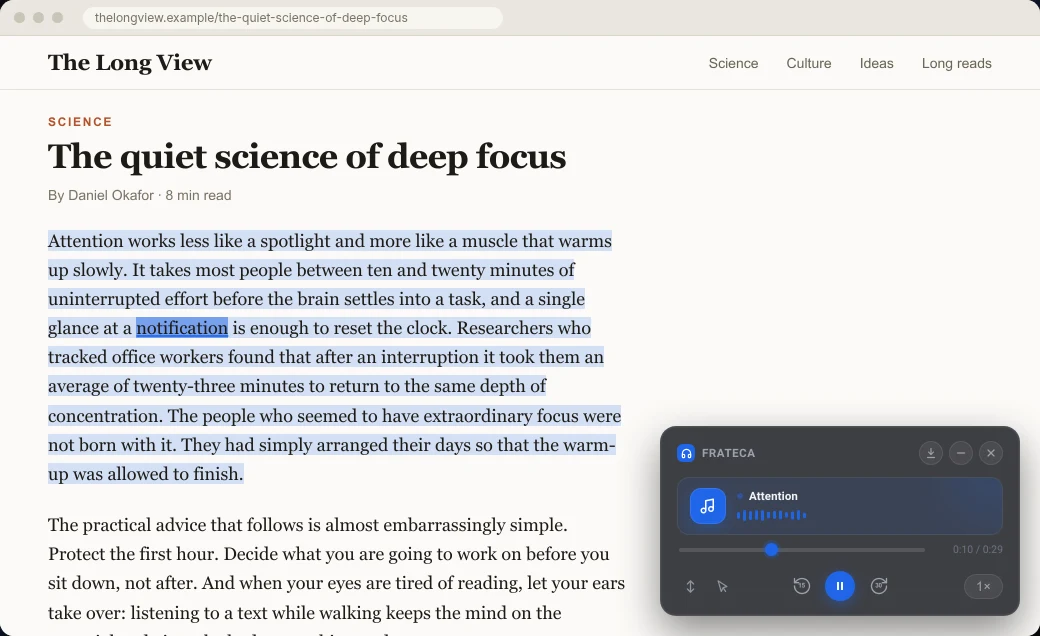
- Select from the first paragraph of the section you want to the end of the last one. Leave out the infobox, the tables and everything from See also down.
- Right-click → Listen to selected text. A natural voice starts within seconds, and each word is highlighted on the Wikipedia page as it’s read, so you can glance at a date or a name without losing your place.
- Adjust the speed from 0.75× to 3.5×. A history article you’re enjoying might sit at 1.25×; a dense science article with unfamiliar terms deserves 1×.
- Save it for later. Selections go into your Frateca library, which is shared with the Frateca app on iPhone and Android, so the section you started at your desk is waiting on your phone.
You can also right-click and choose Save full page to Frateca to turn the whole article into audio. On Wikipedia, though, a full-page save works from the whole page, so it may include the references, the navigation boxes and other parts you’d rather skip. For long articles, selecting the sections you care about gives cleaner audio.
The extension is free to install, with no ads and no credit card, and you can try it as a guest. The free plan has a daily listening allowance; Premium removes the cap and adds MP3 downloads. Voices cover English (US and UK accents), Spanish, French, Italian and Portuguese, so the Spanish, French, Italian and Portuguese Wikipedias work too. If you’re learning English, Simple English Wikipedia is good practice material; reading English websites out loud has a routine for it.
Which option for which situation
| Situation | Best option | Why |
|---|---|---|
| The article has a recording and the topic is stable | Spoken Wikipedia | A human voice, free |
| One article, at your computer, right now | Chrome Reading mode | Built in, cleaner than the full page |
| On your phone, no setup | Listen to this page (Android) or Speak Screen (iPhone) | Already on your device |
| One section, skipping the references | Frateca for Chrome, Listen to selected text | Reads only what you select, highlighted on the page |
| Start at the desk, finish on a walk | Frateca for Chrome, then the Frateca app | Same library on laptop and phone |
What to skip, and why
A Wikipedia page has a lot of material that’s useful to see and painful to hear:
- The infobox. The table in the top corner reads as a string of labels and numbers. Glance at it instead.
- Pronunciation guides. The bracketed phonetic spelling after a name rarely comes out well in synthetic speech.
- Coordinates, citation numbers and footnote markers. Most readers handle these reasonably, but they break the rhythm.
- Tables and lists of statistics. Better seen than heard.
- See also, Notes, References, External links. Often longer than the article itself.
The lead section (everything above the first heading) is written as a summary. On a topic you only half care about, listening to the lead and stopping there is a perfectly good choice.
Getting more out of listening
Watch the names. Wikipedia is full of names from every language, and text-to-speech voices sometimes guess wrong at them. If a name matters, look at it while it’s being read, or check the pronunciation guide in the article. There’s more on why this happens in why text-to-speech mispronounces words.
Follow along for numbers and dates. History and science articles are dense with them, and they’re easy to lose by ear. Reading along with the highlighted words helps them stick. Text-to-speech with word highlighting explains when following along helps and when it doesn’t.
Go section by section. Long articles have natural chapters. Listen to one section per walk or per chore and stop at a heading, rather than trying to finish 9,000 words in one sitting.
Pair it with a deeper source. Wikipedia is a starting point. If a topic hooks you, the references section is your reading list, and many of those sources are papers you can listen to as well. See how to listen to research papers.
💡 Rabbit-hole tip: when one article sends you to five more, save each one as you open it instead of keeping the tabs. Your listening queue becomes the trail you followed. If the tabs are already open, too many tabs open? has a 15-minute routine for clearing them.
A note on licensing
Wikipedia’s text is free to read and free to reuse under a Creative Commons license. New edits have been released under CC BY-SA 4.0 since 2023, as Creative Commons announced. Listening for yourself, in any tool, needs nothing. If you want to publish audio made from an article, for example as a podcast episode or a video voice-over, the license asks you to credit the article and its authors and to share your version under the same license. Images on the page can have their own, different licenses. This isn’t legal advice, so read Wikimedia’s reuse guidance before publishing anything.
The bottom line
Wikipedia rewards listening: clear structure, a summary at the top and an endless supply of things you didn’t know you wanted to know. Use a Spoken Wikipedia recording when there is one, Chrome’s Reading mode for a quick listen at your desk, and your phone’s reader on the go. For hearing just the sections you care about and taking them with you, add Frateca to Chrome, select the first section of tonight’s rabbit hole, and press play on the walk home.
Stop reading. Start listening.
Frateca turns PDFs, articles, textbooks and web pages into natural audio you can play anywhere: on your commute, at the gym, or while you cook. Free plan included, no card required.
 Add to Chrome
iOS · Android · Web · Chrome extension · Free plan, no credit card required