

Too Many Tabs Open? Turn Them Into a Listening Queue
Why we hoard browser tabs, what it costs, and a 15-minute routine to clear them: sort what matters, then save the reading as audio you’ll finish.
Key takeaways
- Many open tabs are unread articles you’re afraid to lose. Carnegie Mellon researchers found that more than half of the people they studied felt they couldn’t close their tabs.
- Chrome’s Memory Saver now deactivates tabs you aren’t using, so your computer copes better than it used to. Your attention doesn’t get the same relief.
- Sort tabs by what they really are: tasks go to a to-do list, project references go to a tab group or bookmark, and reading goes somewhere you’ll actually get through it.
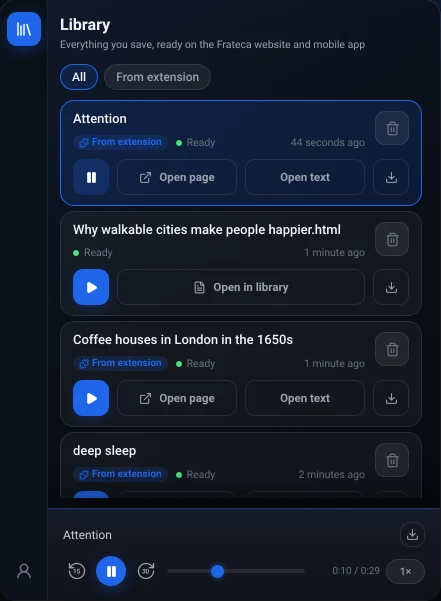
- For reading you never find screen time for, save each tab as audio and close it. With Frateca for Chrome it takes one right-click, and the page plays later from your phone.
Look at the top of your browser. If the tabs have shrunk to tiny favicons with no titles, this is for you.
Some of those tabs are work you’re in the middle of. A few are things you meant to buy, a form half filled in, a flight you were comparing. But for a lot of people, the biggest group is reading: an essay someone recommended, a long news piece, a how-to you’ll need “at some point,” three articles about the same thing. Each one is a small promise to come back. Together they turn the tab strip into a to-do list you can’t sort, can’t search properly and don’t want to look at.
This guide is about getting those tabs closed without losing what was in them. The trick that makes it work: a lot of what’s in those tabs never needed a screen. It needed a time when you could take it in, and listening gives you more of those.
Why you can’t close them
You’re in large company. In 2021, a Carnegie Mellon team published the first in-depth study of browser tab use in more than a decade. More than half of the people they surveyed and interviewed felt they couldn’t close their tabs. Clutter wasn’t the main reason. Fear was. A tab holds something it took effort to find, and closing it feels like throwing that effort away. Aniket Kittur, who led the research, put it this way: “People feared that as soon as something went out of sight, it was gone.”
So the tab stays, and the next one joins it. A tab is a really bad place to keep things, though. It doesn’t remind you of anything and it isn’t ordered by priority. Its only nudge is showing up on screen while you’re trying to do something else.
What all those tabs actually cost
Memory, less than it used to. Chrome’s Memory Saver, under Settings → Performance, now deactivates tabs you haven’t used for a while and reloads them when you click back. A pile of tabs is less likely to slow your laptop to a crawl than it was a few years ago. That said, about a quarter of the participants in one part of the CMU study had had their browser or computer crash from too many tabs, so it isn’t a myth either.
Attention, much more. Every visible tab is an open decision. The CMU participants described feeling flustered by the number of tabs and embarrassed at looking disorganized. If you’ve ever shared your screen in a meeting and watched everyone notice your 63 tabs, you know the feeling.
The reading itself. This is the cost nobody counts. The articles don’t get read. Reading a long piece needs a screen, quiet and twenty uninterrupted minutes, and a busy day rarely offers all three at once. So the tab waits for a moment that doesn’t come.
Where can a tab go instead?
Most tab advice says “use bookmarks” and stops. The options do different jobs, so here they are side by side.
| Put it in… | Good for | What happens to the reading |
|---|---|---|
| Chrome’s Reading list | Articles you’ll read on a screen soon | Waits in a side-panel list; you still need screen time to read it |
| A tab group | Project tabs you’ll reopen together | A closed group is saved and can be reopened later; it’s storage, not a plan |
| Bookmarks | Reference you’ll need again in months | Good archive, poor reminder |
| A read-later app | Reading and annotating on any device | Saved neatly; listening varies by app and is often a paid extra |
| An audio queue (Frateca) | Reading you won’t find screen time for | Becomes audio you can finish on a walk or a commute |
Chrome’s Reading list
Chrome has a built-in read-later list. Open the Chrome menu, go to Bookmarks and lists → Reading list → Add tab to reading list, or just right-click a tab and choose Add tab to reading list. Show reading list opens it in the side panel, and you can pin it to the toolbar. It’s free and quick. It just moves the tab somewhere tidier: you still need the screen time to read it.
Tab groups
Right-click a tab, choose Add tab to new group, name it, and collapse it. Google’s help page says a closed group isn’t deleted; it’s saved so you can reopen it later from the menu or the bookmarks bar, and it syncs if you’re signed in. That’s ideal for “everything for the March trip” or “the five docs for this project.” It doesn’t help with reading. A group of twelve unread essays is still twelve unread essays.
Read-later apps
Pocket used to be the default answer, but Mozilla shut it down on July 8, 2025 and deleted user data that November. Its users scattered:
- Instapaper still offers text-to-speech. Its Premium page lists AI voices and text-to-speech playlists on mobile as paid features.
- Readwise Reader includes text-to-speech with AI voices inside a paid subscription, alongside highlighting, RSS and a lot more.
- Raindrop.io is a good bookmark manager, but audio isn’t really what it’s for.
They’re good for saving and annotating. Whether the queue ever shrinks depends on you. Read-it-later apps with text-to-speech compares them properly.
An audio queue
This is the option that gets the reading done instead of storing it neatly. Frateca for Chrome is a free extension that adds Save full page to Frateca to the right-click menu. Choose it, and the page is captured and turned into natural-sounding audio in your Frateca library. Then close the tab. The same library opens in the Frateca app on iPhone and Android and in the web app, so the essay you saved at 4 p.m. is waiting on your phone for the walk home. You can start listening before a long page has finished generating. Start reading on your laptop, finish on your phone covers that handoff in more detail.
It’s free to install, with no credit card, no ads and a guest mode if you’d rather not make an account yet. The free plan includes a daily listening allowance that resets each day, and Premium removes the cap.
The 15-minute tab bankruptcy
Set a timer. The aim isn’t zero tabs; it’s that every tab still open is there on purpose.
Minutes 0 to 2: close the dead ones. Search results, tabs you’ve already read, duplicates, login pages, the shop page for something you bought last week. Don’t think too hard about these.
Minutes 2 to 5: pull out the tasks. A form to finish, an email to answer, a product to decide on. Write each one on your actual to-do list with the link, then close the tab. A task hidden in a tab never gets a deadline.
Minutes 5 to 8: park the projects. Tabs you need together for ongoing work go into a named tab group. Collapse it or close it, since it’s saved. Long-term reference goes into a bookmarks folder.
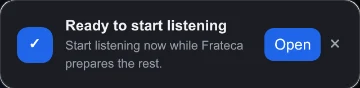
Minutes 8 to 13: save the reading as audio. For every article you honestly mean to get to, right-click and choose Save full page to Frateca, wait for the notice that it’s saved, and close the tab. If you’d rather read a particular piece on screen, add it to Chrome’s Reading list instead. Either way, it’s out of the tab strip.
Minutes 13 to 15: be honest about the rest. Whatever’s left is usually stuff you feel you should read rather than want to. Close it. If it mattered, it’ll come back to you, and Chrome’s History (or Ctrl+Shift+T, Cmd+Shift+T on a Mac) can reopen anything you regret.
💡 A good test for the last few tabs: if this article disappeared, would you go looking for it? If not, it was never really on your list.
Getting through the queue you just made
A queue only helps if it shrinks. Some things that make listening stick:
- Give it a slot you already have. The commute, the first ten minutes of a walk, folding laundry, the gym. Open the Frateca app and press play on the oldest item first. How to listen to articles online covers the setup.
- Speed up once you’re used to it. Start at 1× or 1.25×, then nudge it up a step when the voice starts to feel familiar. All the speeds from 0.75× to 3.5× are on the free plan.
- At the desk, listen in place. For a piece you want to see while you hear it (charts, code, quotes), select the text and choose Listen to selected text instead of saving the whole page. The words light up on the page as they’re read.
- Skim the first minute. Check that the headline and opening made it. A full-page save works from the whole page, so on busy sites you might hear a comment thread or a related-articles block. For those, select just the article text.
Keep it from coming back
Tabs creep back. A light weekly habit stops it getting out of hand.
- Friday, ten minutes. Run the bankruptcy routine again. It takes far less time when there are twelve tabs instead of sixty.
- Cap the queue. Keep ten items in your listening library, say. If you want to add an eleventh, finish or delete one first.
- Let old saves go. Anything you saved more than two weeks ago and haven’t started probably isn’t going to get played. Deleting it is a decision, not a failure.
- Save at the moment of interest. The habit that matters is right-clicking when you find the article, not leaving it open for later. How to build a reading habit that sticks has more on building small routines like this.
What this won’t fix
The audio route is for reading. Some things it doesn’t cover:
- Live work. Docs you’re editing, dashboards and email belong in a tab group or pinned tabs, not in an audio queue.
- PDFs. Frateca’s extension doesn’t work inside Chrome’s built-in PDF viewer. Upload PDFs in the Frateca web app instead, or see how to make Chrome read a PDF aloud for the other options.
- Chrome’s own pages. No extension can run on
chrome://pages or in the Chrome Web Store. - Your phone’s browser. Chrome on Android and iPhone doesn’t support extensions. On the phone, use Share → Frateca from the browser.
- Paywalls. You can listen to articles your account can read. A text-to-speech tool isn’t a way around a subscription.
Fifty open tabs don’t mean you’re disorganized. They mean you’re curious and short on time. Close the ones that were never going anywhere, park the projects, and turn the reading into something you can listen to while you do other things. Add Frateca to Chrome for free, save the oldest tab you still care about, and play it on your next walk. If you’d like a tour of every setting first, the extension guide walks through them.
Stop reading. Start listening.
Frateca turns PDFs, articles, textbooks and web pages into natural audio you can play anywhere: on your commute, at the gym, or while you cook. Free plan included, no card required.
 Add to Chrome
iOS · Android · Web · Chrome extension · Free plan, no credit card required