

How to Use the Frateca Chrome Extension (Complete Guide)
How to use the Frateca Chrome extension: install it, hear selected text with word highlighting, save full pages as audio and continue on your phone.
Key takeaways
- Install “Frateca — Free Text to Speech Reader” from the Chrome Web Store, pin it, agree to the privacy notice, then sign in or continue as a guest.
- Select text, right-click and choose Listen to selected text to hear it on the page with each word highlighted. Right-click anywhere and choose Save full page to Frateca to keep a whole article.
- Everything you save goes into one library shared with the Frateca web app and the iOS and Android apps.
- The extension only processes the text or page you choose. Chrome blocks it on chrome:// pages and the Web Store, and PDFs belong in the web app.
Frateca for Chrome turns the web page in front of you into natural-sounding audio. You can listen to a single paragraph right where it sits on the page, with each word highlighted as it’s read, or save the whole article to your Frateca library and finish it later on your phone. This guide walks through every step, from installing to troubleshooting, and explains exactly what the extension does with your data. If you only want the overview, the Frateca for Chrome page has it. If you’re new to Frateca itself, what is Frateca? covers the apps, the prices and the limits on one page.
What you need
- Desktop Google Chrome on Windows, macOS, Linux or a Chromebook. Chrome on Android and iPhone doesn’t run extensions; the Frateca app covers phones (more on that below).
- Nothing else to start. You can try it as a guest. A free Frateca account keeps your library and lets you open it on the web and in the mobile app.
Step 1: Install and pin the extension
- Open Frateca — Free Text to Speech Reader in the Chrome Web Store and click Add to Chrome.
- Chrome shows its standard permissions dialog, including “Read and change all your data on all websites.” That wording sounds broad, so the privacy section below explains what it’s actually used for. Click Add extension.
- A Frateca getting-started page opens in a new tab. It shows the two ways to listen and how the extension, website and mobile app share one library. Click through it or choose Skip to setup.
- Pin it. Click the puzzle-piece Extensions icon in Chrome’s toolbar and click the pin next to Frateca. The headphones icon now stays next to the address bar, one click from your library.
Step 2: Agree to the notice, then sign in or continue as a guest
Click the Frateca icon. Before anything else, the extension shows a short privacy notice. It explains that the text you select or the pages you save, plus the page address and title, are sent to Frateca’s servers to create audio, and that your account, library, playback position, voice and language are stored so the service works across devices. Nothing is collected until you choose a Frateca action. Links to the Privacy Policy and Terms of Service are right there. Click Agree and continue.
Then choose how to start:
- Continue to Frateca opens Frateca’s secure sign-in page so you can log in or create a free account. If you’re already signed in to the Frateca website in Chrome, connecting usually takes a click.
- Continue as guest lets you start listening straight away with no account. After a while you’ll see “Connect your email first”. Connecting an email protects the library you’ve built and makes it available on the website and in the app.
Step 3: Listen to selected text
This is the action you’ll use most.
- On any web page, select the passage you want to hear: a paragraph, a section, or the whole article body.
- Right-click the selection and choose Listen to selected text.
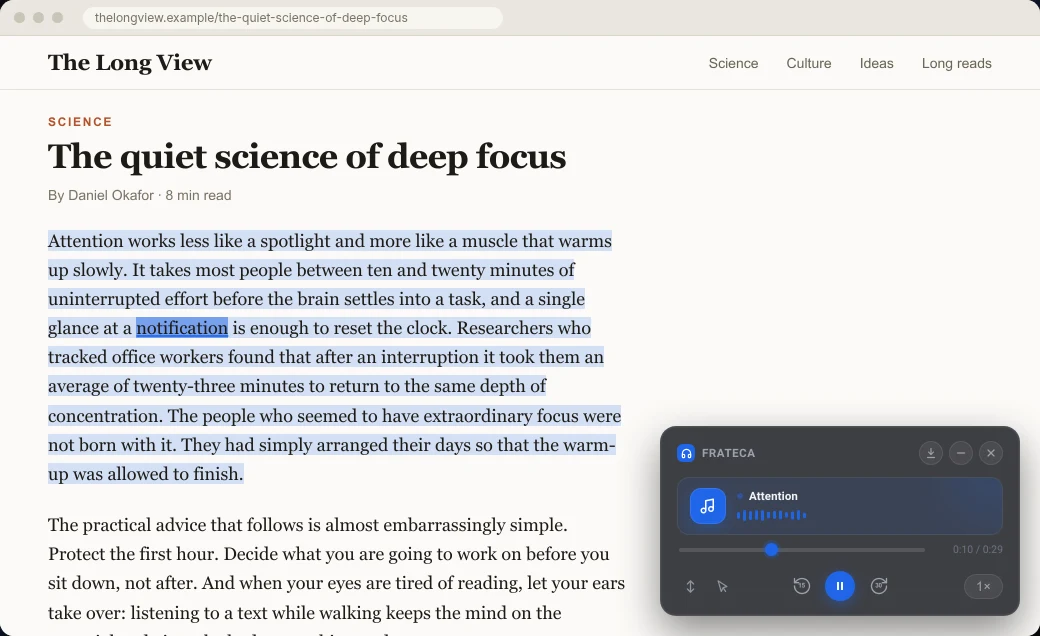
- A small Frateca player appears in the corner of the page, and the audio starts as soon as the first part is ready. The rest is generated while you listen, so you don’t wait for the whole passage.
While it plays, your selection stays shaded and the word being read is highlighted, so you can follow along with your eyes or look away and just listen. If you briefly see “Highlighting soon…”, the audio has started before the word timings have arrived; the highlighting catches up on its own.
Each selection is saved to your library with an automatically generated title, so a paragraph you heard on Tuesday is still easy to find on Friday.
💡 Select only the text you care about. Skipping the menu, captions and “related stories” gives you a cleaner listen, and it’s also the least data you send anywhere.
Step 4: Save a full page
For a long read you’ll finish later, save the whole page instead.
- Right-click anywhere on the page. Use plain text or empty space; links and images have their own right-click menus.
- Choose Save full page to Frateca.
- The extension captures a cleaned copy of the page (scripts and embedded frames are stripped out), uploads it and shows its progress on the page. When enough is ready, a notice appears:
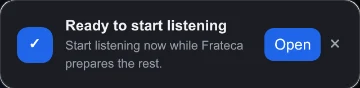
Click Open to start listening while Frateca prepares the rest. The page is now in your library in the extension, on the Frateca website and in the mobile app.
Which action should you use?
| You want to… | Use | Why |
|---|---|---|
| Hear a paragraph or section right now | Listen to selected text | Plays on the page with word highlighting, and you choose exactly what’s read |
| Keep a whole article for the commute | Save full page to Frateca | One click, no selecting, and it’s waiting on your phone |
| Avoid menus, sidebars or comments | Listen to selected text | Nothing outside your selection is read or sent |
The in-page player
The player floats in the corner of the page and gives you:
- Play / pause
- Back 15 seconds and forward 30 seconds
- A seek bar with elapsed and total time
- Speed, which steps through 0.75×, 1×, 1.25×, 1.5×, 2×, 2.5×, 3× and 3.5× with each click, then wraps back to the start
- Download audio (a Pro feature; see below)
- Minimize to tuck the player out of the way, and close to dismiss it
Audio keeps playing when you switch tabs or close the popup. If you’re new to listening at speed, start around 1.25× and nudge it up over a few days; reading faster by listening at 2× explains how to train your ear.
Reading options: Auto scroll and Click to read
The two small icons at the bottom left of the player change how it follows the page:
- Auto scroll keeps the word being read in view, scrolling the page for you as the audio moves through a long passage.
- Click to read lets you click any word in the passage to jump the audio straight to it. It’s the fastest way to re-hear a sentence or skip a paragraph you don’t need.
Both settings are remembered, so set them once.
The popup library
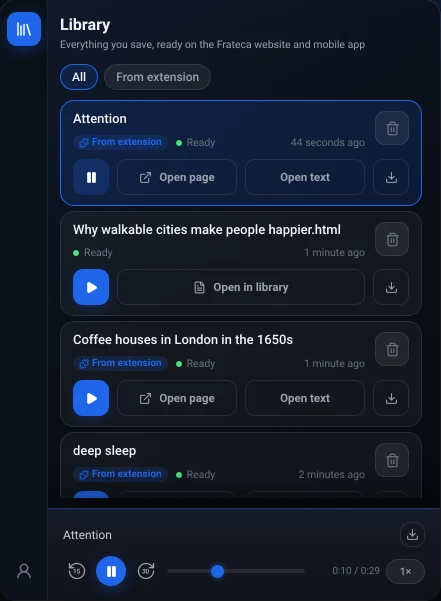
Click the Frateca icon in the toolbar to open your Library: “everything you save, ready on the Frateca website and mobile app.” It’s where you manage everything you’ve listened to.
- Filters: All shows your whole Frateca library, including things you added on the web or your phone. From extension shows only what you captured in Chrome.
- Play any item from the list. A player bar at the bottom of the popup controls whatever is playing.
- Open page reopens the original web page and restores your highlighted passage and the player, so you can pick up exactly where you were.
- Open text shows the passage as plain text, with the current word highlighted, Search text to find a phrase, and a copy button.
- Open in library (for saved full pages) opens the item on the Frateca website.
- Download audio saves an MP3 to a Frateca folder inside your Downloads (Pro).
- Delete asks you to confirm, then permanently removes the item and its audio from your library.
You can close the popup at any time; playback carries on. Frateca remembers your position in each item and picks up where you left off, even after you restart the browser.
Choose a voice and language in Profile
Click the profile icon at the bottom left of the popup to see your account and plan and change your settings:
- Voice. Choose from natural AI voices in English (US and UK accents), Spanish, French, Italian and Portuguese. Match the voice’s language to the text: an English voice reading a Spanish article will sound wrong. Our voice guide explains how to pick one you’ll enjoy for an hour, not just ten seconds. If you’re learning English, reading English websites out loud covers choosing between the US and UK voices and slowing down to 0.75×.
- Interface language. The extension follows Chrome’s language by default; you can switch it here.
- View getting started reopens the onboarding page if you want a refresher.
Continue on your phone or the web
The extension isn’t a separate silo. It uses the same Frateca account and library as:
- The web app at app.frateca.com, where you can also upload PDFs and documents, and
- The Frateca app for iPhone and Android.
Sign in with the same email and everything you captured in Chrome is there. On your phone, add new pages with Share → Frateca from Chrome, Safari or any app, since mobile browsers don’t run extensions. The result is a loop that works: capture at your desk, listen on the walk home. How to listen to articles online shows how to build a routine around it.
What Frateca Pro adds
The free plan includes a daily listening allowance that resets every day. The Profile screen shows how many minutes are left today. Pro, the same subscription the Frateca website calls Premium, adds:
- Unlimited listening, with no daily cap
- Download audio as MP3 files
- Enhanced, more natural voices
You can upgrade from the Profile screen. Checkout opens on Frateca’s secure hosted page in a new tab, so the extension never sees your card details, and your plan updates in the extension when you’re done. Current prices are on the pricing section.
Privacy and permissions in plain English
What gets sent. Only what you ask for: the text you select and choose Listen to selected text for, or the page you choose Save full page to Frateca for, plus that page’s address and title. Frateca needs the text to turn it into audio, and the address so Open page can take you back to it.
What doesn’t. The extension doesn’t watch or record your browsing in the background. Pages you never act on are never sent.
Why Chrome’s warning says “all websites.” You can use Frateca on any article anywhere, so Chrome has to let it work on whatever page you pick. It also needs that access to paint the highlighting on the original page and to restore your player when you come back to it later. Chrome describes this as “read and change all your data on all websites”; in practice the extension acts only when you use one of its actions. Our explainer on that warning shows how to vet any extension and how to limit its site access.
What happens to your data. Your library is stored in your account so it can follow you across devices. It isn’t sold or used for advertising. Delete any item from the popup, or delete your account to remove everything; the privacy policy has the details.
If you work with confidential documents, check your employer’s rules before sending them to any cloud service, ours included. Is text-to-speech private? covers the questions worth asking.
Troubleshooting
The quick fixes are below. If Chrome’s own read aloud is misbehaving too, Chrome read aloud not working covers every symptom.
The Frateca options don’t appear when I right-click. Listen to selected text only appears when text is selected, and Save full page to Frateca appears when you right-click plain text or empty space rather than a link or image. If neither shows up on a tab that was already open when you installed the extension, reload the tab. Also check that Frateca is switched on at chrome://extensions.
Nothing happens on certain pages. Chrome doesn’t allow any extension to run on its own pages (anything starting with chrome://, such as Settings), on the Chrome Web Store, or on other extensions’ pages. Try a normal website.
I want to listen to a PDF. PDFs open in Chrome’s built-in viewer, which the extension doesn’t read. Drag the file into the Frateca web app instead. How to make Chrome read a PDF aloud compares every route, and how to listen to PDFs covers scanned files too.
The audio stopped. Open the popup and look at the player bar at the bottom: it shows whether the item is playing, paused or still being generated. If you’ve reached your plan’s listening limit, Frateca shows a notice instead of an error. Also check that the tab or your computer’s sound isn’t muted.
I see “Connect your email first.” You’ve been using guest mode. Click Connect email to attach an account, which keeps your library and makes it available on other devices.
Open page doesn’t find my passage. If the site has changed the article since you listened, the original passage may no longer be on the page. Open text still has the full text and the audio.
Start with one article
The quickest way to see if listening suits you is to try it on something you were going to read anyway. Add Frateca to Chrome, open a long article you’ve been putting off, select the first few paragraphs and choose Listen to selected text. If you’re still deciding between tools, our comparison of text-to-speech Chrome extensions covers the field, and how to make Chrome read aloud covers the built-in options too.
Stop reading. Start listening.
Frateca turns PDFs, articles, textbooks and web pages into natural audio you can play anywhere: on your commute, at the gym, or while you cook. Free plan included, no card required.
 Add to Chrome
iOS · Android · Web · Chrome extension · Free plan, no credit card required