

Read English Websites Out Loud: A Guide for English Learners
Hear the English pages you already read: pick a US or UK voice, set a speed for your level, shadow hard sentences and save phrases. A 15-minute routine.
Key takeaways
- Listening while you read connects the English you know by sight with how it actually sounds: word boundaries, stress and silent letters.
- The research is honest about limits: reading while listening isn't a vocabulary shortcut, but it gives you listening practice on material you chose and care about.
- Pick one accent (US or UK) for a few weeks, start at 0.75× or 1×, and use the highlight to keep your eyes with the voice.
- Shadowing a few sentences a day, replaying hard phrases with Click to read, and saving whole phrases from Open text turn reading time into speaking practice.
- Text-to-speech still mispronounces some names and abbreviations, and it can't correct your pronunciation. Use it alongside a teacher or real conversation.
You read English every day. Reports at work, the news, course pages, documentation. You understand most of it, sometimes faster than you could explain it in your own language. Then someone in a meeting says “Wednesday” or “comfortable” or “I’d’ve gone,” and for a second you don’t recognize words you’ve read a hundred times.
That gap is normal for anyone who learned English mostly through reading. The words in your head have a sound you invented, and real English often doesn’t match it. The fix is to hear the same text you read, at the same moment, many times. Text-to-speech makes that possible with the pages you already open every day, not with a textbook dialogue about booking a hotel.
This guide is for intermediate and advanced learners (roughly B1 and up) who read English on a computer. It covers how to set up a voice, which speed to start at, three ways to practice, and a 15-minute routine you can keep.
Why listen to what you read
English spelling is a poor guide to English sound. Reading along while a natural voice speaks shows you three things a page can’t:
- Where words begin and end. In speech, “want to” becomes something close to “wanna,” and “did you” runs together. Seeing the text while you hear it teaches you to find the separate words inside the sound.
- Stress. “PHOtograph,” “phoTOgrapher,” “photoGRAPHic.” The letters barely change; the stress moves. Hearing it on real sentences fixes it better than a rule.
- Silent and surprising letters. “Island,” “receipt,” “Wednesday,” “colonel.” You can read them perfectly and still say them wrong for years.
It helps to be honest about the evidence. A 2023 meta-analysis by Clinton-Lisell, pooling 30 studies, found a small benefit for comprehension from reading while listening compared with reading alone, mainly when the listening set the pace. It noted that second-language vocabulary might benefit too, but that there aren’t yet enough studies to generalize. A separate 2023 meta-analysis in Language Teaching found that learners picked up new words at similar rates from reading, listening, and reading while listening.
So listening while reading isn’t a vocabulary shortcut. Its value for learners is more practical: it puts real pronunciation on top of the text you were going to read anyway, and it gives you listening practice on material you care about. That’s exactly where most learners lack practice.
Choose an accent and stick with it (for now)
Pick the accent you hear most: your colleagues, your university, the exam you’re preparing for. Keep it for two or three weeks so your ear settles, then add the other for variety. Real English speakers don’t all sound the same, and switching later is good training.
Frateca for Chrome has natural AI voices in both US English (for example Alloy or Michael) and UK English (for example Emma or George). Choose one in the extension’s Profile, and every page you listen to uses it. The extension’s interface follows your browser language, so the menus can be in your own language while the voice reads English.
Set your speed for your level
Speed matters more for learners than for anyone. Too fast and you stop following; too slow and connected speech falls apart into separate words that don’t sound like real English. These are starting points, not rules:
| Your level (roughly) | Reading along | Listening without the text | Highlight settings |
|---|---|---|---|
| B1, intermediate | 0.75× | 0.75×, short passages | Word highlight on, Auto scroll on |
| B2, upper intermediate | 1× | 0.75× to 1× | Word highlight on; Click to read for replays |
| C1, advanced | 1× to 1.25× | 1× | Highlight on for hard texts only |
| C2 or daily work English | 1.25× to 1.5× | 1.25× | Off if it distracts you |
Frateca’s player steps through 0.75×, 1×, 1.25×, 1.5×, 2×, 2.5×, 3× and 3.5×, and every step is on the free plan. Move up one step when you can follow a paragraph without losing the highlight. If a text is dense or full of new words, drop a step for that text only.
Method 1: read along on real pages
This is the core habit, and it takes seconds to start:
- Select one paragraph, not the whole page. Short is better while you’re learning.
- Right-click → Listen to selected text. Audio starts as soon as the first part is ready.
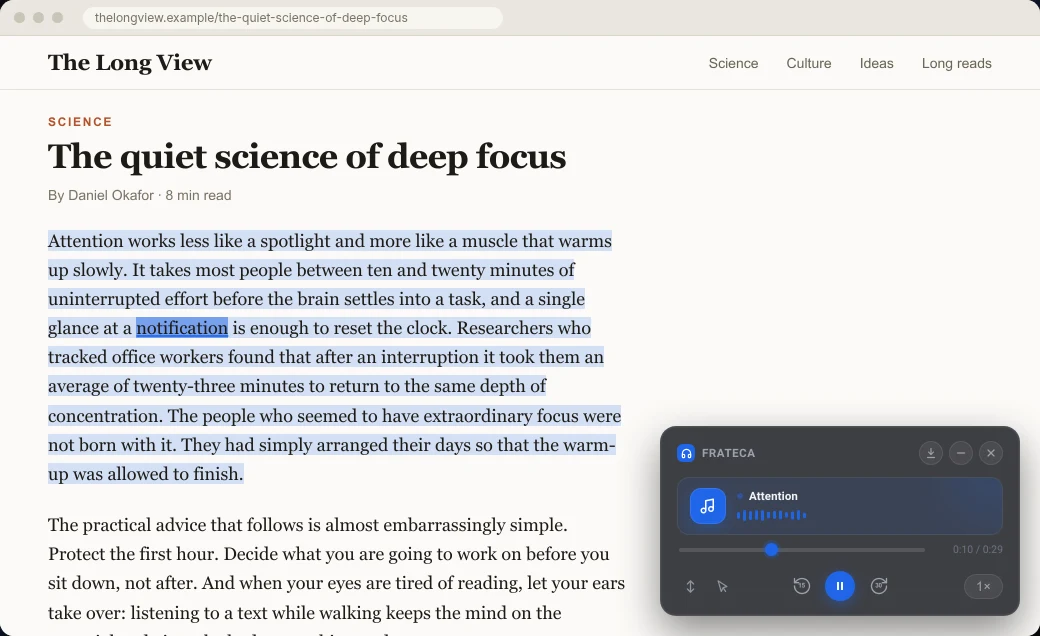
- Follow the highlight. The paragraph is shaded and each word lights up as it’s spoken, on the page itself. Keep your eyes on the highlighted word, even when you’d normally skim ahead.
- Replay what you missed. Turn on Click to read in the player and click the first word of a phrase you didn’t catch. The voice jumps back there. The 15-second back button works too.
Why one paragraph? Because you’ll listen to it more than once, and short pieces make repetition feel natural instead of like a chore. Our article on text-to-speech with word highlighting explains what the highlight does and doesn’t do, and bimodal reading goes into reading and listening together.
Method 2: shadow a few sentences
Shadowing means repeating right after a speaker, copying their rhythm and stress, not just the words. It moves practice from your ears to your mouth.
- Play two or three sentences while reading along.
- Pause. Say the first sentence out loud, copying the voice’s rhythm: where it speeds up, where it slows, which words are strong.
- Click the sentence’s first word to hear it again. Repeat.
- Once it feels smooth, try saying it at the same time as the voice.
- Once a week, record yourself on your phone and compare it with the voice. You’ll hear differences you can’t notice while speaking.
Three sentences a day is enough. Done daily, it beats a long session once a week.
💡 Shadow sentences you’ll actually say: phrases from emails, meetings or presentations in your field. “Could you walk me through the numbers?” is more useful than a sentence about a museum.
Method 3: capture phrases, not just words
New words stick better inside the phrases they came in. “Raise a concern,” “on short notice,” “fall behind.” Here’s a quick way to collect them without breaking the listening:
- After you finish a passage, open the Frateca popup from the toolbar. Your passage is in the library.
- Choose Open text. You get the text with the current word highlighted, plus Search text to find a phrase you half remember.
- Copy the phrase into your vocabulary notebook or flashcard app, with the sentence it came from.
- The next day, play the same passage again, on your phone if you like. Hearing it a second time, in a different place, is where many phrases finally stay.
The free built-in option: Chrome’s Reading mode
If you’d rather not install anything, Chrome can already read a page aloud. Right-click the page and choose Open in reading mode (or open it from More → More tools → Reading mode), then press Play. Google’s help page lists voice choice, speed, and word or sentence highlighting. Reading mode also lets you change the font, size and spacing, which helps on crowded pages.
The trade-offs for learners: it reads a simplified copy in its own panel rather than the page itself, it doesn’t keep a list of what you’ve practiced, and it can’t be replayed on your phone later. For one article, it’s a good start. Our guide to making Chrome read aloud has the details.
Take it with you: the commute as a second listen
Repetition is where listening skills grow, and the easiest second listen is one you don’t have to schedule. When you find a longer article worth practicing, right-click and choose Save full page to Frateca. The page becomes audio in your library, and it appears in the Frateca app on your iPhone or Android phone when you’re signed in to the same account. Read along at your desk in the afternoon; listen with your eyes closed on the bus home. The second time, without the text, you’ll find out what you actually understood.
Where to find good practice material
- The pages you already read. Industry news, documentation, your course portal. Practice that matches your real English is the most useful kind.
- Simple English Wikipedia (simple.wikipedia.org) writes articles in shorter sentences with more common words. It’s good material at B1 and B2, and it covers almost any topic you like. How to listen to Wikipedia articles shows how to skip the references and listen section by section.
- Be careful with confidential work documents. Creating audio means sending the text you select, and the page’s address, to Frateca’s servers. Check your employer’s rules before using any cloud tool on internal material.
Honest limits
Text-to-speech is a good model, not a perfect one, and not a teacher.
- It sometimes mispronounces names, abbreviations and numbers. Brand names, place names, acronyms and dates are where every voice stumbles, and words like “read,” “lead” and “live” change pronunciation with meaning. When a word matters, check a dictionary’s audio too. Why text-to-speech mispronounces words explains what goes wrong.
- It can’t hear you. It won’t tell you that your “th” or your vowel in “work” is off. Recording yourself helps, and a teacher or a fluent friend helps more.
- Synthetic voices have a narrower emotional range than people. Sarcasm, hesitation and real conversation are still best learned from people, films and podcasts.
- The extension reads web pages only. It doesn’t read PDFs or Google Docs; for PDF files, upload them in the Frateca web app, or see how to make Chrome read a PDF aloud.
If you’re learning another language rather than English, text-to-speech for language learning covers Spanish, French, Italian, Portuguese and more.
A 15-minute daily routine
- Minutes 0–2: Pick one paragraph from something you’re reading today.
- Minutes 2–7: Read along at your level’s speed. Replay any phrase you missed with Click to read.
- Minutes 7–10: Shadow three sentences out loud.
- Minutes 10–13: Open the passage in Open text and save three phrases to your notebook, each with its sentence.
- Minutes 13–15: If the article is worth more, choose Save full page to Frateca and listen to the rest on your commute.
Fifteen minutes a day, on English you’d read anyway, adds up quickly. To try it on today’s article, add Frateca to Chrome. It’s free to install, you can start as a guest, and the free plan includes a daily listening allowance. Want to hear a voice first? Paste a sentence into the live demo.
Stop reading. Start listening.
Frateca turns PDFs, articles, textbooks and web pages into natural audio you can play anywhere: on your commute, at the gym, or while you cook. Free plan included, no card required.
 Add to Chrome
iOS · Android · Web · Chrome extension · Free plan, no credit card required