

Text-to-Speech With Word Highlighting: Why It Helps
Following highlighted words while a voice reads can keep you on track. What the research shows, what to look for, and where each Chrome tool highlights.
Key takeaways
- Word highlighting moves a marker across the text in time with the voice, so your eyes and ears stay on the same word.
- Research on text-to-speech for readers with reading difficulties shows the voice itself does most of the work. One 2023 study found no significant extra benefit from highlighting, so treat it as a tool for keeping your place and staying engaged, and test it on yourself.
- Look for word-level highlighting, a choice between the original page and a clean reading view, auto-scroll, click-to-jump and a highlight you can actually see.
- Chrome's Reading mode highlights in its own reading view. Edge highlights on the page. Frateca for Chrome highlights word by word on the original page, with Auto scroll and Click to read, and its free plan includes those controls.
- When following along, start around 1× to 1.25× and keep sessions short. Save faster speeds for eyes-off listening.
You’re on paragraph four of a long article and you’ve read the same sentence three times. Your eyes keep sliding to the end of the line while your mind is somewhere else entirely. So you turn on read-aloud, and a small highlight starts moving across the page, one word at a time, in step with the voice. Suddenly you’re back. Your eyes have somewhere to be.
That moving highlight is the whole subject of this article. It is a simple feature, but tools implement it in very different ways. Some highlight words and some highlight sentences. Some do it on the page you were reading and others in a separate panel. Some let you click a word to jump the audio there. Below: what highlighting is good for, what the research does and doesn’t show, how to choose a tool, and how to set it up in Chrome in two minutes.
What word highlighting is
Text-to-speech with highlighting, sometimes called read-along or karaoke-style reading, marks the text as it’s spoken. The tool knows when each word starts and ends in the audio, so it can light up the matching word on screen at the right moment.
There are three common styles:
- Word-level. Only the word being spoken is marked. It’s the most precise and the easiest to follow when your attention drifts.
- Sentence-level. The whole current sentence is marked. It’s calmer to look at, and some people find a jumping word distracting.
- Both at once. The sentence or passage is shaded and the current word gets a stronger mark. You get context and position together.
Reading with your eyes while listening to the same words has a name: bimodal reading. Highlighting is the thing that keeps the two channels in sync.
Why it helps, and what the research actually shows
It’s easy to overclaim here, so let’s be careful.
The evidence that text-to-speech itself can help readers who struggle is fairly solid. A 2018 meta-analysis by Wood and colleagues in the Journal of Learning Disabilities pooled 22 studies of read-aloud tools for students with reading disabilities. It found an average improvement in reading comprehension that the authors describe as small to moderate. Not magic, but real.
The evidence for the highlight specifically is thinner. A 2023 study in Annals of Dyslexia compared several conditions for 8- to 12-year-olds with reading and language difficulties: silent reading, reading aloud, listening only, text-to-speech without highlighting, and text-to-speech with highlighting. Text-to-speech improved comprehension compared with reading without it. But the study found no significant difference between the highlighted and unhighlighted versions, and the authors called for more research on features like this.
So the honest summary is that the voice does most of the heavy lifting. Highlighting earns its place for more practical reasons, which many readers will recognize:
- Re-entry. You glance away to answer a message, look back, and find your place instantly instead of hunting for it.
- Staying on track. A moving target gives wandering eyes something to follow, which is why people who drift often like it. There’s more on that in how to focus while reading, and our roundup of Chrome extensions for ADHD compares the tools that help with it.
- Matching spelling to sound. Seeing a word as you hear it helps with unfamiliar names, technical terms and words in a language you’re learning. See text-to-speech for language learning, or the guide to reading English websites out loud if English is the language.
- Pacing. At 1.25× or 1.5× the highlight shows you the voice’s position. That makes it easier to notice when you’ve stopped following.
- Catching mistakes. When you check your own writing, you notice the word that doesn’t match what you meant. That’s the trick behind proofreading by listening.
Preference matters too. Some readers find any moving highlight distracting and do better listening with their eyes closed. The right setting is the one that keeps you reading, which is why it’s worth trying both.
What to look for in a highlighting reader
If you’re choosing a tool, these are the details that make the difference in daily use.
Word, sentence, or your choice. Word-level is the most useful default for following along. A tool that lets you switch to sentence-level, or turn highlighting off, covers more people.
On the original page, or in a separate view. This trade-off matters most:
- A separate reading view strips out ads and menus and shows the text in a consistent font and size. It’s tidy, but you lose the page’s images, tables and links, and it may leave out parts of the page.
- Highlighting on the original page keeps everything where it was: the diagram next to the paragraph, the link you might want to click, the layout you were already reading. Nothing has to be re-found.
Auto-scroll. On a long page the voice will outrun the screen. Auto-scroll keeps the highlighted line in view so you don’t have to.
Click to jump. Being able to click a word and have the audio jump there is the fastest way to re-hear a sentence. It also lets you skip a section you don’t need.
A highlight you can see. Color and contrast matter, especially if you have low vision or use a dark theme. The current word should stand out clearly from both the page and any wider shading.
Sync that holds up. The highlight should stay on the right word as you speed up, and through numbers, abbreviations and headings.
Where each Chrome tool highlights
Here’s how the main options compare, based on each tool’s official documentation and store listing as of November 6, 2026. For prices, voices and everything else, see our full comparison of text-to-speech Chrome extensions.
| Tool | Highlight style | Where it highlights | Auto-scroll / click-to-jump | Cost to start |
|---|---|---|---|---|
| Chrome Reading mode | Word, sentence or adaptive, or off | In Chrome’s own reading view (side panel or full screen) | Previous and next sentence buttons | Free, built in |
| Microsoft Edge Read aloud | Highlights text as it reads (Microsoft’s guide says words are highlighted and the page dims slightly) | On the page itself, and in PDFs | Scrolls with the reading | Free, built into Edge |
| Read Aloud (extension) | Optional text highlighting, turned on in its Options page | Not described on its listing | Not described on its listing | Free, open source |
| Speechify | ”Active highlighting for reading along,” per its listing | Inline player on the site | See its listing | Free tier; Premium paid |
| NaturalReader | Word highlighting | Its listing also mentions an immersive reader mode and Chrome side panel integration | See its listing | Free tier; paid plans |
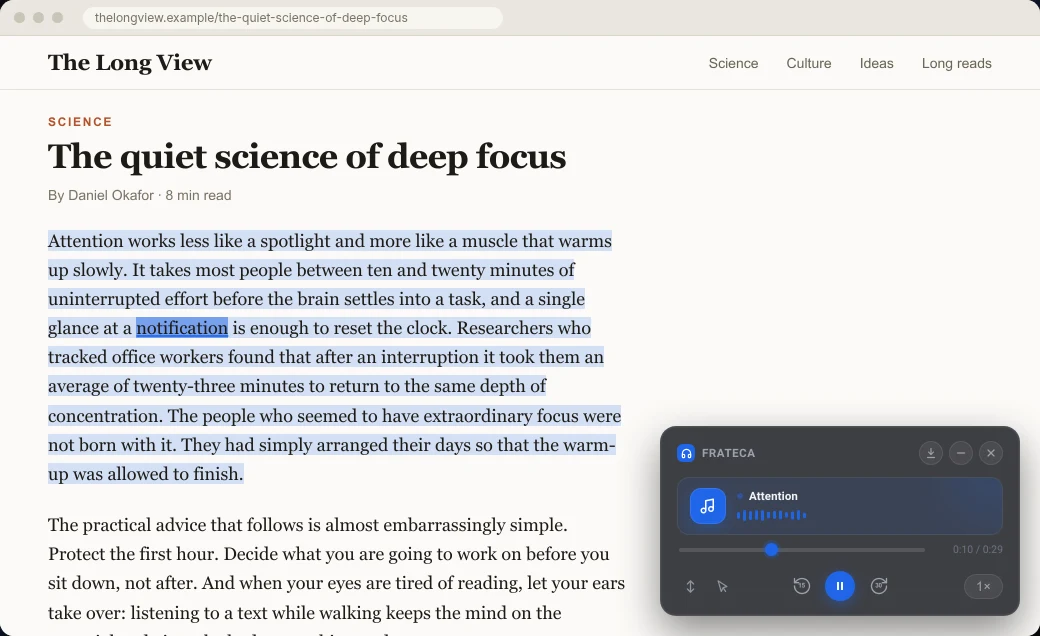
| Frateca for Chrome | Selected passage shaded, current word highlighted | On the original page; also in the Open text view | Auto scroll; Click to read | Free to install, free plan |
A few notes on the table:
- Chrome Reading mode is the zero-install option. Right-click a page, choose Open in reading mode, press Play, and set Voice highlight in its settings. It reads a cleaned-up copy in a separate view, so its highlight follows that copy, not the original page. The Chrome read-aloud guide has the full steps.
- Edge’s Read aloud highlights directly on the page and works on PDFs, which is why we rate it highly in our Edge Read Aloud guide. The catch is that it lives in Edge, not Chrome.
- Speechify and NaturalReader both highlight, but their best voices and higher limits sit behind paid plans.
Set it up in two minutes with Frateca for Chrome
Frateca for Chrome was built around reading along on the page you’re already on. Here’s the fastest way to try it:
- Install it from the Chrome Web Store and pin it from the puzzle-piece Extensions menu.
- Click the Frateca icon, read the short privacy notice, click Agree and continue, and choose Continue as guest. No account is needed to try it.
- Select a paragraph on any article, right-click, and choose Listen to selected text. Audio starts as soon as the first part is ready. The passage you selected is shaded, and each word lights up as it’s spoken.
- Open the player’s reading options and turn on Auto scroll, so the page follows the voice, and Click to read, so clicking any word jumps the audio there.
- Set the speed with the speed button. It steps through 0.75×, 1×, 1.25×, 1.5×, 2×, 2.5×, 3× and 3.5×.
Two more things are worth knowing. If you’d rather read without the page’s clutter, open the extension’s library and choose Open text on an item. You’ll get a plain text view with the current word highlighted, plus search. And if you save a whole article with Save full page to Frateca, it goes into the same library you see in the Frateca web app and the iPhone and Android apps.
Everything above works on the free plan: the highlighting, Auto scroll, Click to read and every speed. The free plan has a daily listening allowance, and Premium (called Pro in the extension) removes it and adds MP3 downloads. Current prices are on the pricing section.
💡 Want to hear the voices first? Paste a paragraph into the live demo on our home page. It plays in your browser, no install needed.
The extension reads web pages. For PDF files, upload them in the Frateca web app instead; how to make Chrome read a PDF aloud covers the other options. Like every extension, it can’t run on Chrome’s own chrome:// pages or in the Chrome Web Store.
Tips for reading along
Start at 1× and work up to 1.25×. Following text with your eyes is harder than listening alone, and fast voices tend to pull your eyes ahead of the audio. For reading along, 1× to 1.25× is a comfortable place to start. Save 2× and above for eyes-off listening on material you already know. There’s more on fast listening in how to read faster by listening at 2×.
Read a section, not the whole page. Selecting one section at a time gives you natural stopping points and keeps footers and comment threads out of the audio.
Take short breaks. Reading along takes concentration. Twenty to thirty minutes, then a few minutes away from the screen, is easier to sustain than an hour straight. On easy material, switch to listening with your eyes off the page.
Slow down for hard passages. Drop to 1× or even 0.75× for dense paragraphs, formulas described in words, or a language you’re learning. Speed back up when the text gets easier.
Turn it off if it distracts you. If a moving highlight pulls your attention away from the meaning, try sentence-level highlighting in tools that offer it, or just listen. The goal is understanding, not watching the marker.
When highlighting doesn’t help
Highlighting is for reading with your eyes on the text. It does nothing when you’re driving, walking or cooking, and in those moments you should be looking where you’re going anyway. It’s also less useful for content where the visual layout carries the meaning, such as code, spreadsheets and equations. There you’ll want the original with your own eyes.
For everything in between, like the long article you keep postponing, the reading for tomorrow’s class, or the report you need to actually absorb, a voice with a highlight that stays in step is one of the simplest supports there is. Try it on one paragraph and see whether your attention stays put.
Stop reading. Start listening.
Frateca turns PDFs, articles, textbooks and web pages into natural audio you can play anywhere: on your commute, at the gym, or while you cook. Free plan included, no card required.
 Add to Chrome
iOS · Android · Web · Chrome extension · Free plan, no credit card required