

How to Convert a Web Page to Audio (Free and Paid Ways)
Turn any web page into audio three ways: hear it now, save it for your phone, or download an MP3. What each route costs and how to do it in Chrome.
Key takeaways
- “Convert a web page to audio” usually means one of three jobs: hear it now, hear it later on your phone, or own an MP3 file. Pick the job first and the tool follows.
- To hear a page right now for free, Chrome’s Reading mode and Edge’s Read Aloud work without installing anything. Frateca for Chrome adds natural voices and word highlighting on the original page.
- To finish a page on your phone, save it to a library. Frateca’s “Save full page to Frateca” puts it in the same library as the iOS, Android and web apps.
- A downloadable MP3 is usually a paid feature. In Frateca, NaturalReader and Speechify it sits on the paid plans. For a few paragraphs, Frateca’s live demo downloads an MP3 for free.
You have a 4,000-word article open, a 35-minute drive ahead of you, and no plan to read it at red lights. So you search for a way to turn the web page into audio, and the results throw MP3 converters, browser features and apps at you as if they all did the same thing.
They don’t. “Convert a web page to audio” covers three different jobs. Work out which one you have and the choice gets easy.
First, which job is it?
- Hear it now. The tab is open, you’d rather listen than read, and you’ll be at the computer while it plays. Maybe you’re cooking with the laptop on the counter, or your eyes are done for the day.
- Hear it later, probably on your phone. You found the page at your desk but you’ll have time for it on the commute, the dog walk or at the gym.
- Own a file. You want an MP3 to keep, put on a device with no apps, or play somewhere a browser can’t reach.
A lot of people who search for “website to MP3” really want job 2. They don’t need a file. They need the audio to still be there when they leave the desk. A loose MP3 has no saved position and no text, and you have to copy it to your phone yourself. If you do need a file, it’s covered below. Text-to-speech to MP3 goes deeper into when a file is the right answer.
The routes at a glance
| Route | What it costs | Gives you a file? | Carries over to your phone? | Highlights the words? |
|---|---|---|---|---|
| Chrome Reading mode | Free, built in | No | No (Chrome on Android has its own “Listen to this page”) | Yes, in the Reading mode view |
| Microsoft Edge Read Aloud | Free, built in | No | No | Yes |
| Frateca for Chrome: Listen to selected text | Free to install; free plan with a daily allowance | MP3 with Premium | Yes, it lands in your library | Yes, word by word on the original page |
| Frateca for Chrome: Save full page | Free to install; free plan with a daily allowance | MP3 with Premium | Yes | In the extension’s Open text view |
| NaturalReader | MP3 conversion on paid plans | Yes, for personal use | Through its own app | Yes |
| Speechify | MP3 export listed in Premium | Yes | Through its own app | Yes |
Competitor features are as documented on November 6, 2026. Check the linked pages for current plans.
Job 1: hear the page right now
Chrome’s Reading mode (built in, free)
Chrome now has a read-aloud button, but it lives inside Reading mode rather than on the page. Right-click the page and choose Open in reading mode (or open it from the Chrome menu), then press Play. Google’s help page lists voice choice, speed control and word or sentence highlighting, all inside the Reading mode view.
It’s a sensible first stop for a single page you’ll hear once. It saves nothing, though, so if you close the tab the listening is over. The full walkthrough is in how to make Chrome read aloud, and if the Play button is missing or the voice won’t start, see what to do when Chrome read aloud isn’t working.
Edge Read Aloud, if Edge is your browser
Press Ctrl+Shift+U (Cmd+Shift+U on a Mac) or right-click and choose Read aloud. Edge’s online voices are good, and it reads PDFs as well as web pages. Like Chrome’s reader it’s tied to the open tab: there’s no queue, and nothing carries over to another device. Edge Read Aloud and its limits covers it in detail.
Frateca for Chrome: listen without leaving the page
Frateca for Chrome is a free extension that adds two items to Chrome’s right-click menu. For job 1, use the first:
- Select the part of the page you want to hear. A paragraph, a section, or the whole article body.
- Right-click and choose Listen to selected text.
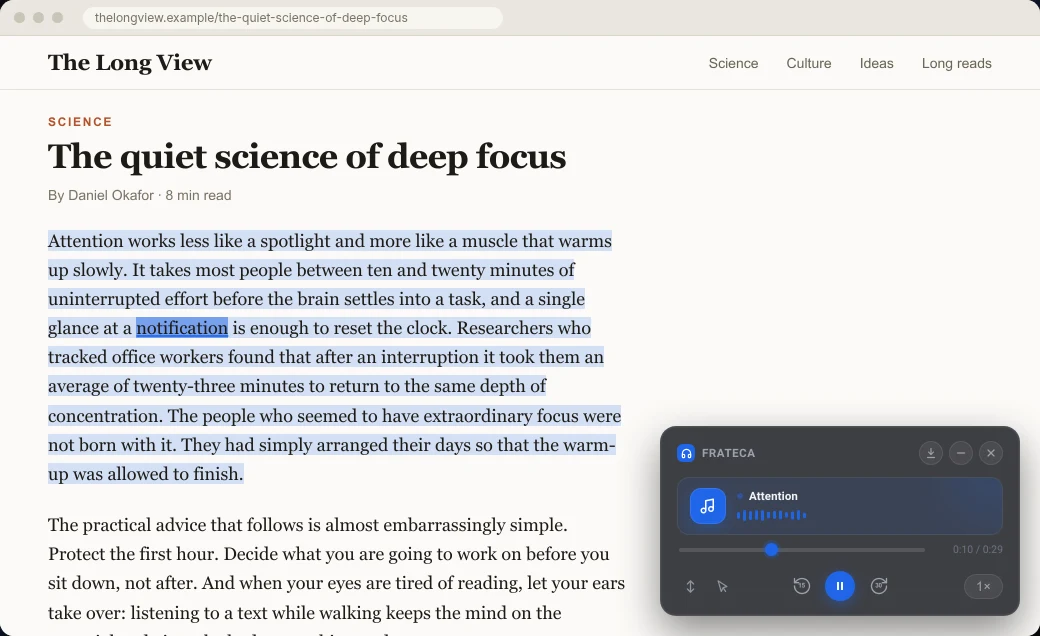
- A small player appears in the corner of the page and starts as soon as the first part of the audio is ready. The rest keeps generating while you listen.
The difference you’ll notice is where the reading happens. The selection stays shaded on the original page and each word lights up as it’s spoken, so you can look back at a chart or a quote without losing your place. The player has back 15 seconds, forward 30 seconds and speeds from 0.75× to 3.5×. All of that works on the free plan. Turn on Click to read and you can click any word to jump the audio there.
You don’t need an account to try it: choose Continue as guest when you open the extension. The free plan includes a daily listening allowance that resets every day, and you can see how much is left in the extension’s profile screen.
Job 2: save it and listen later, including on your phone
This is where the browser’s built-in readers stop and a library starts to matter.
Save the whole page to your Frateca library
Right-click anywhere on the page and choose Save full page to Frateca. The extension captures the page, cleans out scripts and turns it into an audio item. You get a notice like this one when it’s ready:
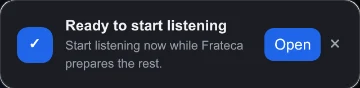
On a long article you don’t have to wait for the end. You can start listening while the rest is still being generated.
Now close the tab. The page sits in your library, and that library is the same one the Frateca app uses on iPhone and Android and on the web. Open the app on the train and it’s there, ready to play. Start reading on your laptop, finish on your phone walks through that handoff step by step. At the desk, click the Frateca icon in Chrome’s toolbar and filter to From extension to see everything you saved from the browser.
On your phone, use the share sheet
Chrome on Android and iPhone doesn’t support extensions, so the phone route is the share button. In Chrome, Safari or almost any app, tap Share, then Frateca, and the page joins the same queue. How to listen to web articles has the details, including newsletters and the privacy questions worth asking.
Read-later apps with a listen button
If you already live in a read-later app, check what it does with audio before adding another tool:
- Instapaper has offered text-to-speech for years. Its Premium page lists AI voices and text-to-speech playlists on mobile as paid features.
- Readwise Reader includes text-to-speech with AI voices as part of a paid subscription, alongside highlighting and RSS.
- Matter advertises high-quality text-to-speech as part of its Premium plan.
These are reading apps first. They’re good if you want to annotate and archive. If what you mostly do is save things and never finish them, a tool built around listening suits you better. Read-it-later apps with text-to-speech compares them, including what happened after Pocket shut down.
Job 3: get an MP3 file
Being straight about this: a clean, downloadable MP3 of a whole article is a paid feature almost everywhere.
In Frateca, the Download audio button in the extension popup and the in-page player works on Premium. Once the whole page has finished generating, the MP3 saves to a Frateca folder in your Downloads. The free plan lets you listen to the same page, it just doesn’t give you the file. Prices are in the pricing section.
For a few paragraphs, there’s a free route. Paste the text into the live demo on our homepage (up to 3,000 characters per clip, with a handful of free clips per browser), choose a voice, press Hear it, then use the download button. Good for a quote, a short post or testing a voice. It isn’t meant for a weekly batch of long reads.
NaturalReader converts to MP3 only on its paid personal plans. According to its help center, the conversion happens in the web app (the Chrome extension sends you there), free voices can’t be converted, and the files are for personal use only.
Speechify lists MP3 export among its Premium features on its free-vs-Premium page.
Whichever you use, read the license. Personal listening is one thing. Uploading an article to a podcast feed or YouTube is another, and the article’s copyright belongs to whoever wrote it, whatever tool made the audio.
Tips for a cleaner result
- Select the body when the page is busy. A full-page save works from the whole page, and some sites mix comment threads, footnotes and related-article blocks in with the story. If you only want the article, select it from the headline to the last paragraph and use Listen to selected text.
- Check the first and last minute. Make sure the headline, the byline and the ending made it. It takes ten seconds and saves you from losing the conclusion of a long piece.
- Paywalls are the publisher’s call. A text-to-speech tool reads what your browser already shows you. If you can read it in your account, you can listen to it, but don’t share the audio.
- Start at 1.25× and work up. Many listeners find they can follow a clear voice faster than normal speaking speed once they’ve had some practice. How to read faster by listening at 2× explains how to build up to it.
- Know what can’t be converted. Chrome doesn’t let any extension run on its own
chrome://pages or the Chrome Web Store. Frateca’s extension doesn’t work inside Chrome’s built-in PDF viewer, so upload the PDF in the Frateca web app instead. How to make Chrome read a PDF aloud compares the routes, and how to listen to PDFs covers phones too.
💡 If you save pages but forget to listen, give the queue a fixed slot, like the first ten minutes of a walk. The tool matters less than the habit. How to listen to articles online shows how to set it up.
Which route should you pick?
- One page, right now, no install: Chrome’s Reading mode, or Edge Read Aloud if you use Edge.
- Natural voices on the page you’re reading, with the words highlighted: Frateca for Chrome, Listen to selected text.
- Read it later on your phone: Frateca for Chrome, Save full page to Frateca, then play it from the app. On the phone itself, use Share → Frateca.
- An MP3 to keep: Frateca Premium’s download, or NaturalReader or Speechify on their paid plans. For a few paragraphs, the free live demo.
- You want to annotate and archive, with audio as a bonus: a read-later app such as Instapaper or Readwise Reader.
If most of your reading starts in a desktop browser, the extension is the quickest way to try all three jobs. Add Frateca to Chrome. It’s free to install and you can try it as a guest. Then save the next long article you were going to leave open in a tab. The step-by-step guide covers every setting if you want the full tour.
Stop reading. Start listening.
Frateca turns PDFs, articles, textbooks and web pages into natural audio you can play anywhere: on your commute, at the gym, or while you cook. Free plan included, no card required.
 Add to Chrome
iOS · Android · Web · Chrome extension · Free plan, no credit card required