

Read Aloud Extension Alternatives With Natural Voices
Tired of Read Aloud's robotic voices, credits or API keys? Five Chrome alternatives, what each does better, and how to switch without losing anything.
Key takeaways
- Read Aloud is free, open source and capable. It reads PDFs, Google Docs and Kindle books, has keyboard shortcuts, and works with many voice providers.
- Its free voices come from your browser and computer, so quality depends on your machine. Its premium cloud voices need a Google sign-in plus an in-app purchase or your own API key.
- It reads and forgets. There’s no library, and nothing to pick up on your phone.
- Frateca for Chrome is the closest swap if you want natural voices with no setup: guest mode, no card, every speed to 3.5× and word highlighting on the page, plus a library on your phone, within a daily free allowance.
- You don’t have to choose one. You can keep Read Aloud for PDFs and Docs and use a second reader for articles.
Read Aloud alternatives at a glance
Facts as of November 6, 2026, from each company’s own pages.
| Extension | Natural voices without paying | Setup for the best voices | Library and phone |
|---|---|---|---|
| Read Aloud | Depends on your computer | Google sign-in plus purchase or API key | No |
| Frateca for Chrome | Yes, within a daily free allowance | None (guest mode) | Yes, web and iOS/Android |
| Chrome Reading mode | Yes | None | No |
| Speechify | 10 voices it calls robotic, up to 1.5× | Premium: $29/month or $139/year | Yes, Speechify’s apps |
| NaturalReader | Free voices unlimited; better voices metered | Paid plan for unlimited premium voices | Yes, NaturalReader’s app |
| Edge Read Aloud (not Chrome) | Yes | None | No |
From each vendor’s official listing or help page. Speechify prices in USD; check the listing before you install or pay.
You installed Read Aloud years ago because it was free and it worked. Alt+P, and the page started talking. Then one evening you pressed play on a long essay you’d been saving, and the voice sounded like a sat-nav from 2009. You went into Options looking for something better and found a list of cloud providers, a Google sign-in and a field asking for an API key.
That’s usually the moment people start looking for a Read Aloud alternative. This guide is for that moment. It covers what Read Aloud does well (a lot), the three reasons people leave it, and five alternatives for Chrome, each with what it’s better at and where it falls short. Every fact about another product comes from its official listing or help page, checked on November 6, 2026.
We make one of the alternatives, Frateca for Chrome. We’ll tell you when Read Aloud is still the better tool, because sometimes it is.
This guide assumes you already use Read Aloud. If you’re choosing your first reader, our comparison of the best text-to-speech Chrome extensions covers the whole field, and free text-to-speech Chrome extensions shows exactly what each free tier includes.
What Read Aloud gets right
Read Aloud: A Text to Speech Voice Reader, by LSD Software, has earned its place. Before you uninstall it, here is what you’d be giving up.
- It’s free and open source. The code is public on GitHub, which is rare among readers that ask for access to every site.
- One click reads the page. It reads the whole page, or just your selection if you’ve highlighted something. You can start it from the right-click menu or with the
Alt+P,Alt+O,Alt+CommaandAlt+Periodshortcuts. - It reads more than web pages. Its listing names PDFs, Google Docs, Google Play Books, Kindle and EPUB (EPUB through a separate reader extension), in more than 40 languages.
- No sign-in for the standard voices. Its privacy policy says you only sign in with Google if you choose a premium voice.
If most of what you listen to is PDFs and Google Docs, or you read in a language outside the five that the alternative below covers, Read Aloud may still be the right tool. Keep it.
Why people go looking for something else
The free voice depends on your computer
Read Aloud’s standard voices come from your browser and operating system. That’s why it can be free without metering you, and also why two people can have completely different experiences. On one laptop the voice is pleasant. On another it’s flat and clipped, and it stumbles over dates and abbreviations. If you’ve only ever heard it on an older machine, you may think text-to-speech in general sounds like that. It doesn’t anymore.
The better voices come with homework
Read Aloud does offer natural cloud voices, from providers such as Google WaveNet, Amazon Polly, Microsoft Azure, IBM Watson and OpenAI. According to its listing, they may require an in-app purchase or your own API key. Its privacy policy adds that premium voices need a Google sign-in and send the text to the developer’s cloud server to be turned into speech.
That’s a fair arrangement, and if you already have a cloud account, it can be a cheap one. But “set up billing in a cloud console and paste a key” is a lot to ask of someone who wants to hear an article before dinner.
It reads, then forgets
Read Aloud plays the page in front of you. It doesn’t keep a list of what you’ve listened to, remember where you stopped across devices, or put anything on your phone. Close the tab halfway through a long read and you’re on your own. For a quick listen that doesn’t matter. If you’re trying to get through a reading list, it does.
Five alternatives, and when each one wins
1. Frateca for Chrome: natural voices with no setup, and a library on your phone
Frateca for Chrome is the closest swap if your complaints are the voice and the setup. It’s free to install, and you can start listening as a guest, with no account, no card and no API keys. Natural AI voices are included on the free plan.
It works through the right-click menu:
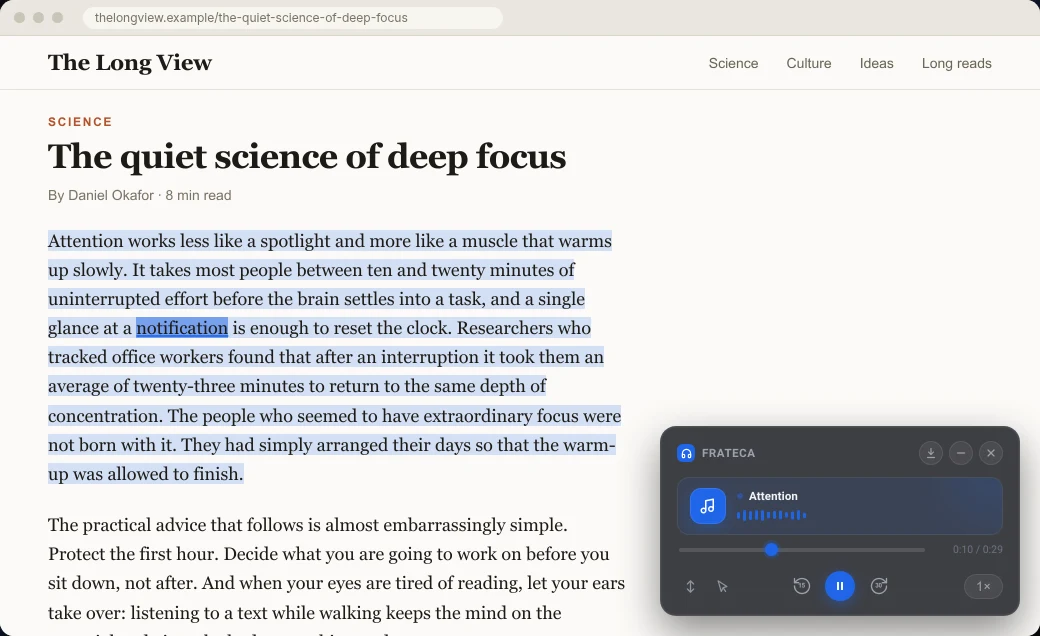
- Listen to selected text. Highlight a passage and choose this. A small player appears on the page, the selected text is shaded, and each word lights up as it’s spoken. Audio starts as soon as the first part is ready, while the rest generates.
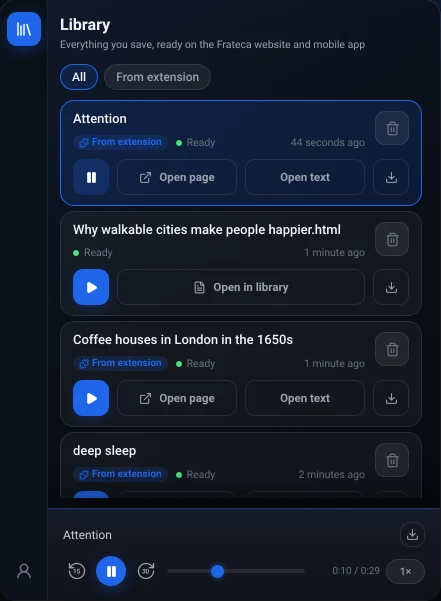
- Save full page to Frateca. Right-click anywhere and the whole article becomes an audio item in your library.
The player has play and pause, a 15-second back skip, a 30-second forward skip, and every speed from 0.75× to 3.5×. Turn on Click to read to jump the audio to any word you click, or Auto scroll to keep the spoken line in view. Our article on text-to-speech with word highlighting covers why following along helps.
The biggest change from Read Aloud is the library. Everything you hear or save is kept in one list, shared with the Frateca web app and the iPhone and Android apps. Frateca remembers your position, keeps playing when you close the popup, and picks up after a browser restart. If you start a long read at your desk, you can finish it on the walk home.
Where Read Aloud is still better:
- Formats. Frateca’s extension reads web pages, not PDFs, Google Docs or Kindle books. Upload PDF files in the Frateca web app, or see how to make Chrome read a PDF aloud for the other routes.
- Languages. Frateca’s voices cover English (US and UK accents), Spanish, French, Italian and Portuguese. Read Aloud lists 40+ languages.
- Shortcuts. Frateca has no keyboard shortcuts. You start from the right-click menu.
- Open code. Read Aloud’s source is public, and Frateca’s isn’t.
Pricing: the free plan includes a daily listening allowance that resets every day, and the Profile screen shows how much you have left. Premium removes the cap and adds MP3 downloads and enhanced voices. See pricing.
2. Chrome’s Reading mode: natural voices, nothing to install
You might not need an extension at all. Chrome on a computer has read-aloud built into Reading mode. Right-click the page, choose Open in reading mode (or press Alt+Shift+R, Cmd+Option+R on a Mac), then press Play. Google’s help page says it downloads natural voices for your language automatically, and lets you choose the voice, the speed and word or sentence highlighting.
It reads a simplified copy of the page in its own view, not the page itself. Google lists forums, forms, quizzes, galleries and login screens as places it may not work. It saves nothing. Still, for one article it’s the fastest upgrade from a robotic voice. Our guide to making Chrome read aloud has the details, and Chrome read aloud not working helps if the Play button is missing.
3. Speechify: the big ecosystem, at a price
Speechify’s extension adds a floating widget and an inline player to sites, with active highlighting and a library that syncs to its mobile apps. Its Premium plan lists 1,000+ voices in 60+ languages, plus AI summaries, voice typing and other extras. Its pricing page showed $29 per month or $139 billed yearly on November 6, 2026.
The free tier is the weak spot if you’re leaving Read Aloud for better voices. Speechify’s own pricing page caps free listening at 1.5× with 10 voices it describes as robotic. Pick Speechify if you’ll use the extras. For a fuller comparison, read our Speechify Chrome extension alternatives.
4. NaturalReader: if your reading is mostly documents
NaturalReader’s extension is closest to Read Aloud in range. Its listing names websites, Gmail, Outlook, Google Docs, PDFs and Kindle books, and adds a “smart reader” that skips headers, footers, citations and URLs. It has word highlighting, MP3 download and a mobile app you can continue in.
On the free version, NaturalReader’s free voices are unlimited, its premium voices are limited to about 20 minutes a day and its plus voices to about 5 minutes. If you’re leaving Read Aloud but still mostly read PDFs and Docs, start here. We compare it in more depth in NaturalReader Chrome extension alternatives.
5. Microsoft Edge Read Aloud: if you’ll switch browsers for long reads
Edge has a free reader built in. Press Ctrl+Shift+U (Cmd+Shift+U on a Mac) or right-click and choose Read aloud, then pick a voice labeled Natural. It also reads PDFs opened in Edge. It’s tied to the open tab and keeps no library. If you’d rather stay in Chrome, see how to get Edge’s read-aloud experience in Chrome.
Side by side
| Natural voices without paying | Setup for the best voices | PDFs and Google Docs | Library and phone | Keyboard shortcuts | |
|---|---|---|---|---|---|
| Read Aloud | Depends on your computer | Google sign-in plus purchase or API key | Yes, per its listing | No | Yes |
| Frateca for Chrome | Yes, within a daily free allowance | None (guest mode) | No (PDFs via the web app) | Yes, web and iOS/Android | No |
| Chrome Reading mode | Yes | None | Not in Reading mode | No | Yes, to open Reading mode |
| Speechify | 10 voices it calls robotic, up to 1.5× | Premium subscription | Its apps handle files | Yes, Speechify’s apps | Not covered here |
| NaturalReader | Free voices unlimited; better voices metered | Paid plan for unlimited premium voices | Yes, per its listing | Yes, NaturalReader’s app | Not covered here |
| Edge Read Aloud | Yes | None | PDFs in Edge | No | Yes |
From each vendor’s official listing or help page, checked November 6, 2026.
For the two extensions head to head, with every row sourced, see Frateca vs Read Aloud.
How to switch in three minutes, without losing anything
You don’t need to uninstall Read Aloud to try something else. Extensions sit side by side, and each adds its own item to the right-click menu.
- Install. Open Frateca — Free Text to Speech Reader in the Chrome Web Store and click Add to Chrome. Chrome shows its standard permission prompt. Our explainer on what “read and change all your data on all websites” means covers what that warning covers.
- Pin it and start. Click the puzzle-piece icon in the toolbar and pin Frateca. Click the Frateca icon, read the short privacy notice, choose Agree and continue, then Continue as guest.
- Listen. Open the article that made you start looking. Select from the first paragraph to the last, right-click, and choose Listen to selected text. Tap the speed button once or twice to compare 1.25× and 1.5× with what you’re used to.
To pick a different voice, open the popup’s Profile. Our step-by-step guide to the extension covers every setting.
If you decide to keep both, a sensible split is Read Aloud for PDFs, Google Docs and Kindle, and Frateca for articles you want to save, highlight and finish on your phone. If you stop using one, remove it at chrome://extensions. Fewer extensions with access to every site means less to trust.
Which should you choose?
- You read PDFs, Google Docs and Kindle books, in many languages → stay with Read Aloud, or try NaturalReader.
- You want natural voices with no setup, and a list you can finish on your phone → Frateca for Chrome.
- You only want one page read now and then → Chrome’s Reading mode.
- You’ll use AI summaries and the biggest voice catalog → Speechify Premium.
- You don’t mind using Edge for long reads → Edge Read Aloud.
💡 To compare voices before installing anything, paste a paragraph into the live demo on our home page and play it alongside Read Aloud’s voice.
The short version
Read Aloud is a good free tool, and open source as well. People leave it for three reasons: the free voice sounds dated on their computer, the better voices take setup, and nothing is saved. If those are your reasons, try Frateca for Chrome as a guest on one article tonight, and keep Read Aloud installed until you’re sure.
Stop reading. Start listening.
Frateca turns PDFs, articles, textbooks and web pages into natural audio you can play anywhere: on your commute, at the gym, or while you cook. Free plan included, no card required.
 Add to Chrome
iOS · Android · Web · Chrome extension · Free plan, no credit card required