

What Is Text-to-Speech? Technology, Tools and Tests
A plain-English guide to text-to-speech: how modern systems turn text and scans into audio, how TTS differs from screen readers and voice generators, and how to test one.
Listen to the test samples
Use headphones and keep the volume constant if you compare samples.
Key takeaways
- Text-to-speech converts characters into spoken audio; document readers add extraction, OCR, navigation, storage and playback around that speech engine.
- A typical pipeline normalizes text, predicts pronunciation and phrasing, creates a speech representation, then synthesizes the waveform.
- A screen reader exposes interface structure and controls as well as text, while a simple TTS reader may only narrate extracted content.
- Test a system on your own difficult text and verify names, numbers, OCR, tables, privacy terms and licensing—not just a polished demo sentence.
Text-to-speech sounds simple: give a computer text and hear a voice. But several different products are often grouped under that label—a browser narrator, a screen reader, an audiobook-style document app, a studio voice generator and a cloned voice. They can share speech technology while solving very different problems.
This guide combines the definitions and technical explanation in one place. It follows a sentence from a document to the speaker, explains what OCR and neural voices do, and ends with a test that exposes more than a marketing demo.
The short definition
Text-to-speech (TTS) converts written characters into spoken audio. The narrow engine receives text and produces speech. A consumer app may do much more before and after that step:
file, webpage or scan
        ↓
extraction or OCR
        ↓
clean text and document structure
        ↓
text normalization and pronunciation
        ↓
speech model and audio generation
        ↓
player, highlighting, navigation and export
This distinction matters when comparing products. A high-quality voice cannot repair a badly extracted two-column PDF. Excellent OCR does not guarantee good pronunciation. A polished player says little about privacy or whether generated audio may be published.
How the speech engine works
Implementations differ, and newer systems may combine several stages. A useful conceptual model has four parts.
1. Normalize the text
Written symbols need a spoken interpretation. Consider:
Dr. Lee paid $12.50 on 3/4/26 near St. James St.
The system must decide how to pronounce Dr., the currency, the date format and both uses of St. The right reading depends on language, locale and context. It also needs rules for URLs, abbreviations, units, telephone numbers, emoji and punctuation.
Normalization errors are one reason a natural voice can still say the wrong thing. For consequential numbers or instructions, follow the text visually and verify the source.
2. Predict pronunciation and phrasing
The engine maps words to speech sounds and determines boundaries, stress and intonation. A spelling may have several pronunciations: “lead” changes between a metal and a verb; a surname may not follow ordinary dictionary rules.
Prosody is the timing, stress, rhythm and pitch pattern that helps speech carry structure and intent. Punctuation supplies clues but not a complete performance. Long sentences, quotations, headings and lists reveal whether a system handles phrasing well.
Some systems accept SSML, a W3C markup language for controlling aspects such as pronunciation, pauses and emphasis. Support varies. A document reader designed for consumers may not expose SSML even if its underlying service understands it.
3. Produce an acoustic representation
Older concatenative systems selected and joined recorded speech units. The result could be intelligible but expose audible seams or inflexible phrasing. Statistical systems predicted speech parameters. Modern neural systems learn relationships between text and speech from data and can predict a richer acoustic representation.
“Neural” does not guarantee accuracy, naturalness or responsible training. Quality still varies with the voice, language, text, model, compression and product settings. Ask vendors about language coverage and data practices when those factors matter.
4. Generate the waveform
A waveform generator, often called a vocoder in a multi-stage neural system, turns the acoustic representation into sound samples. Some current architectures generate speech more directly and do not fit a neat textbook pipeline. The practical result is the same: the product has to create audio that can be streamed, cached or exported.
Latency, computing cost and connection requirements affect the user experience. A large online model may sound expressive but need a network round trip. A smaller on-device voice may start immediately and keep sensitive text local. Neither is automatically better; the workflow decides.
Where OCR and extraction fit
TTS cannot speak letters that the system has not received. A digital PDF may contain selectable text. A scanned PDF or camera photo may contain only pixels, so it needs optical character recognition (OCR) first.
Try selecting a sentence. If no characters can be selected, OCR is likely required. But selectable text is not proof of a clean document: columns, headers, footnotes and hidden layers can still emerge in the wrong order.
OCR errors matter because the speech engine confidently voices whatever text it receives. Common problems include:
- reading two columns across as one line;
- confusing
0,O,1,landI; - inserting headers or page numbers mid-sentence;
- losing superscripts, equations and table relationships; and
- omitting captions or marginal notes.
For a casual novel, an occasional error may be tolerable. For study, contracts, medication labels or safety information, compare the OCR output with the image and use an appropriate professional or accessible source.
TTS, screen readers and voice generators are not synonyms
Text-to-speech engine
The component that speaks text. Operating systems, browsers, accessibility software and apps can all call one.
Document or article reader
A product that imports content, extracts or scans text, calls a TTS engine, and adds a library, highlighting, speed controls and position tracking. Frateca is in this category.
Screen reader
Assistive technology such as VoiceOver, TalkBack, NVDA or JAWS that exposes the operating system or webpage accessibility tree. It communicates roles, names, states, landmarks and controls and provides navigation commands. Speech is one output; Braille can be another.
A simplified narrator that reads the article body may be convenient, but it does not replace the structural access and interaction a screen reader provides. W3C’s accessibility resources linked above explain the broader toolset.
AI voice generator
A broad commercial term. One product may turn scripts into studio narration; another may translate and dub video; another may clone an authorized speaker; another may simply provide TTS. “AI voice” describes the generation approach, not the permissions, document support or accessibility features.
Voice assistant
A system that recognizes spoken requests, performs actions and responds. It may use TTS for its answer, but speech synthesis is only one piece of the assistant.
Human audiobook narration
A performance interpreted, recorded and edited by people. TTS offers immediacy and flexible input; human narration offers intentional performance and production. Our TTS versus human narration comparison covers that trade-off without treating one as universally superior.
What neural voices improved—and what they did not
Neural models improved continuity, pacing and expressiveness compared with many older voices. They made long-form generated speech more usable for many listeners. They did not solve every part of reading.
A modern voice can still:
- mispronounce a person’s name;
- expand an abbreviation incorrectly;
- flatten irony or dialogue;
- speak a table as an incoherent list;
- invent confidence around bad OCR; or
- become tiring for a particular listener at a particular speed.
Naturalness is subjective. Language support may be broad on a product page but shallow for a specific regional accent or code-switching document. Test the text and voice combination you will actually use.
Accessibility benefits require an accessible product
TTS can help people who cannot comfortably read visual text, people with print disabilities, language learners and anyone experiencing temporary visual or physical barriers. It can also reduce screen time or support proofreading.
The speech engine alone does not make an app accessible. Keyboard operation, semantic labels, focus order, adjustable highlighting, voice choice, pronunciation tools, Braille compatibility and reliable document structure all matter. A person may prefer a screen reader, synchronized text and audio, enlarged text, Braille or a combination.
Avoid medical promises. TTS does not diagnose or treat dyslexia, ADHD, autism, low vision or age-related conditions. It is one tool whose usefulness depends on the person, content and accommodations. For persistent reading, vision or hearing concerns, use qualified guidance.
Privacy, consent and usage rights
The right questions depend on the input and output.
When listening to private documents
Check whether text is uploaded, retained, used for model improvement, shared with subprocessors or available for deletion. Workplace, school and client documents may require an approved service or on-device processing.
When publishing generated speech
Personal listening rights do not automatically include commercial voice-over rights. Check the plan’s output license, the underlying text rights and any attribution requirements.
When cloning or imitating a voice
Obtain informed permission from the speaker and consider impersonation, fraud, employment, privacy and publicity-right risks. A technical ability to reproduce a voice is not authorization to use it. Products and jurisdictions differ, so consequential uses need current legal and platform guidance.
A useful product comparison test
Do not compare only a vendor’s polished demo. Use the sample and method disclosed above, then add one real document.
- Include a name, abbreviation, date, decimal, currency amount and quotation.
- Add a long sentence where correct pauses affect meaning.
- Import a two-column scan to expose OCR order.
- Listen at 1.0× and the speed you normally use.
- Compare two voices without changing the text.
- Record mispronunciations, omissions, start time and navigation friction.
- Inspect current privacy, deletion, export and usage-rights terms.
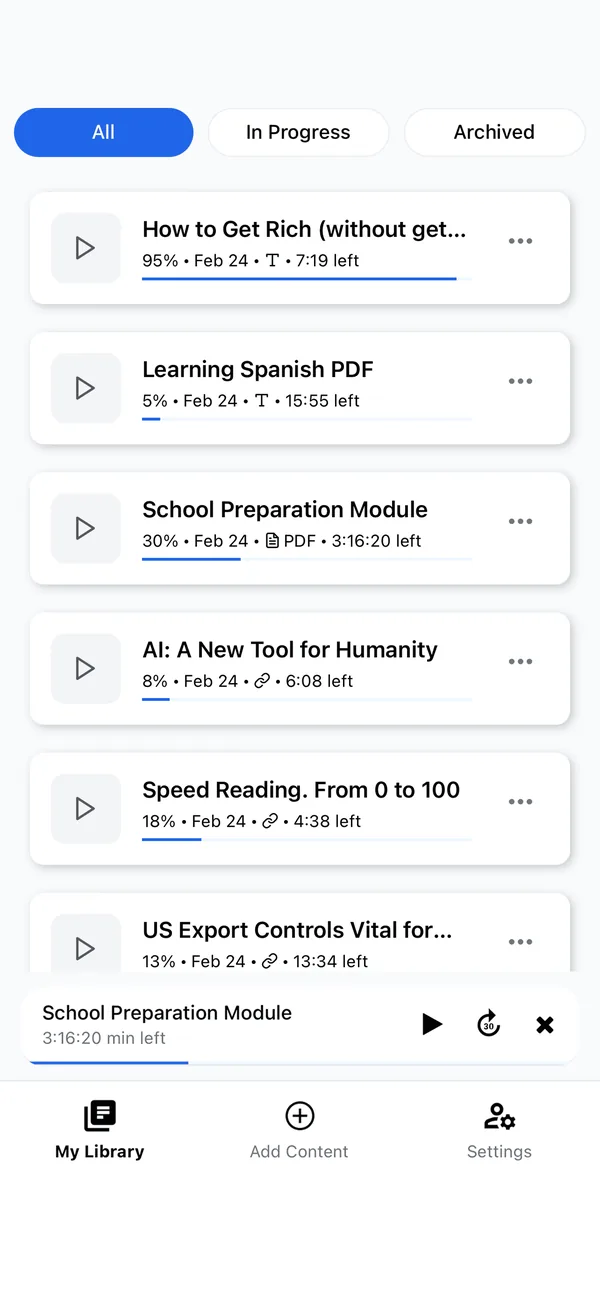
The embedded audio is a published Frateca sample, not an independent cross-vendor benchmark. The screenshot shows the surrounding reader interface. Use both to understand the product, then repeat the test elsewhere with exactly the same passage.
Choose the system around the job
For an occasional webpage, the browser or operating system may already be enough. For accessible computer navigation, use and configure a proper screen reader. For a document queue, prioritize extraction, OCR, navigation and privacy as well as voice quality. For public voice-over production, investigate licensing and consent.
Text-to-speech is the speech layer, not the entire experience. Once that distinction is clear, product claims become easier to evaluate. You can try Frateca free with the disclosed difficult-text test, or compare alternatives in the best text-to-speech apps.
Stop reading. Start listening.
Frateca turns PDFs, articles, textbooks and web pages into natural audio you can play anywhere — on your commute, at the gym, or while you cook. Free plan included, no card required.
Try Frateca free →iOS · Android · Web · Free plan, no credit card required